
Testing Claude in Chrome: A Non-Engineer PM’s Honest, Hands-On Review


Hi! I’m Rinako from Rimo llc., where I lead our global expansion and product-led growth (PLG).
At Rimo, one of our quarterly evaluation criteria is: how much of your work you managed to replace with AI. So when I heard about Claude in Chrome, I had this small hope: “Maybe this could help me boost my results this quarter…!”
I ended up testing it seriously for about two weeks. And now that the pros and cons are much clearer, I want to share what I built and how it actually felt to use.
First: What Makes It Different from Other Tools?
The biggest difference is this: without any complex setup, Claude can directly access and operate tools that require you to be logged in.
Maybe there are other tools that can do something similar with enough configuration (or if you ignore security concerns). But in my experience, Claude in Chrome is uniquely strong at things like this:
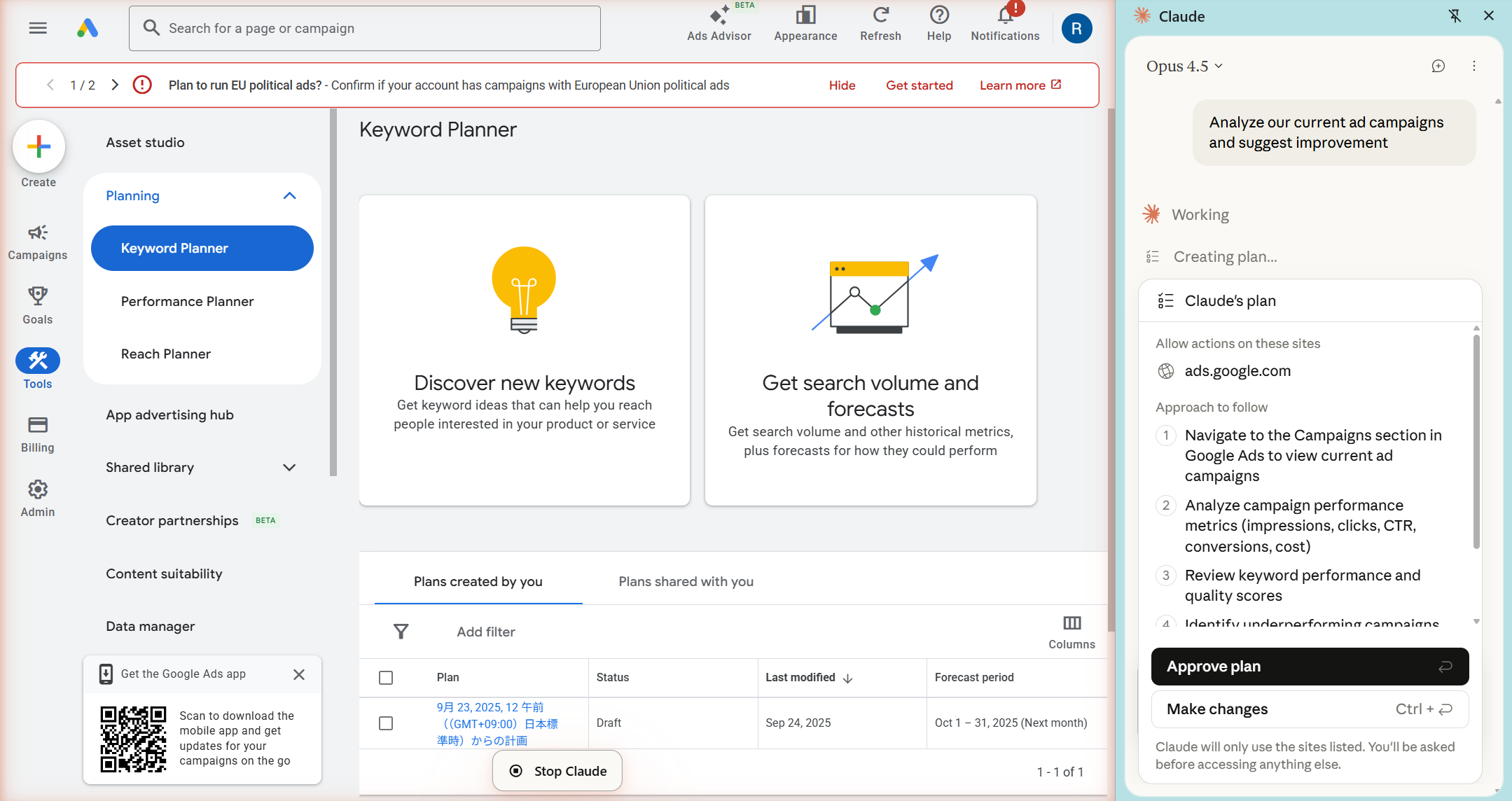
You can simply say, “Analyze our current ad campaigns and suggest improvements,” and it will:
access your Google Ads account on its own,
investigate what’s going on,
and even operate the Google Ads UI to set up campaigns directly.
That “hands-on operation inside logged-in tools” is what makes Claude in Chrome stand out.
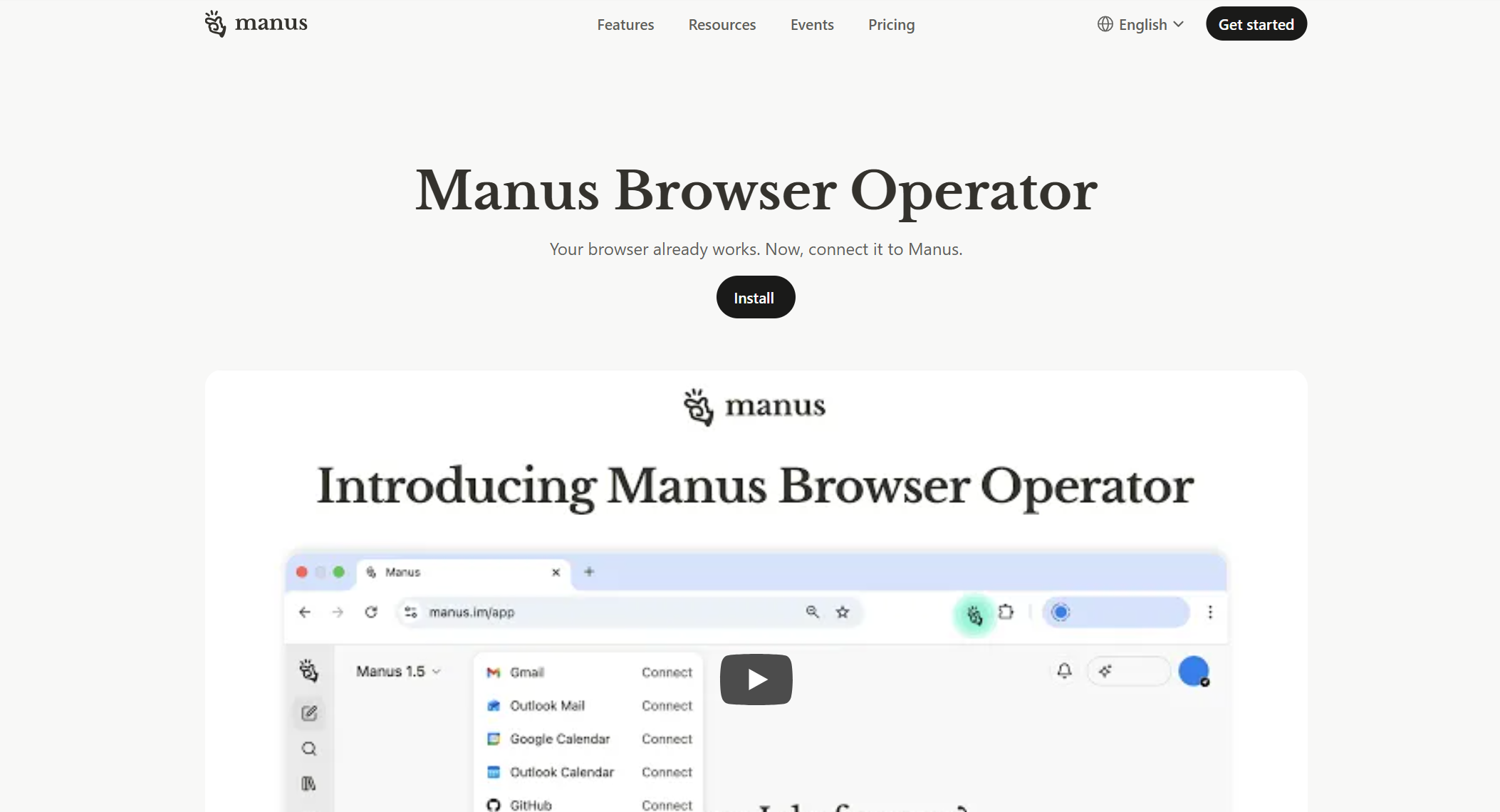
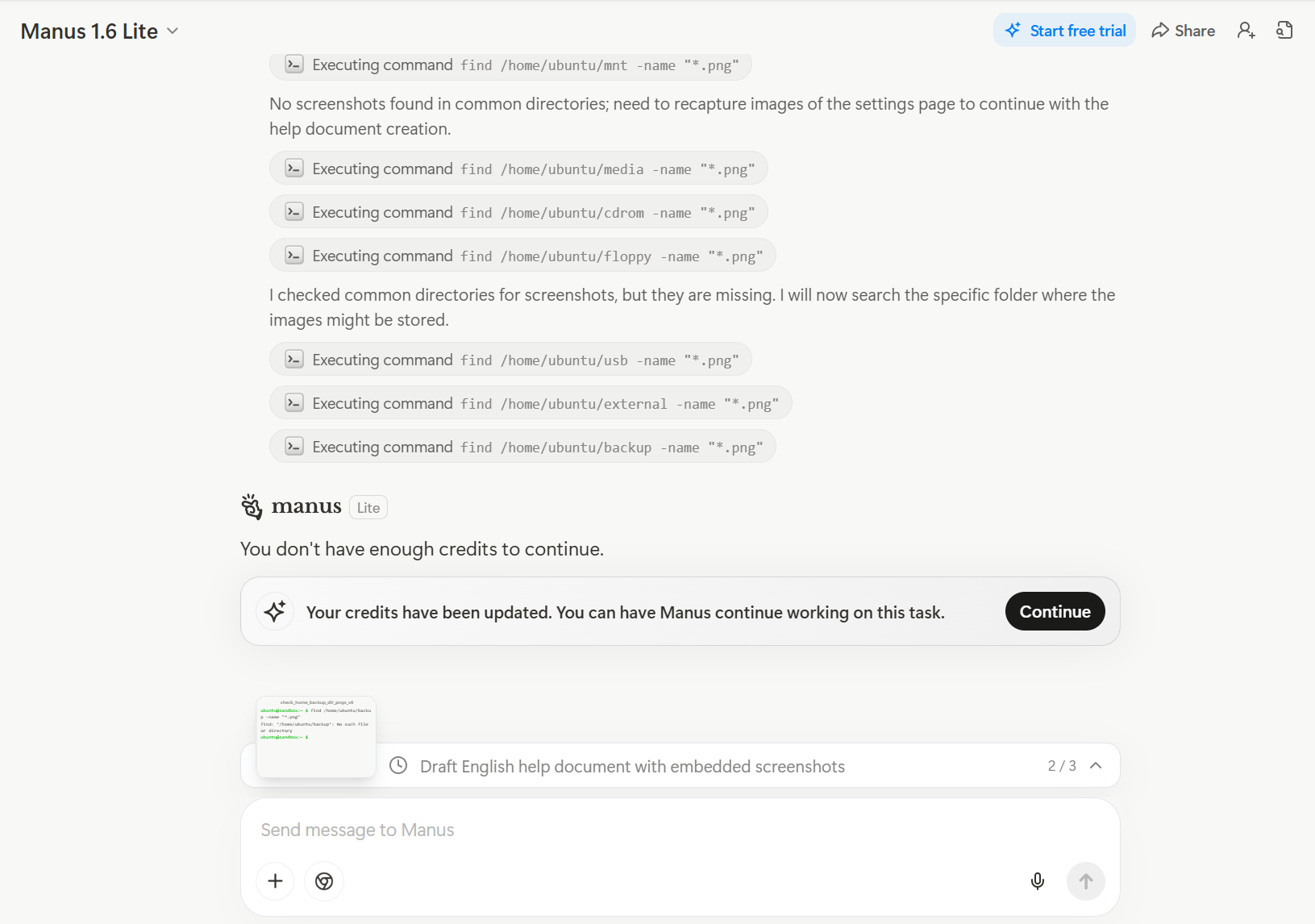
Manus Browser Operator looks like it can do something similar, but when I tried the free tier, the output wasn’t great—and I ran out of credits before I could push it further. So I focused mainly on Claude, which also felt more reassuring from a security standpoint.
Task 1: Help Center Documentation → Rating: ★★☆☆☆ (Fair)
The first thing I tried was creating help center articles for Rimo Voice.
It’s a simple task on the surface, but it involves a bunch of steps:
summarizing product specs in a way that’s easy for users to understand,
taking the right screenshots and placing them in the doc,
and updating Intercom (the tool we use to publish and maintain our help center).
It’s surprisingly time-consuming, and screenshot collection is especially hard to automate—so I was hoping Claude in Chrome (with access to logged-in tools) would solve it.
…but the result was honestly pretty underwhelming.
Below are the results from each model.
Note: Ideally I wanted Claude to update Intercom directly, but it seemed to struggle with the Intercom editor—so I had it output to Google Docs instead.
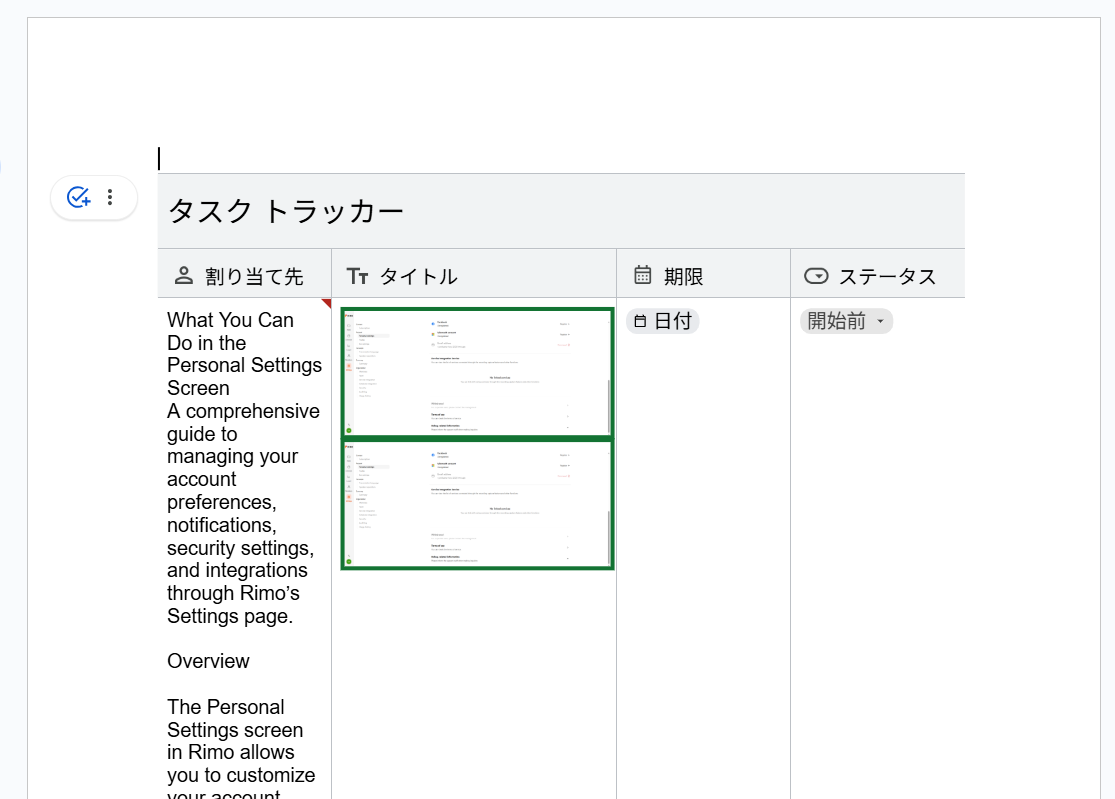
Haiku 4.5: Screenshots are included, but it somehow turns into a table-format update and becomes hard to read
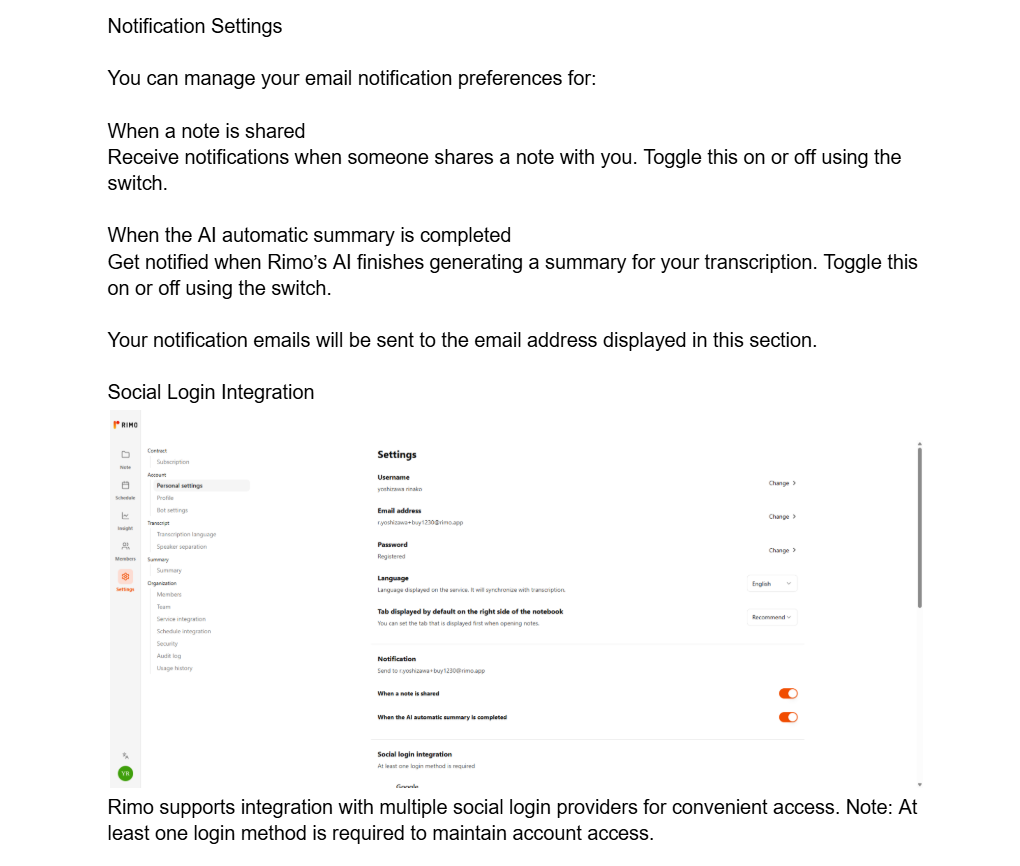
Sonnet 4.5: The structure is correct, but the screenshot placement feels awkward
Opus 4.5: Much better— but it takes way too long (it took around 2 hours)
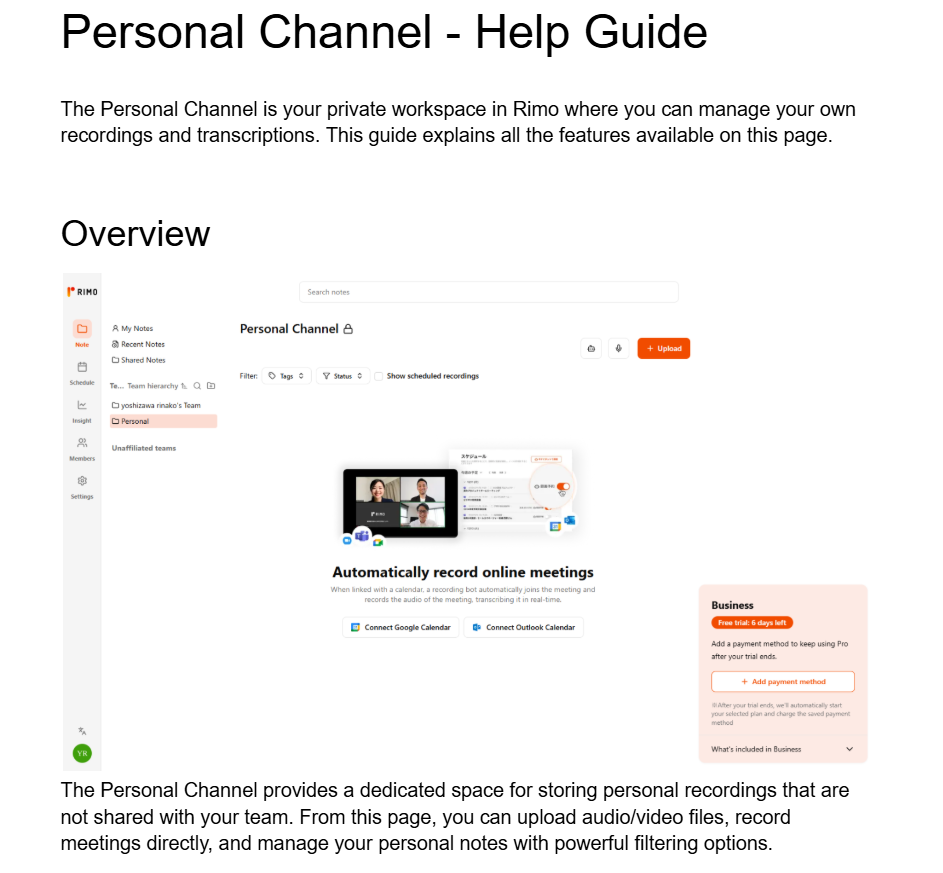
This wasn’t a perfectly fair comparison (I added “while actually using the product” to the instruction), but Opus did a much better job staying aligned with the context.
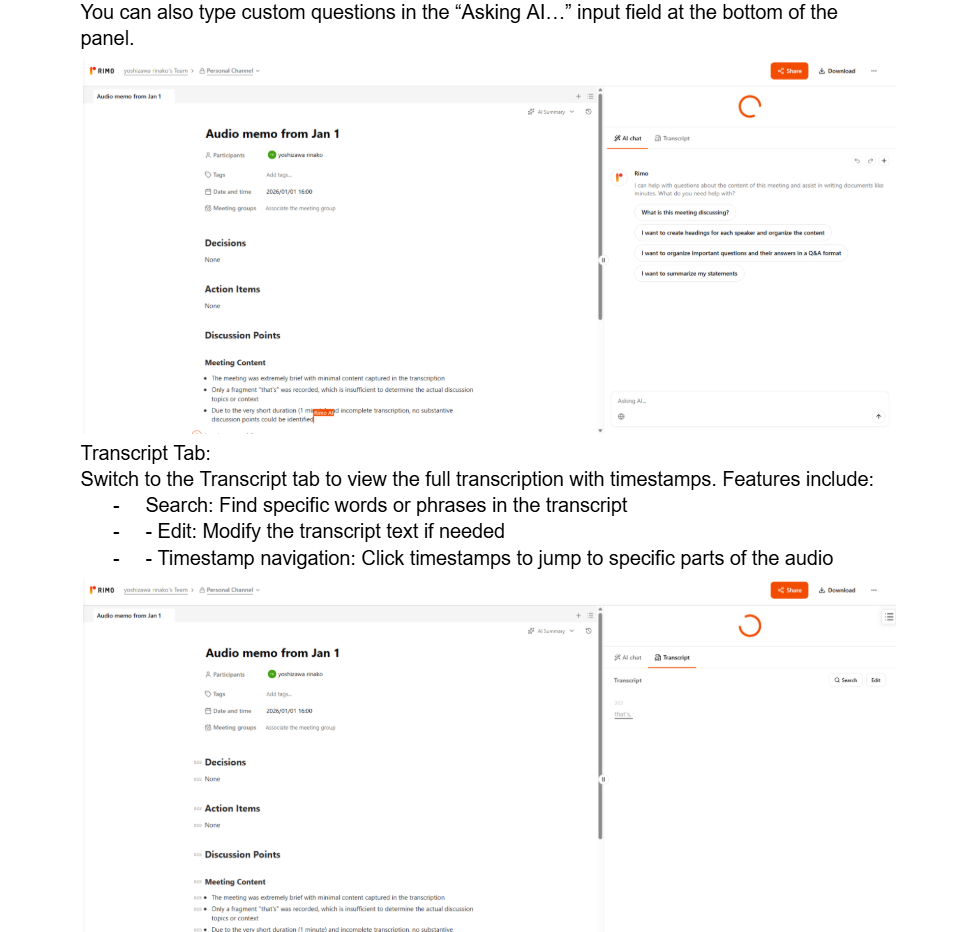
With some iteration, it might be possible to get closer to an “ideal” help page. But in the end:
Someone still has to move the content into Intercom anyway.
A page that would take a human ~10 minutes took Claude ~2 hours (and still had rough edges).
So I decided not to rely on Claude for help docs—for now.
Task 2: Setting Up Google Ads Campaigns → Rating: ★★★★☆ (Good)
Next, I asked Claude to set up Google Ads campaigns.
Context
I wanted to launch English ads for the U.S. market, but I’m Japanese and not a native English speaker, so I rely heavily on AI for English phrasing.
I could research competitor copy and keywords using Semrush.
I’ve used Google Ads a few times before, but I don’t set up campaigns often—so it takes me a while, and it’s mentally heavy to get started.
What I asked Claude to do
Based on my Semrush keyword list, design the campaign structure and a budget plan.
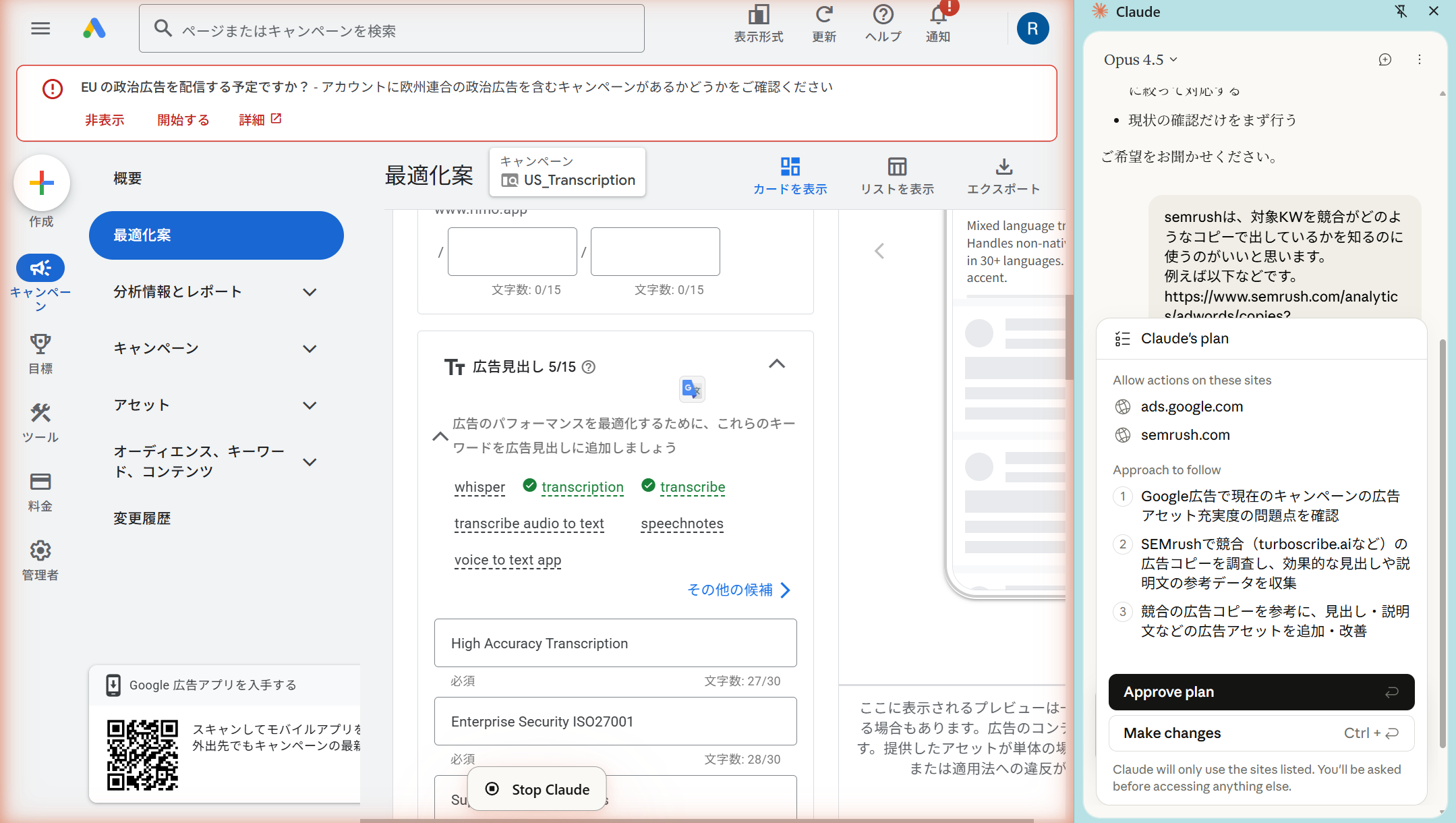
Then actually configure the campaigns inside Google Ads, using competitor copy/keywords as reference. (I didn’t give detailed constraints like exact headline counts or messaging rules.)
Result
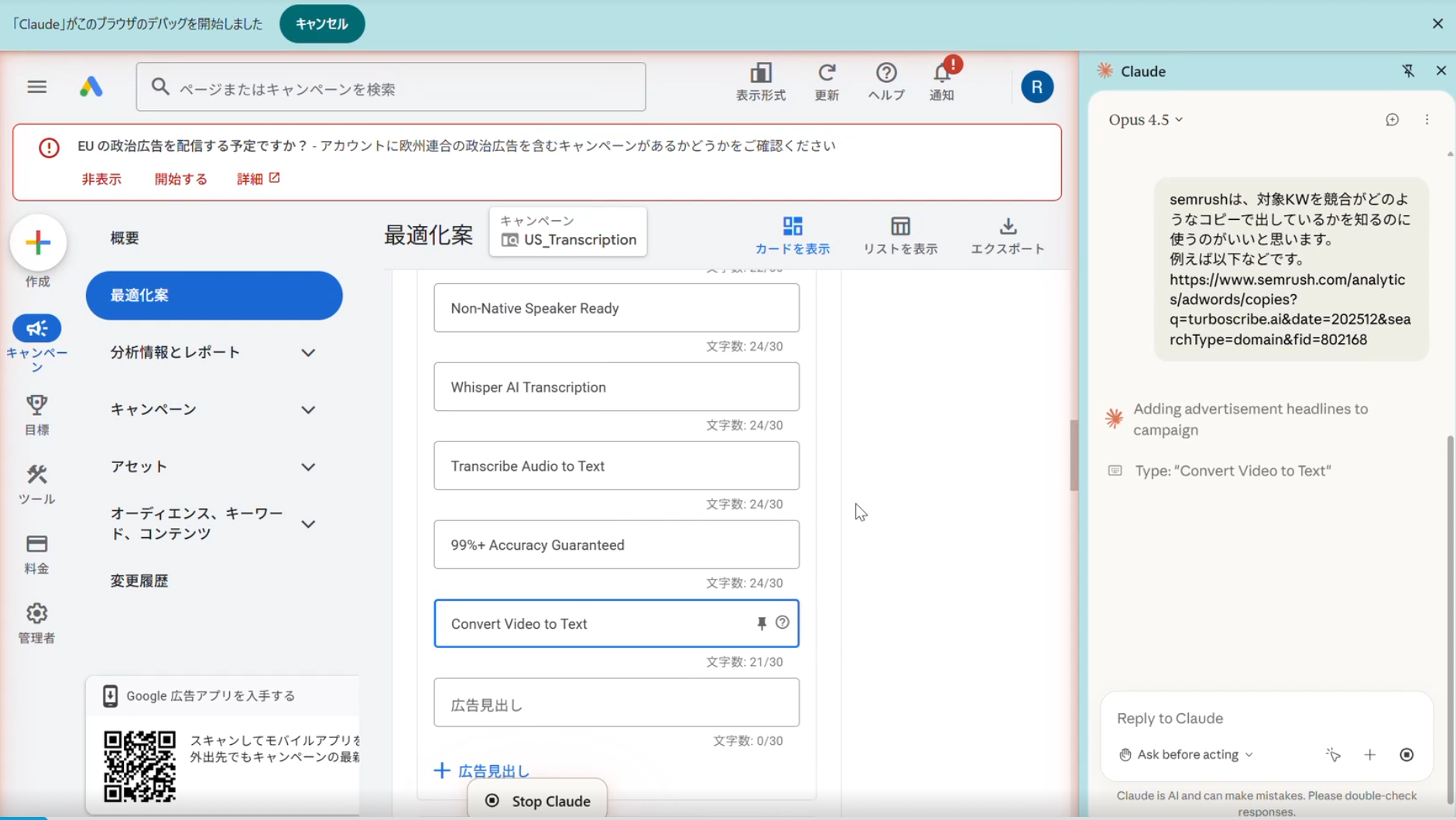
Claude was able to operate Google Ads without issues. It set up the four campaigns it originally proposed, and it also generated headlines and ad copy along the way.
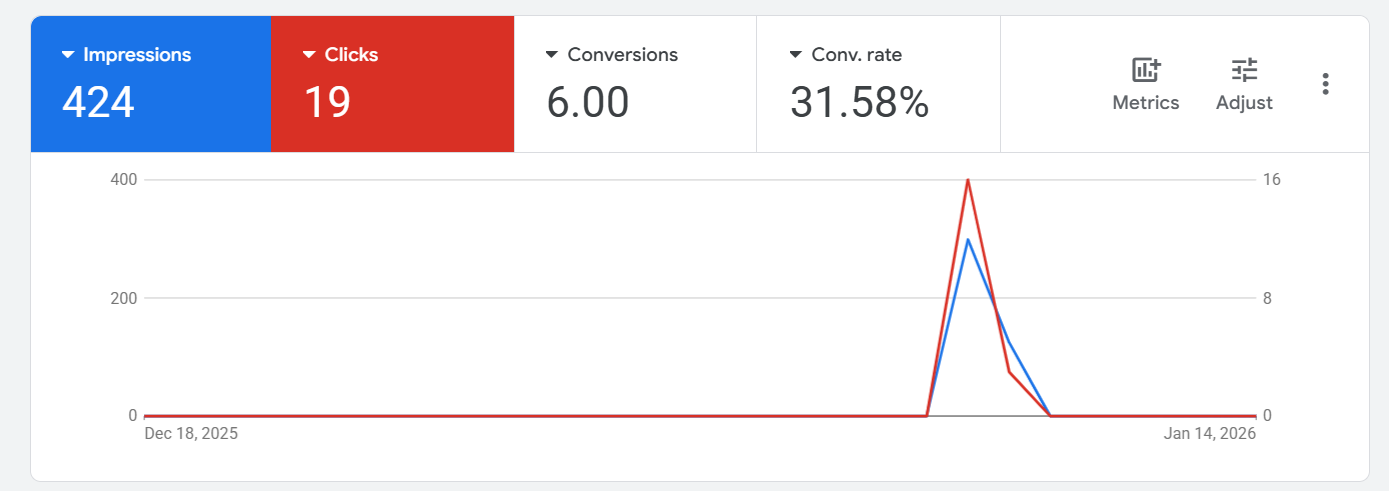
As a quick test, I ran one of the campaigns with Claude’s settings for a few hours—and the conversion rate looked surprisingly strong. (It may have been early “lucky” performance, but still.)
In the end, I still made manual adjustments before fully launching. But the fact that I could “hand it off,” do other work, and come back to a setup that was already ~60–70% complete after about two hours was personally a very satisfying experience.
Because this was for English ads, I also ended up reusing around 70–80% of the headlines and copy Claude wrote.
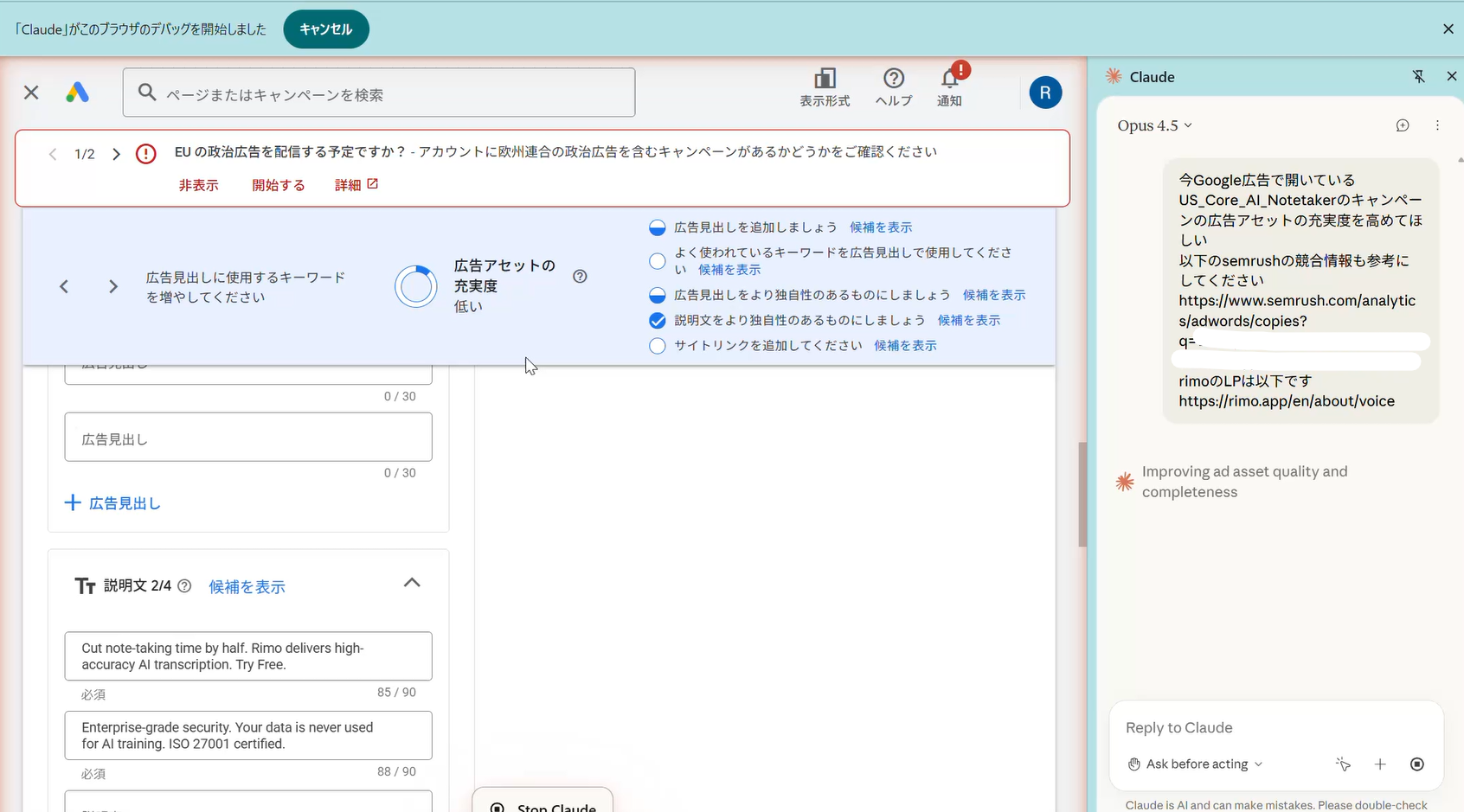
One small note: if you just say “Set up a campaign,” Claude tends to create too few headlines and the asset strength stays low. But once I followed up with something like “Use the Semrush data and increase asset coverage,” it added more keywords and made the setup much more complete.
Task 3: Building a Looker Dashboard → Rating: ★★★★★ (Excellent)
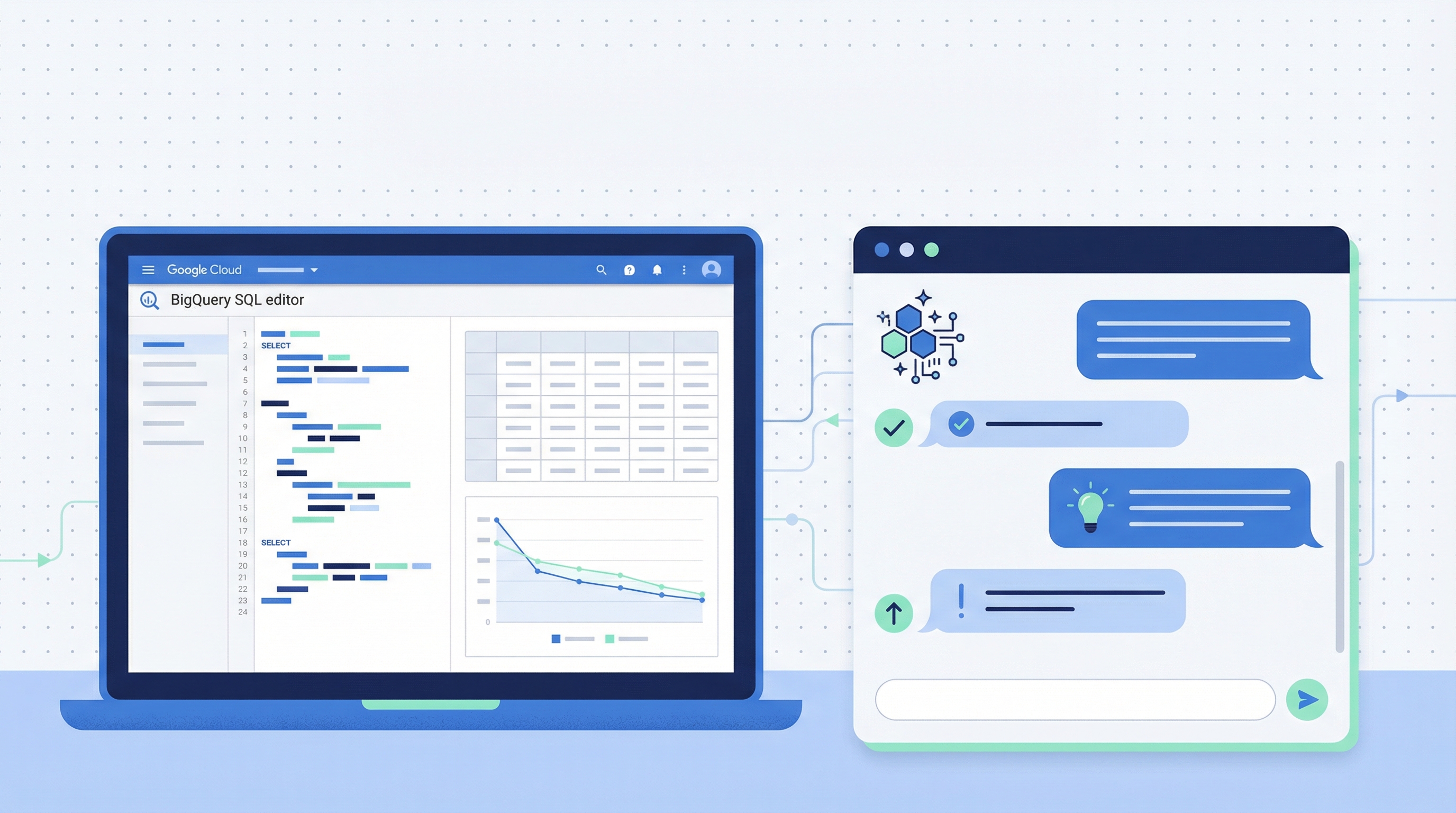
Finally, I asked Claude to create a Looker dashboard from data stored (somewhere) in BigQuery.
Here’s the dashboard it produced. (I double-checked the numbers using another tool to confirm they were accurate.)
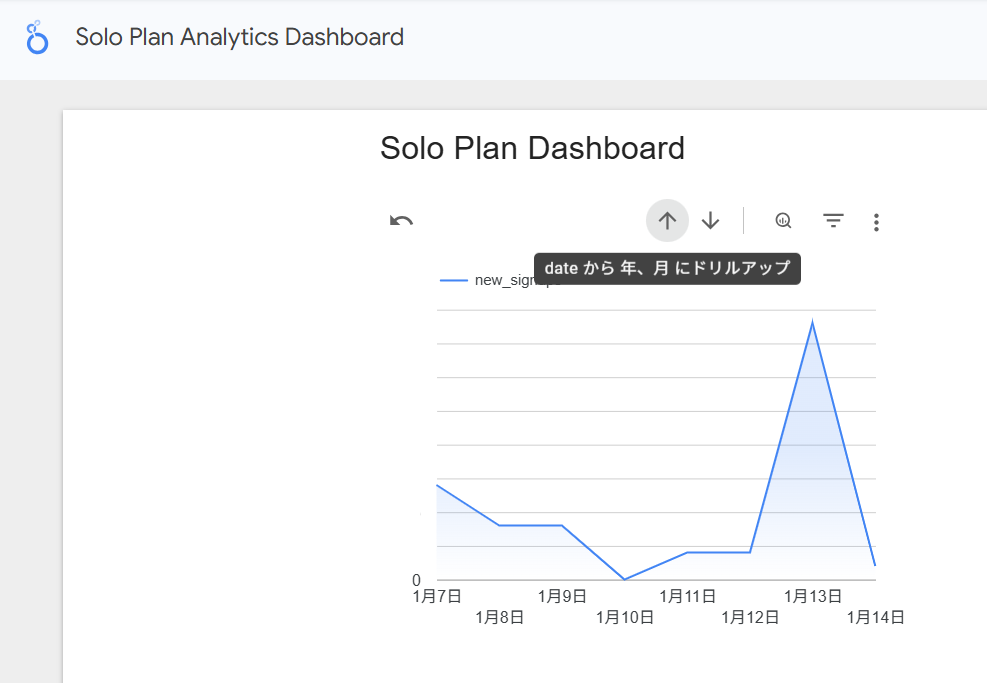
It’s a simple dashboard, but it was still a great experience because:
I had no idea which BigQuery tables contained the data I needed, or what SQL would extract it.
I also didn’t know how to connect BigQuery to Looker and visualize it properly.
And yet, I could just ask:
“Please pull the time-series data for new sign-ups to the Solo plan from BigQuery, and build a Looker dashboard.”
…and it actually delivered.
That said, it felt like Claude spent 30 minutes to an hour just figuring out the table structure. If you already know which tables you need, it’s probably worth telling it upfront.
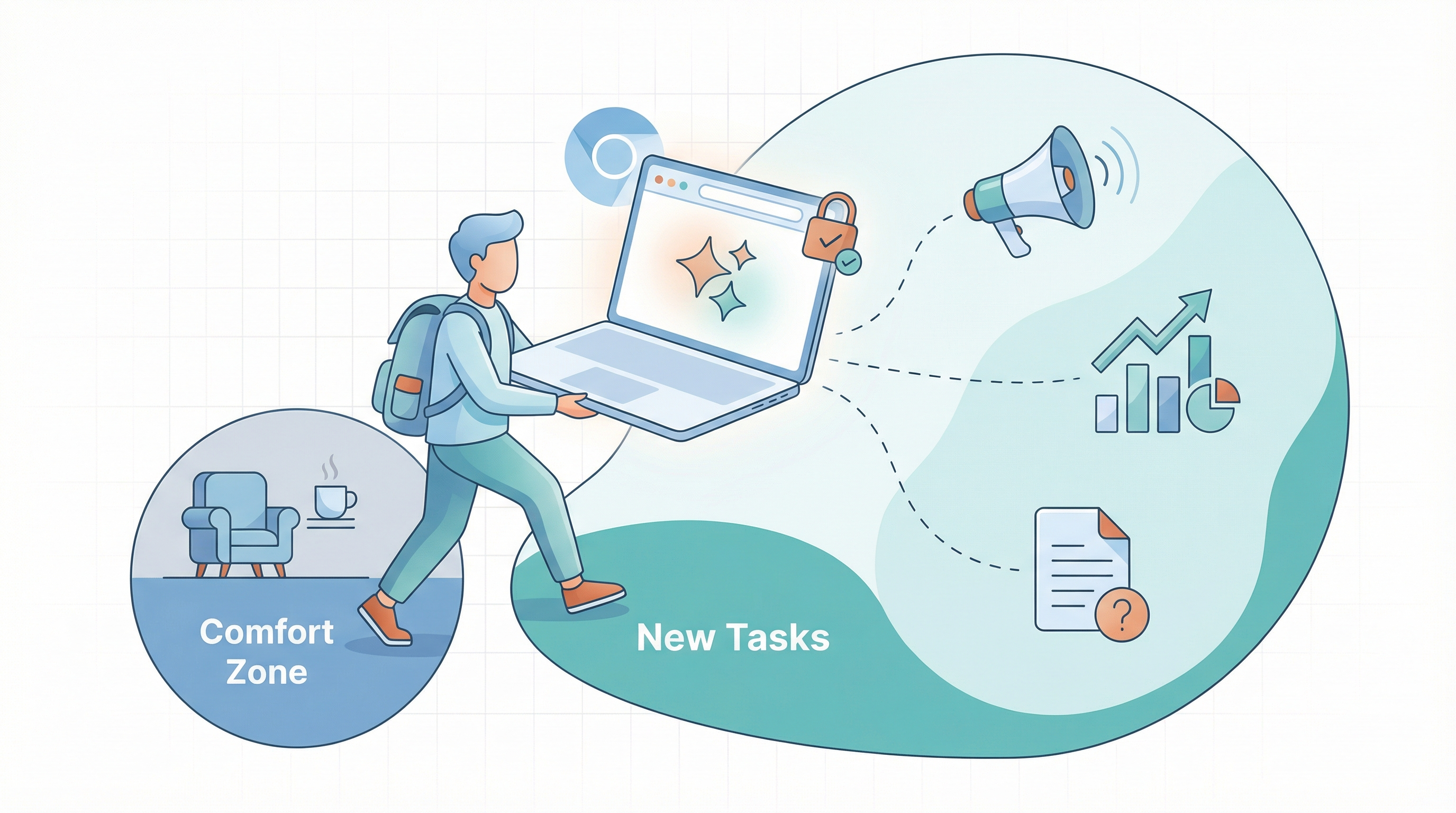
Conclusion: Claude in Chrome Is Best for Tasks Outside Your Comfort Zone
The ratings I've shared here reflect my personal experience—your mileage may vary.
- If you're already an expert in Looker or Google Ads, you might rate Claude lower.
- If you’re not used to writing manuals or building help docs, you might find Claude’s output more than good enough.
Here's my takeaway: Claude in Chrome currently requires significant time to execute (anywhere from 30 minutes to 2 hours), and output quality varies by task.
This makes it less valuable for tasks you already do expertly—and more valuable for unfamiliar work that would normally require reading documentation as you go.
I'll keep experimenting with it, so stay tuned for more updates!
Related articles
Return to List