
Notion AI Meeting Notes Review: Pricing, Free Trial, and AI Agent


We’ve all been there: a 60-minute Zoom call ends, you look at your blank notepad, and realize you were too busy nodding to actually write anything down. Usually, this is followed by the "dreaded replay"—scrubbing through a recording just to find that one specific action item.
Enter Notion AI Meeting Notes. Rather than relying on external participants to join your calls, Notion has integrated meeting intelligence directly into its workspace. But is it just a powerful transcript tool, or can it truly automate your post-meeting workflow? In this review, we’ll break down its features, the true cost, and how it stacks up against the leading AI meeting solutions on the market.
What Is Notion AI Meeting Notes?
Notion AI is already well-known for its versatile toolkit—helping users with writing, Q&A, translation, and page summarization. However, Meeting Notes isn't just another AI prompt; it’s a dedicated, standalone module built specifically to handle the unique demands of live discussions.
What sets it apart? Unlike many tools that require an AI bot to "join" your call, Notion captures audio directly through its desktop app (and mobile). This means no extra participants on your screen and a much smoother setup for both online and in-person meetings. Let’s dive into the core features that make this module a powerful addition to your workspace.
Real-Time Transcription
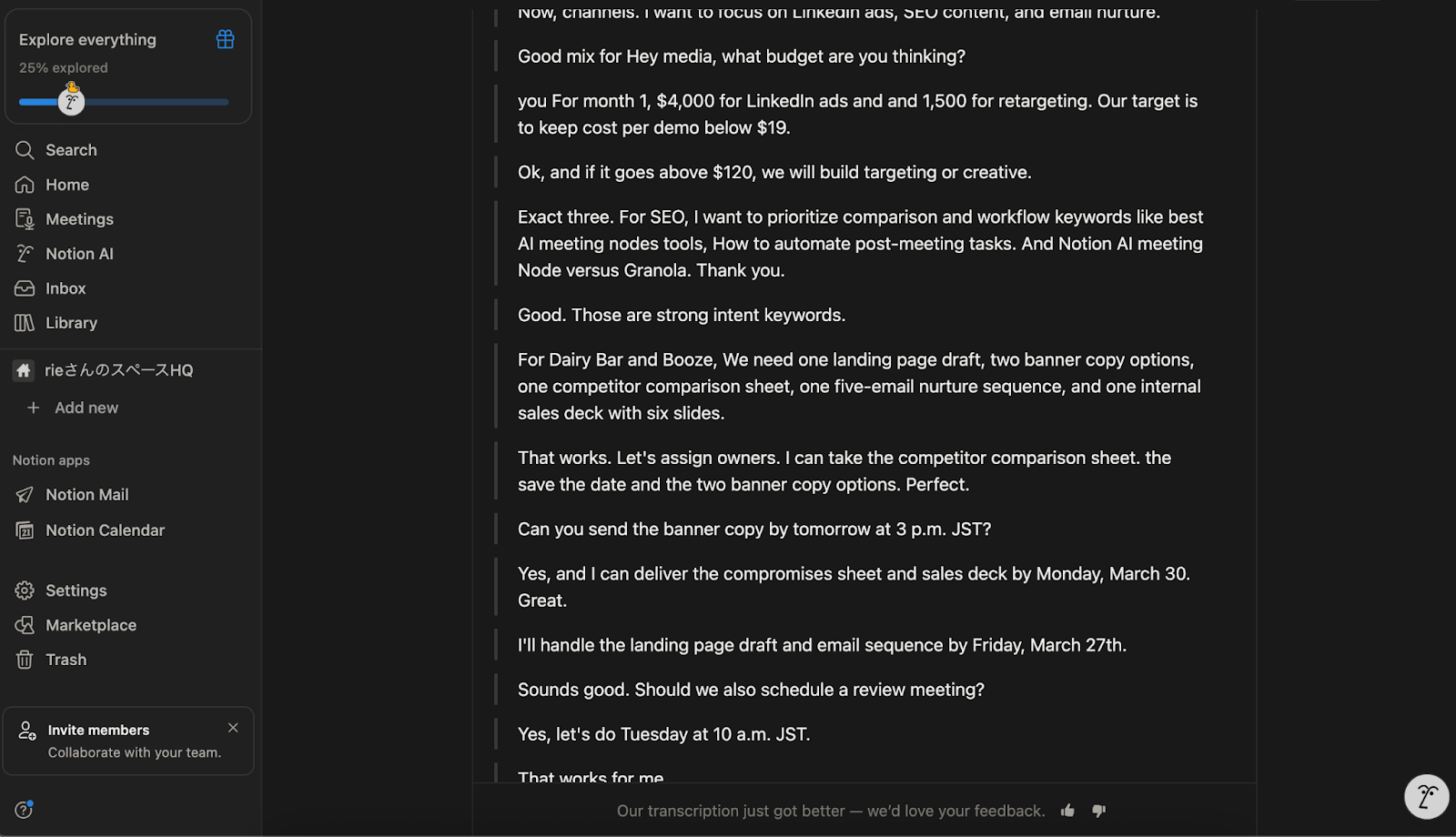
The moment you start a meeting, the Notion desktop app goes to work, capturing both your microphone and system audio. This dual-stream capture allows it to accurately record everyone on the call, supporting 16 different languages, including English and Japanese.
As you speak, you’ll see the text flow onto the page in real-time. It’s an impressive experience that lets you stay present in the conversation, knowing the record is being handled. One thing to note: currently, it does not feature Speaker Identification (Speaker ID). While it captures every word, it won't automatically label who said what—a detail we’ll explore further when comparing it to other specialized tools later.
Auto Summary & Action Items
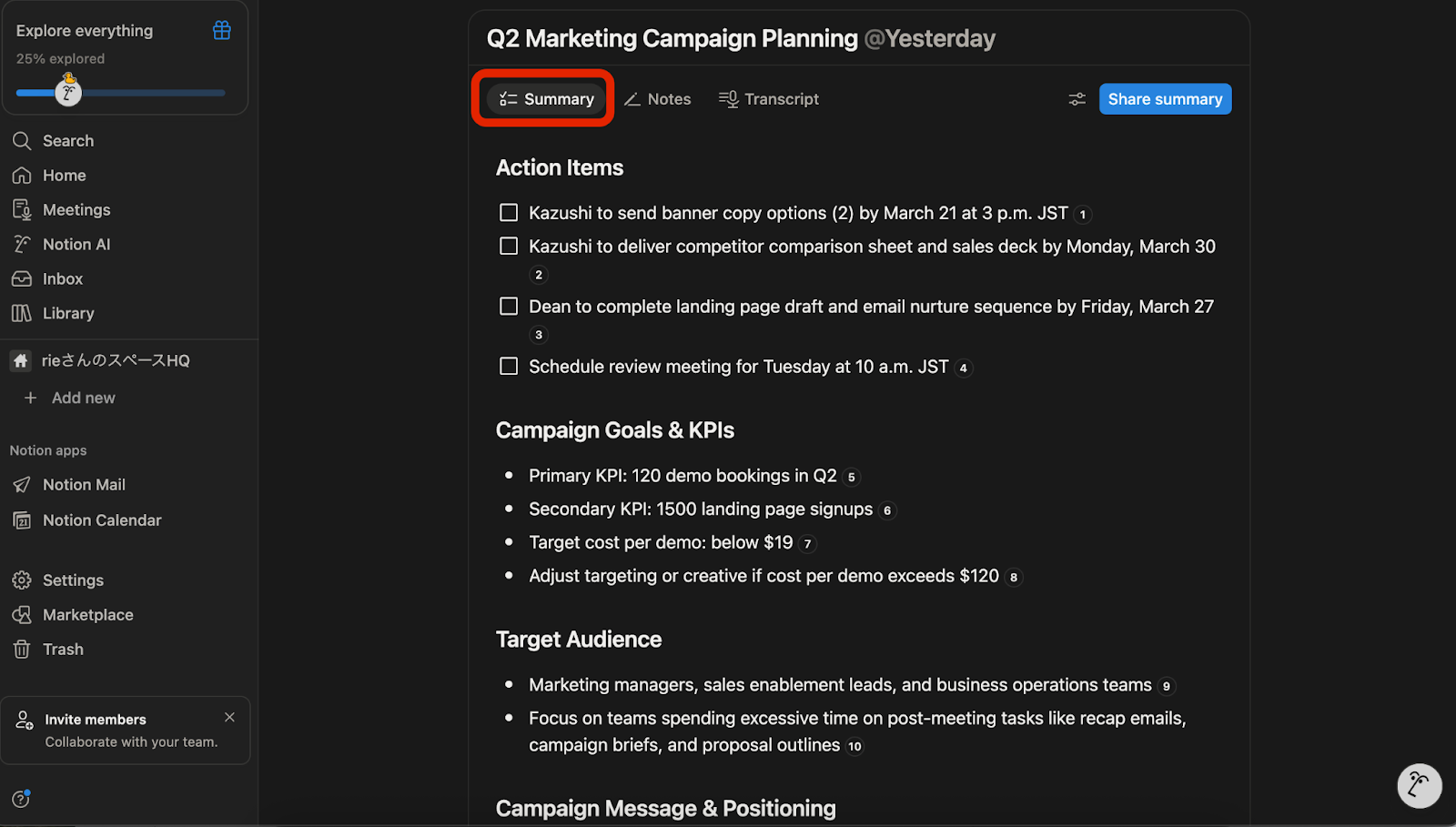
Once the "Stop" button is pressed, the real magic happens. With a single click, Notion AI processes the transcript into a highly structured summary. You can choose from various templates—such as Sales, Stand-ups, or Team Meetings—to ensure the layout fits your needs.
The AI doesn't just summarize; it intelligently extracts Action Items. For example, if you say, "Sarah, please update the project timeline," the AI identifies this as a task and can even @-mention Sarah automatically. Since these summaries are saved as Notion pages, they are instantly searchable across your entire workspace, making it easy for the whole team to stay aligned.
Calendar Integration & Workspace Sync
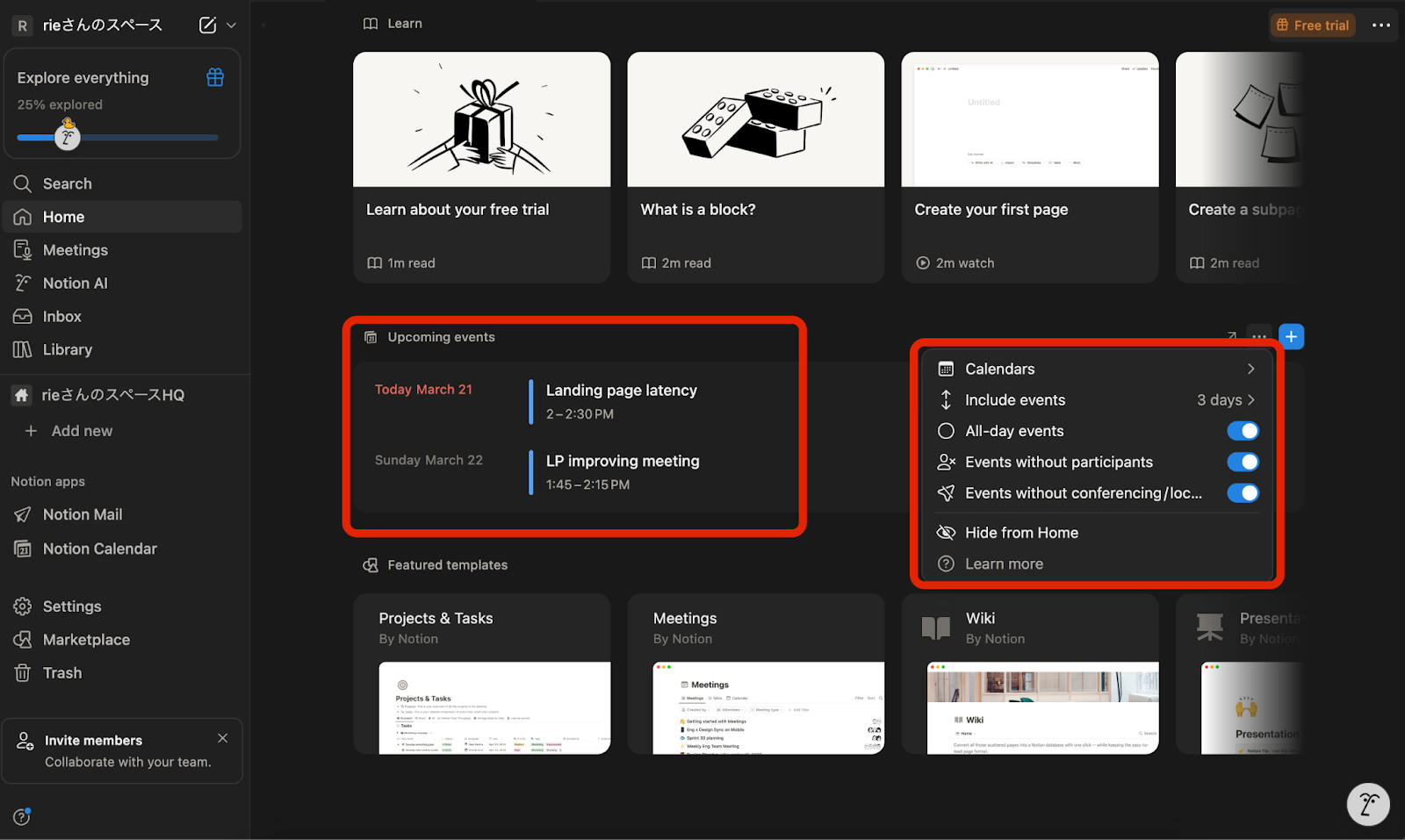
This is perhaps the strongest reason to choose Notion for your notes. Through integration with Notion Calendar, your meeting notes are automatically linked to your scheduled events. If you’ve already drafted an agenda on the page, the AI will use that context to sharpen the accuracy of its final summary.
Unlike other tools where meeting data lives in an isolated third-party silo, Notion AMN keeps everything within your existing ecosystem. You can link meeting notes directly to Project or Task databases. This ensures that the record of a meeting isn't just a dead document, but a living part of your professional workflow—a level of integration that is difficult to find elsewhere.
Notion AI Meeting Notes Pricing: Is It Free, and How Much Does It Cost?
If you’re wondering whether Notion AI Meeting Notes is free, the short answer is no. While Notion has a Free plan and limited AI access on lower tiers, AI Meeting Notes is available on the Business and Enterprise plans.
That means you can try Notion itself without paying, but if you want built-in meeting transcription and AI-generated notes as part of your team workflow, you’ll need a higher-tier plan. For teams already using Notion every day, that may feel reasonable. For teams just looking for a meeting recorder, it can feel like a bigger investment.
Pricing plans at a glance (Free / Plus / Business / Enterprise)
Here’s the simple version of Notion’s pricing for teams considering AI Meeting Notes.
Plan | Monthly (per user) | Annual (per user) | Meeting Notes Access |
Free | $0 | $0 | Not Available |
Plus | $10 | $8 | Not Available |
Business | $20 | $15 | Full Access Included |
Enterprise | Custom | Custom | Full Access Included |
※All pricing information is current as of March 2026. To ensure you have the most accurate and up-to-date details, we strongly recommend checking them before making a purchase.
Is Notion AI Meeting Notes free? Free trial details and limits
Notion AI Meeting Notes is not available on the Free plan. To use it, you need the Business plan. As of March 2026, Notion offers a 30-day Business trial, and AI Meeting Notes can be used during that period with a daily limit of 10 hours per user.
To start the trial, credit card details are required. The trial also renews automatically unless you cancel before it ends. If you cancel in time, your workspace returns to the Free plan, and new meetings will no longer be transcribed.
Is Notion AI Meeting Notes worth the price?
The honest answer depends on how your team already works.
If you're already using Notion as your primary workspace, upgrading to Business is a straightforward call. At $15/user/month, you're not just paying for meeting notes — you're getting the full Business feature set, including advanced permissions, SAML SSO, and Notion's AI agent capabilities. Replacing a standalone meeting tool like Otter.ai or Fireflies with something that lives natively inside your existing workflow is a genuine consolidation win.
If your team doesn't use Notion yet, the math looks different. Adopting an entirely new workspace platform just to get AI meeting notes is a significant lift — both in cost and in the time it takes to migrate and onboard your team. In that case, a purpose-built tool might serve you better, at least in the short term.
The bottom line: AI Meeting Notes is priced as part of a broader platform, not as a standalone product. Whether that's a feature or a limitation depends entirely on where Notion already fits in your stack.
Notion AI vs. Granola, Fireflies, Otter.ai, Fathom and Rimo Voice
To compare these tools as fairly as possible, we ran the same recorded meeting through all six simultaneously. Rather than testing each tool in isolation with different inputs, every result in this comparison — transcription, summary, action item extraction, and post-meeting automation — comes from a single shared source.
Our demo test setup: the same 5-minute mock meeting, six tools
The meeting itself was a 5-minute mock business discussion conducted in English, designed to reflect the conditions that most commonly expose differences between AI meeting tools. Specifically, it included:
・Multiple speakers — two participants with distinct speaking styles and pacing and occasional phrasing irregularities and deadline-heavy discussion due dates embedded in natural conversation |
We evaluated each tool across five dimensions: transcription accuracy, speaker identification, summary quality, action item extraction, and post-meeting task execution. The goal was not to find a single winner across all categories, but to surface where each tool genuinely excels — and where the gaps matter most depending on how your team works.
Transcription accuracy & speaker identification
In this section, we compared how accurately each tool transcribed the same 5-minute conversation and how well it handled speaker separation. We paid special attention to numbers, deadlines, marketing terms, and proper nouns, since those were the areas most likely to expose meaningful differences between tools.
Tool | Accuracy Score | Speaker ID | Numbers & Dates | Proper Nouns / Keywords | Quick Take |
Notion AI Meeting Notes | Good 86.8% (context understanding:91%) | - | Excellent (100%) | Good | Captured the overall structure well, but several names and headline-level phrases needed cleanup. |
Granola | Fair 84.7% (context understanding:90%) | - | Strong (90%) | Limited | Preserved the broad flow of the meeting, but names, keywords, and several high-visibility lines needed substantial cleanup. |
Fireflies | Good 87.6% (context understanding:89%) | Good | Excellent (100%) | Good | Good speaker separation and strong numerical accuracy, though keyword-level phrasing was less consistent |
Fair 85.9% (context understanding:76%) | Fair | Strong (90%) | Limited | Usable for general understanding, but product names, headline phrases, and some key details needed manual correction. | |
Fathom | Good 88.3% (context understanding:89%) | Good | Strong (90%) | Limited | Preserved the structure and intent of the discussion well, though some branded terms and keyword-heavy lines were less consistent. |
Rimo Voice | Excellent 91% (context understanding:95%) | Fair | Excellent (100%) | Good | Strong on numbers and dates, but less consistent on names and headline-level phrases |
Notion AI Meeting Notes:
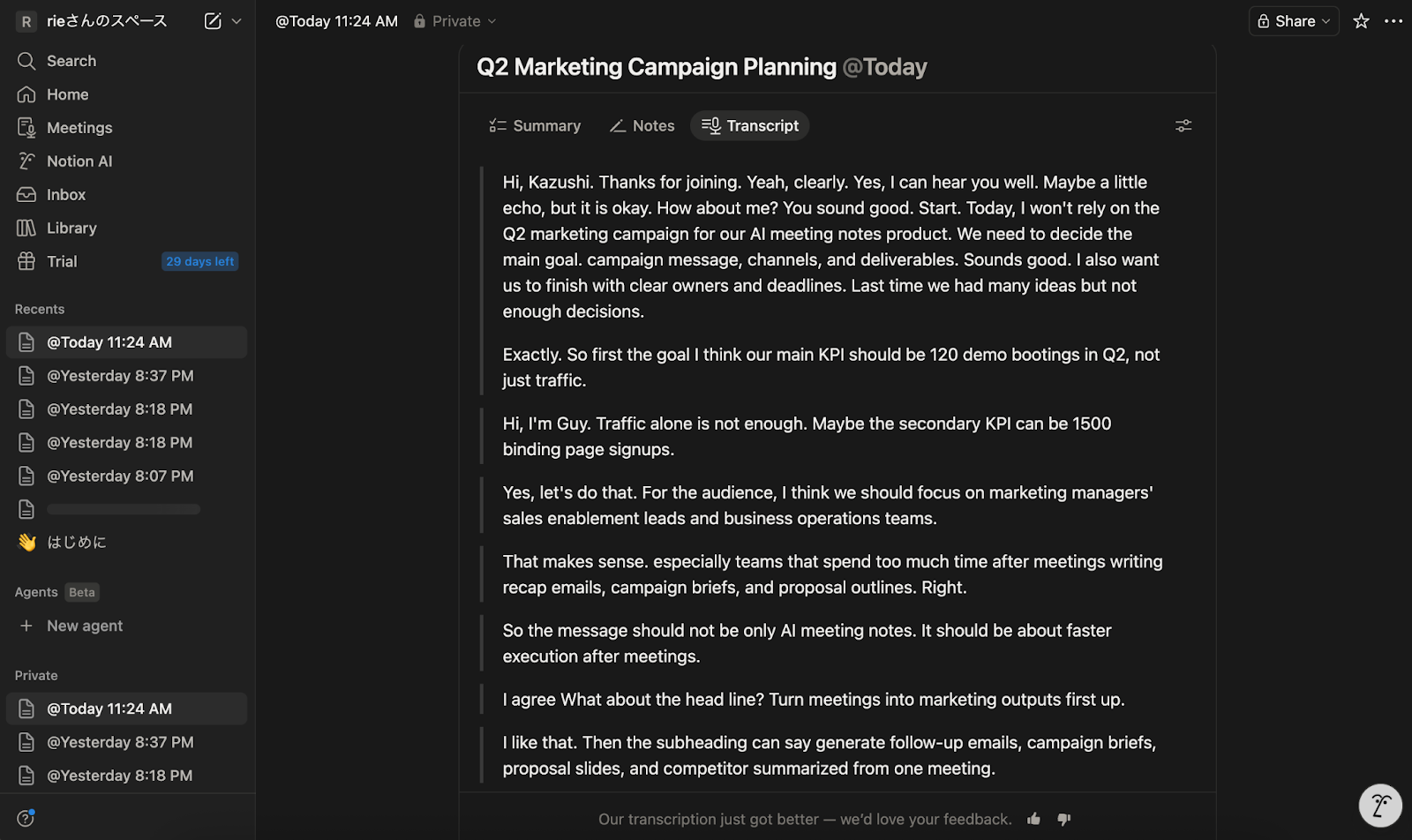
Notion AI Meeting Notes captured the overall structure of the conversation well and remained readable enough for general follow-up. However, it does not support speaker separation, which makes it less suitable for cases where you need to confirm exactly who said what, even though numbers and dates were handled accurately.
Granola:
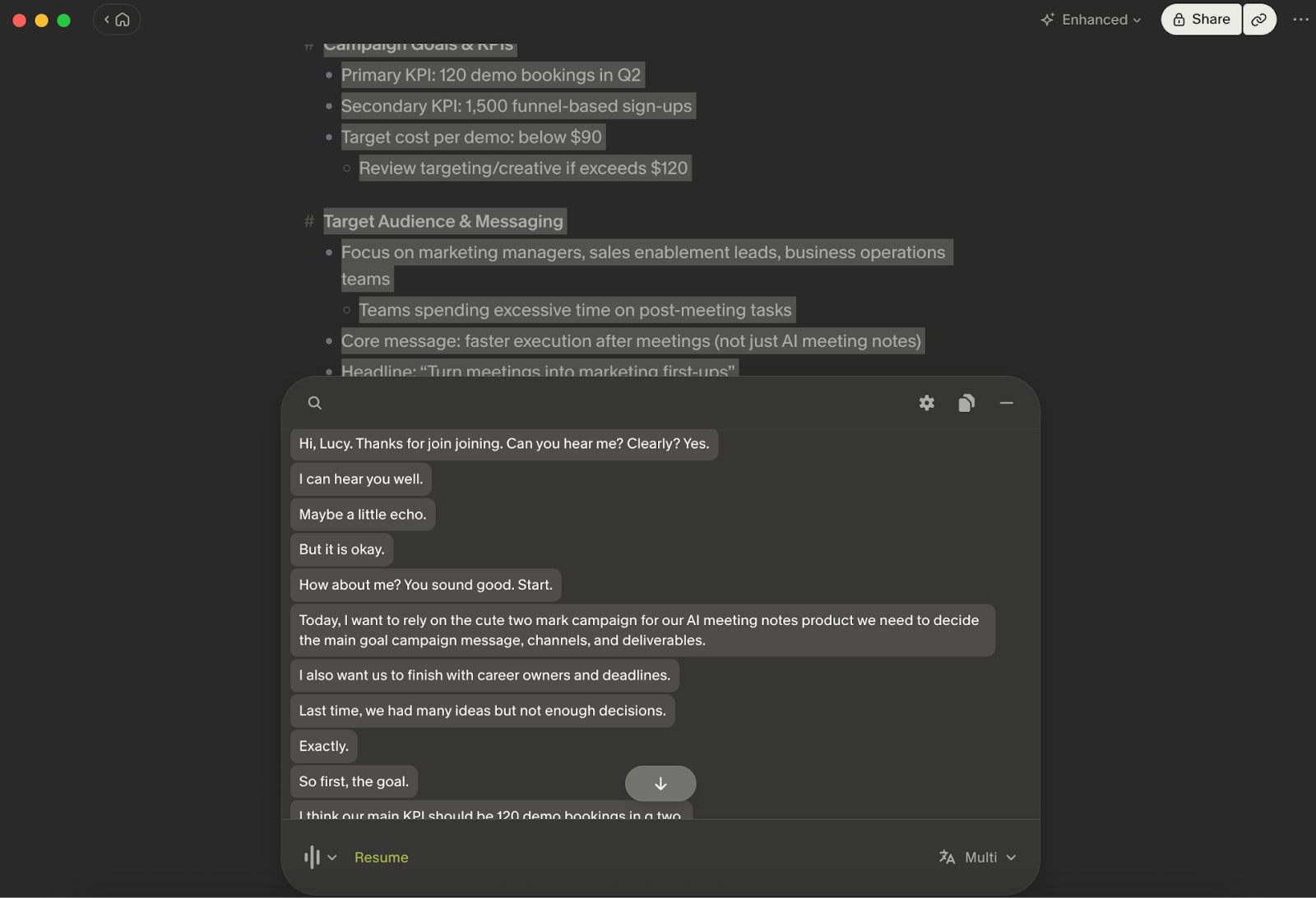
Granola preserved the broad flow of the meeting and did a reasonably good job capturing the overall intent of the discussion. However, names, keyword-heavy phrases, and several high-visibility lines were less reliable, so the transcript needed substantial cleanup before it could serve as a dependable written record.
Fireflies:
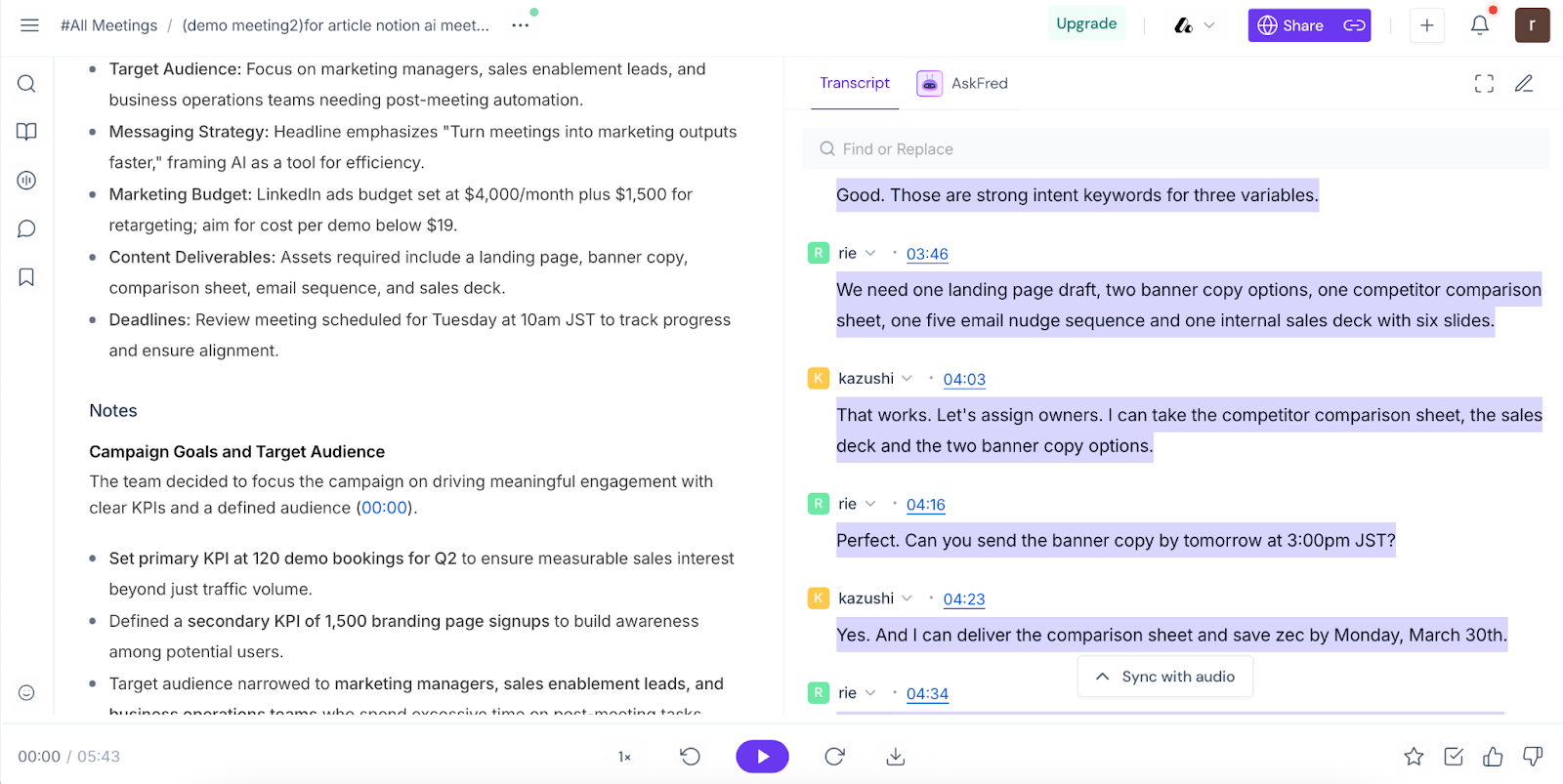
Fireflies handled speaker separation well enough to keep the conversation easy to follow, which helped preserve the structure of the meeting. Its weaker points were not speaker turns, but phrasing-level errors around keywords, names, and a few high-visibility lines.
Otter.ai:
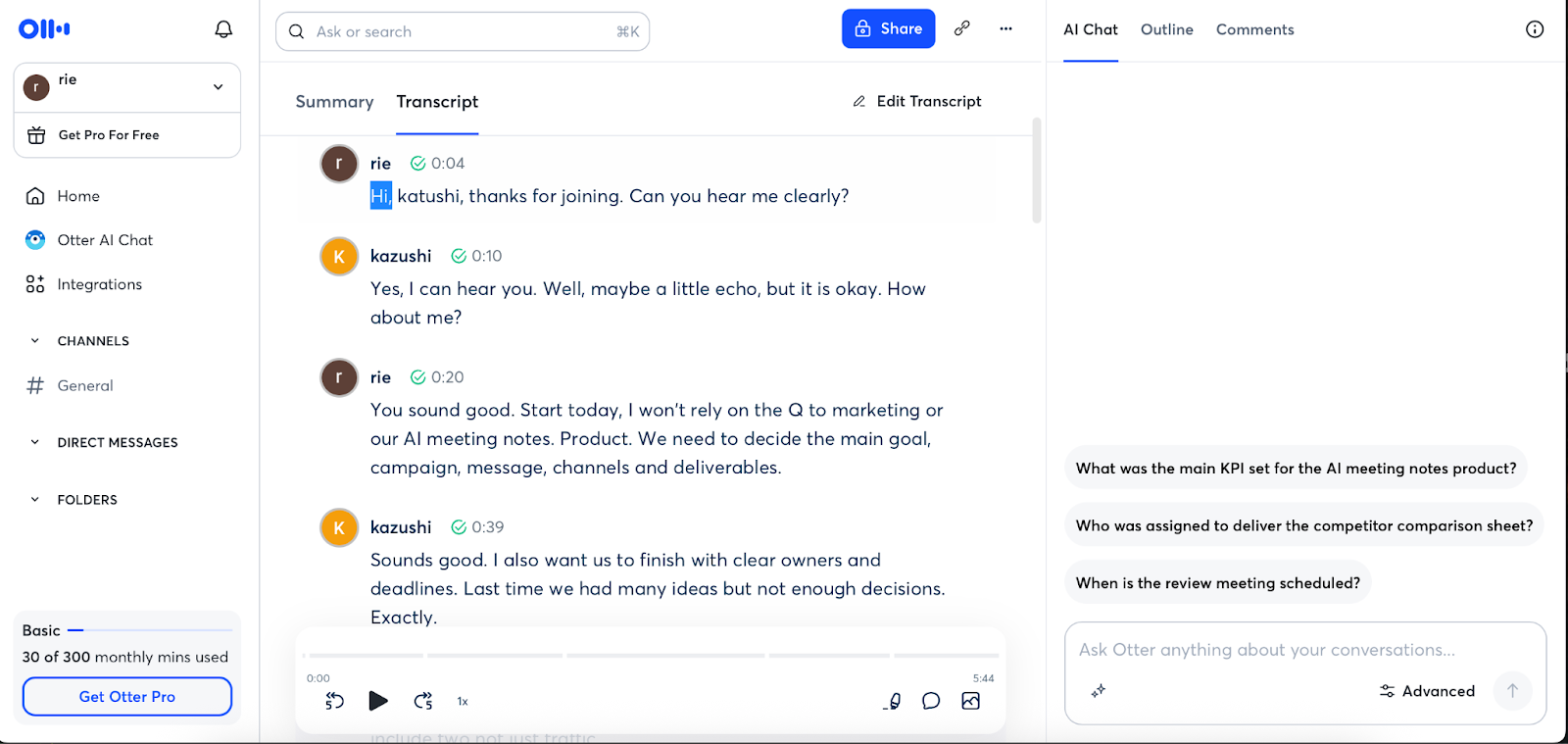
Otter.ai captured the main flow of the meeting, but more phrasing-level distortions appeared around product names, headlines, and specific terms. It remained usable for general understanding, though the transcript needed more manual cleanup than the stronger performers.
Fathom:
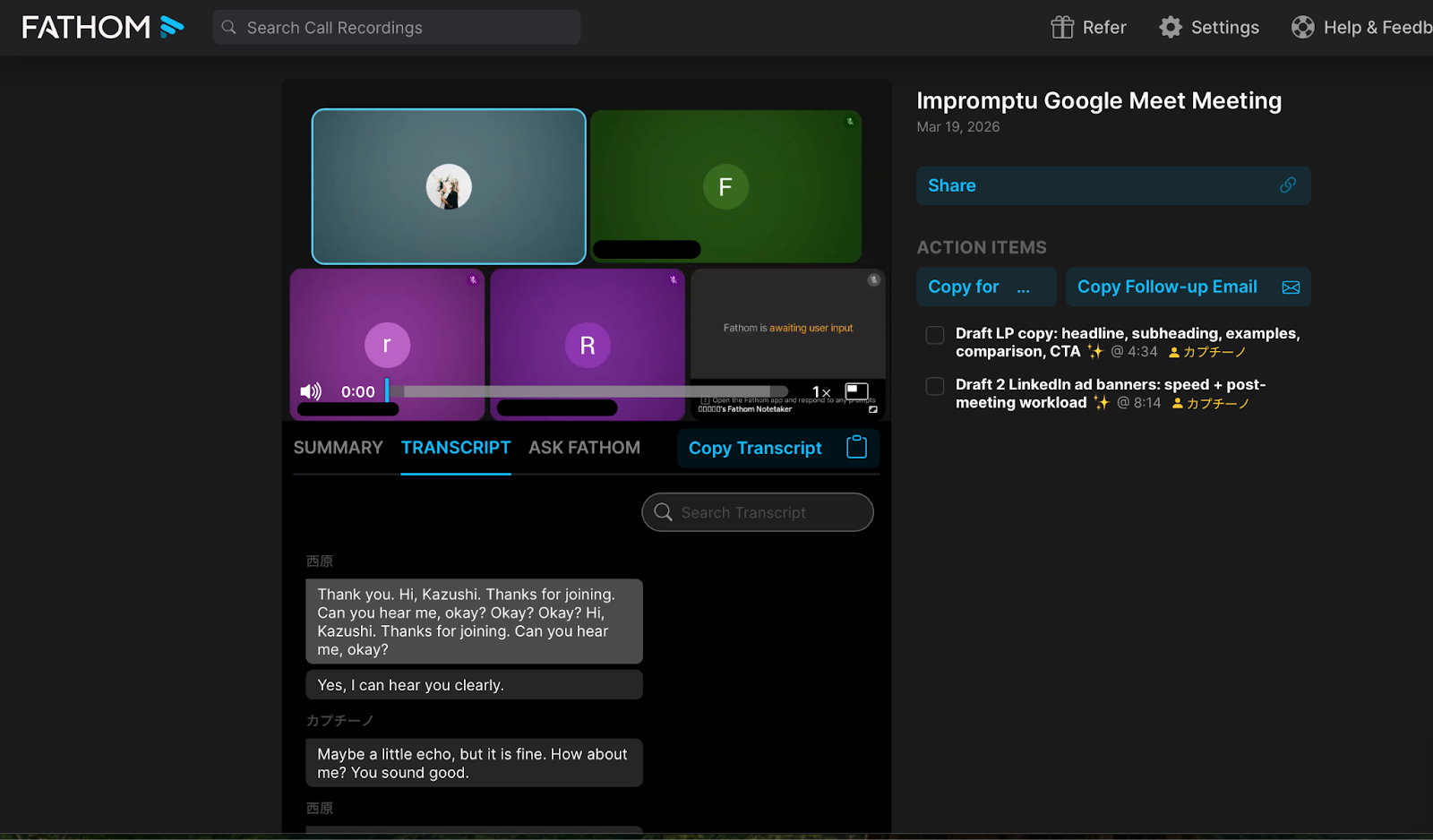
Fathom preserved the structure and overall intent of the discussion well, making the meeting easy to follow even when some phrasing was imperfect. Its weaker points were branded terms and keyword-heavy lines, where the transcript became less consistent than the top performers.
Rimo Voice:
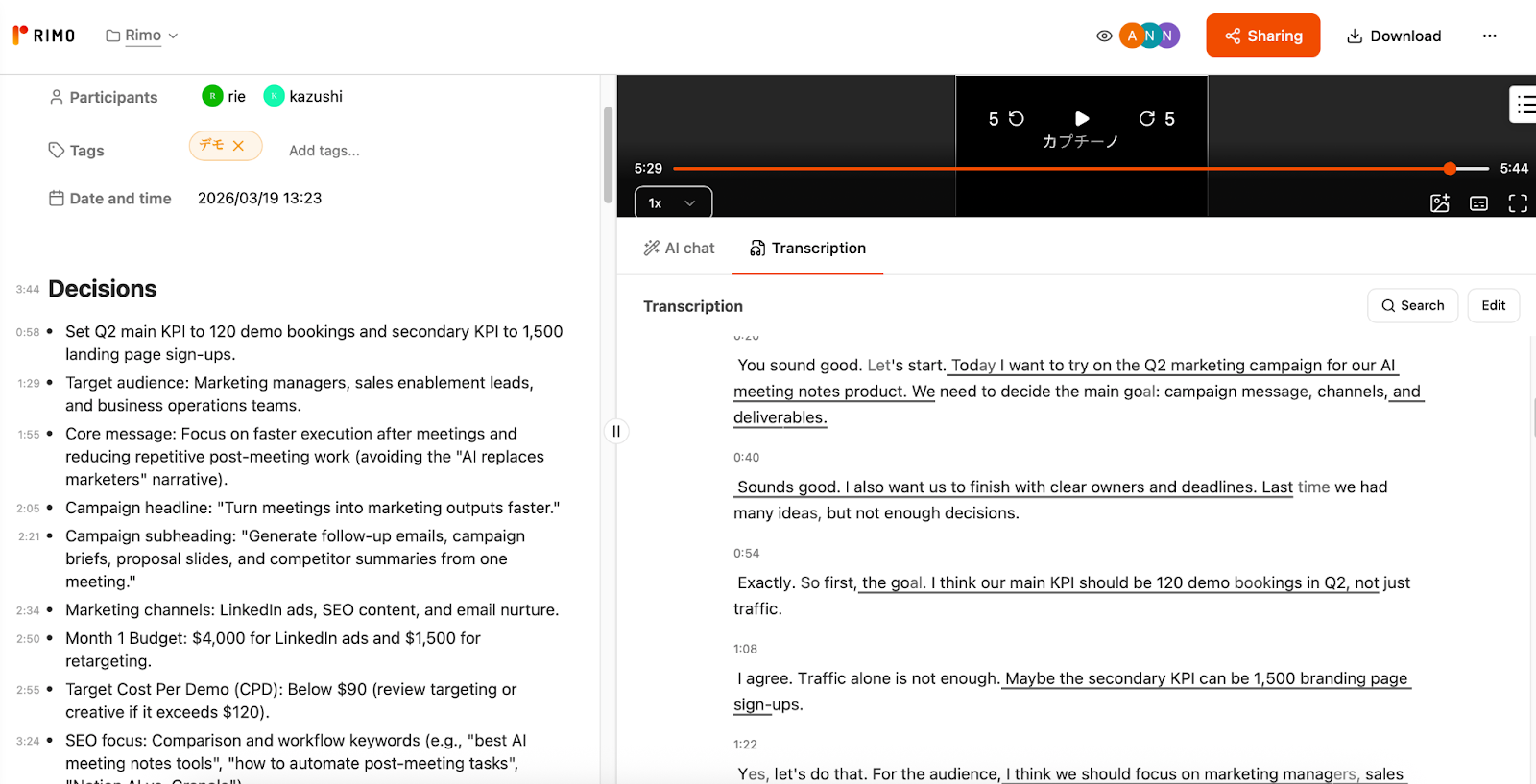
Rimo Voice was particularly strong not only in handling numbers and dates, but also in contextual understanding. Since this test involved non-native English speakers, transcript accuracy across the board was less than perfect, but Rimo Voice stood out by capturing the meaning of the discussion more clearly than the others. Even when the wording was not exact, the decisions, priorities, and next steps remained easy to understand.
Summary quality & action item extraction
In this section, we looked at how well each tool turned the same meeting into a usable summary and whether it could extract action items with enough structure to support follow-up. We focused not just on readability, but also on whether each tool could preserve decisions, deadlines, owners, and the overall logic of the discussion.
Tool | Summary Format | Summary Quality | Action Item Extraction | Owner Tagging | Deadline Capture | Quick Take |
Notion AI Meeting Notes | Template-based | Good (context understanding: 91%) | Good | Fair | Excellent | Clean and structured, but less reliable when exact speaker-linked ownership mattered. |
Granola | Bullet-based | Good (context understanding: 90%) | Fair | Limited | Good | Captured the core logic well, but action ownership was less explicit than in the stronger performers. |
Fireflies | Template-based | Good (context understanding: 89%) | Fair | Limited | Good | Strong on high-level structure, but action item extraction felt less complete and less cleanly assigned. |
Otter.ai | Outline-based | Fair (context understanding: 76%) | Fair | Limited | Good | The summary covered the main discussion, but action items and key details needed more cleanup. |
Fathom | Template-based | Good (context understanding: 89%) | Good | Good | Good | Easy to scan and fairly strong on next steps, though some outputs appeared partly inferred from the discussion. |
Rimo Voice | Structured template | Excellent (context understanding: 95%) | Good | Good | Excellent | The strongest at preserving decisions, priorities, and action flow in a way that remained highly usable after the meeting. |
Notion AI Meeting Notes:
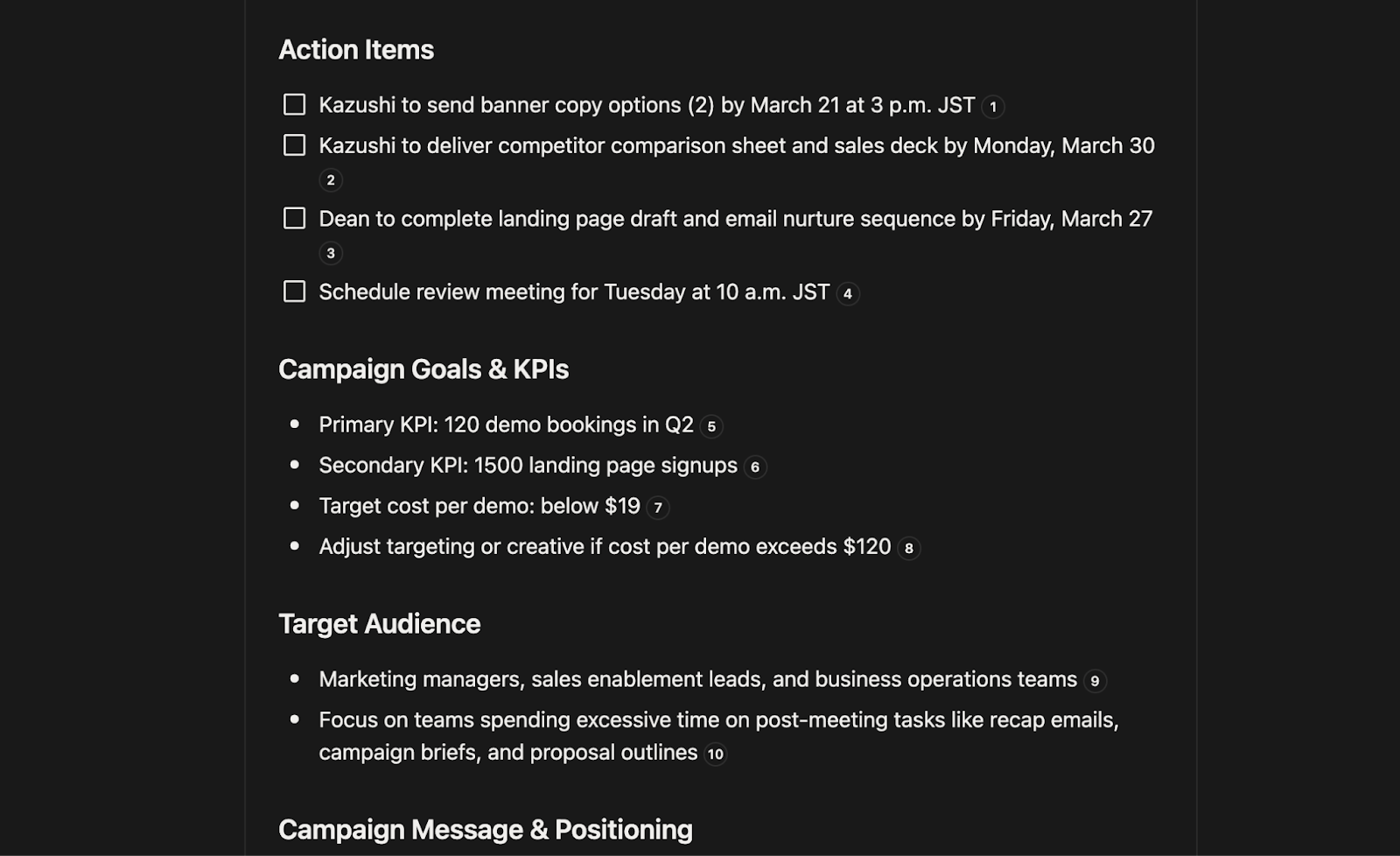
Notion AI Meeting Notes produced a clean, structured summary that made the meeting easy to review at a glance. However, because it does not support speaker separation, it was less suited to cases where you need to confirm exactly who owns which action item.
Granola:
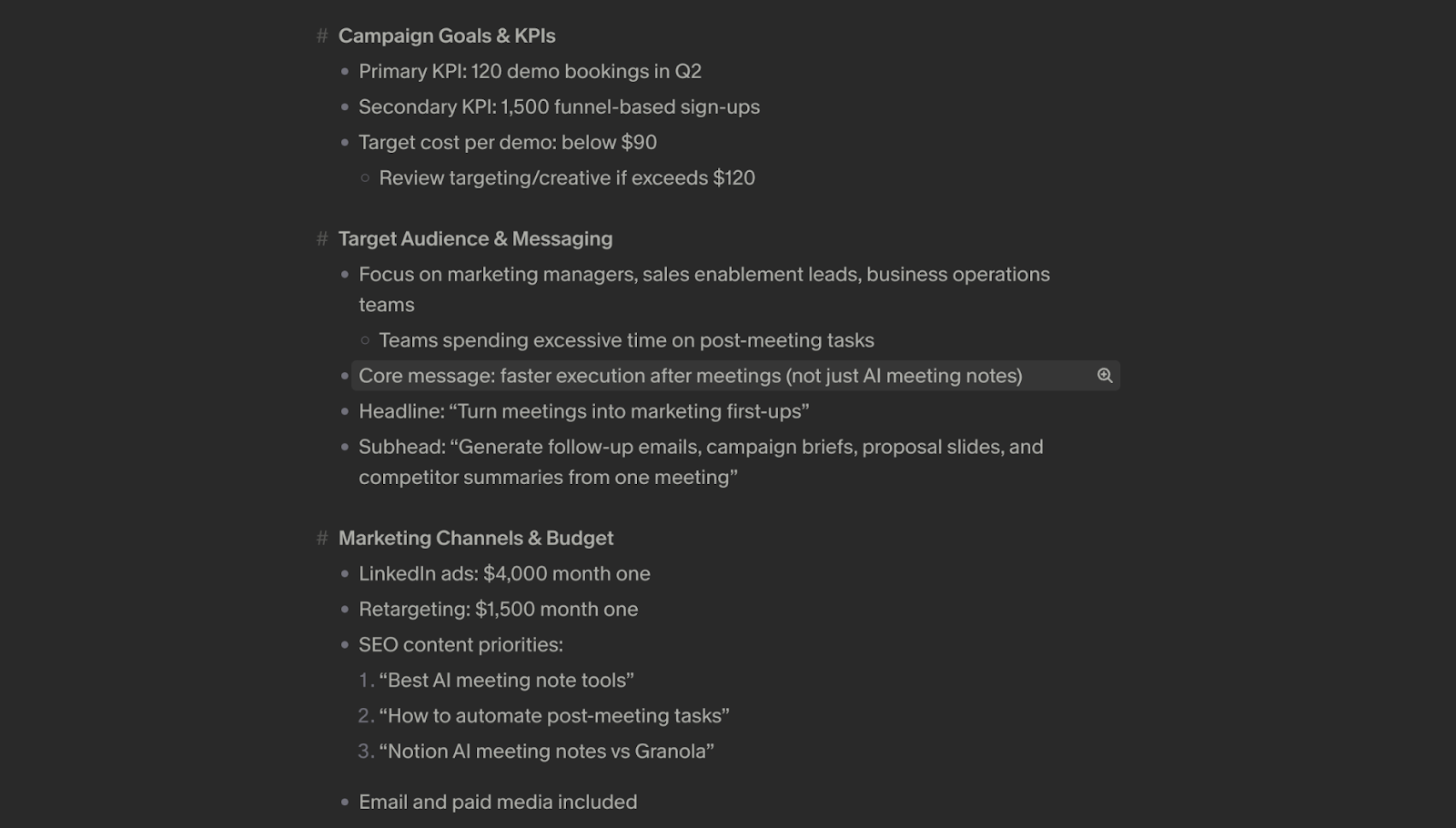
Granola did a good job preserving the overall logic of the meeting and turning it into a readable summary. Its weaker point was action ownership: deadlines and tasks were visible, but the summary was less explicit about who was responsible for what.
Fireflies:
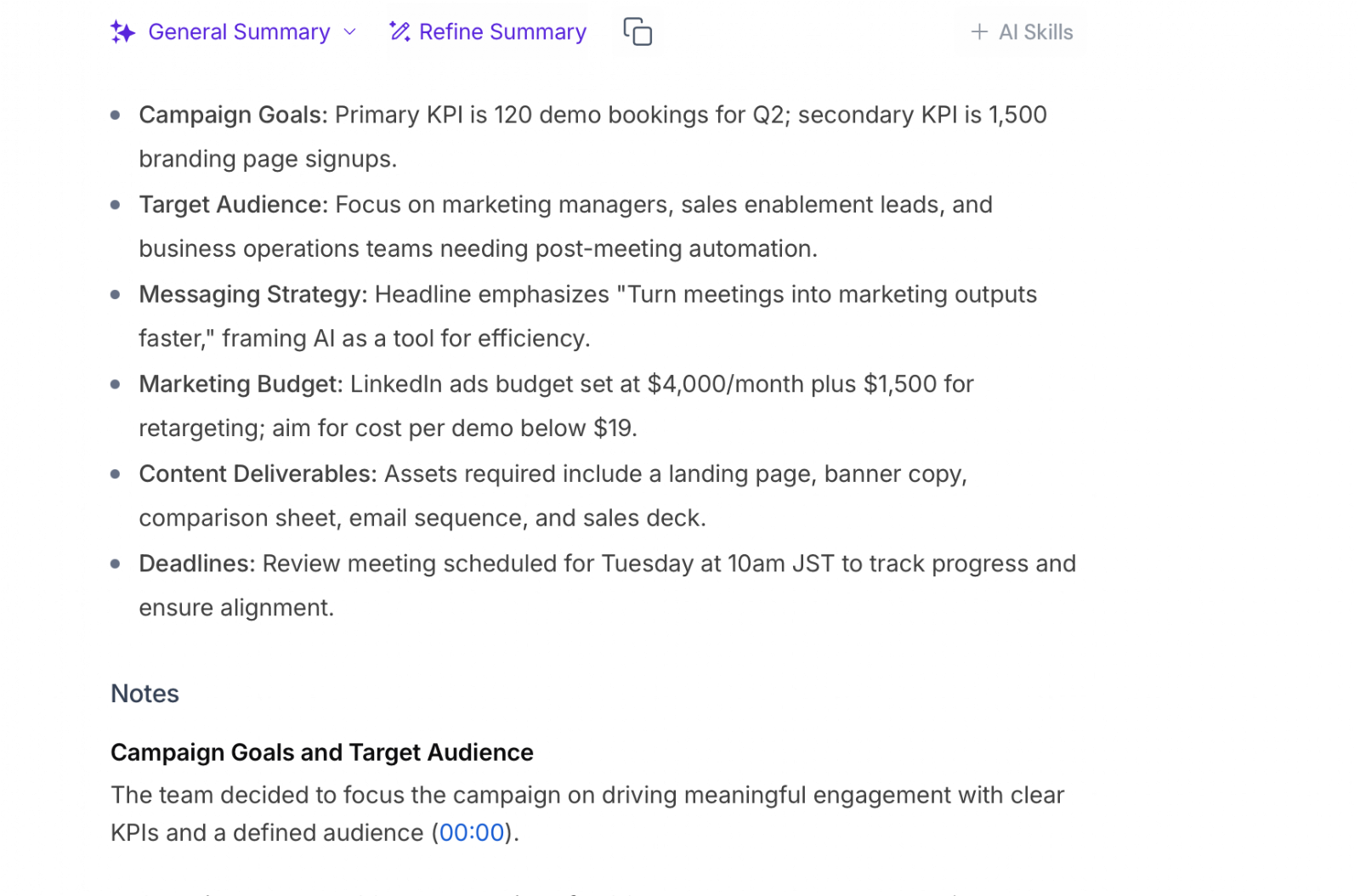
Fireflies organized the meeting into a readable structure and captured the main themes reasonably well. That said, its action item extraction felt less complete, and ownership was not as clearly surfaced as in the strongest outputs.
Otter.ai:
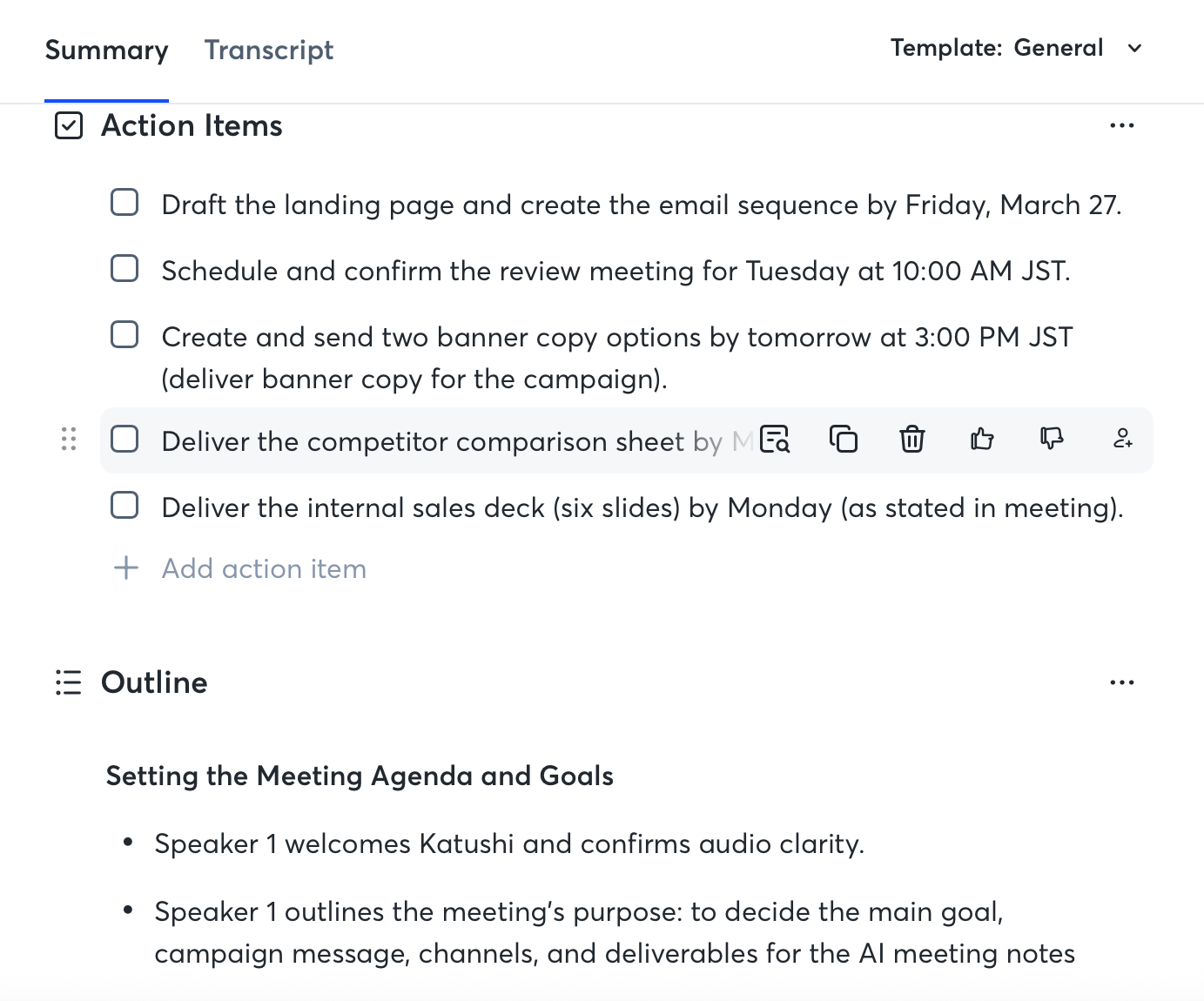
Otter.ai summarized the main discussion well enough for general review, but more detail was lost in the transition from transcript to summary. It remained usable, though some action items, labels, and specific phrases needed manual cleanup.
Fathom:
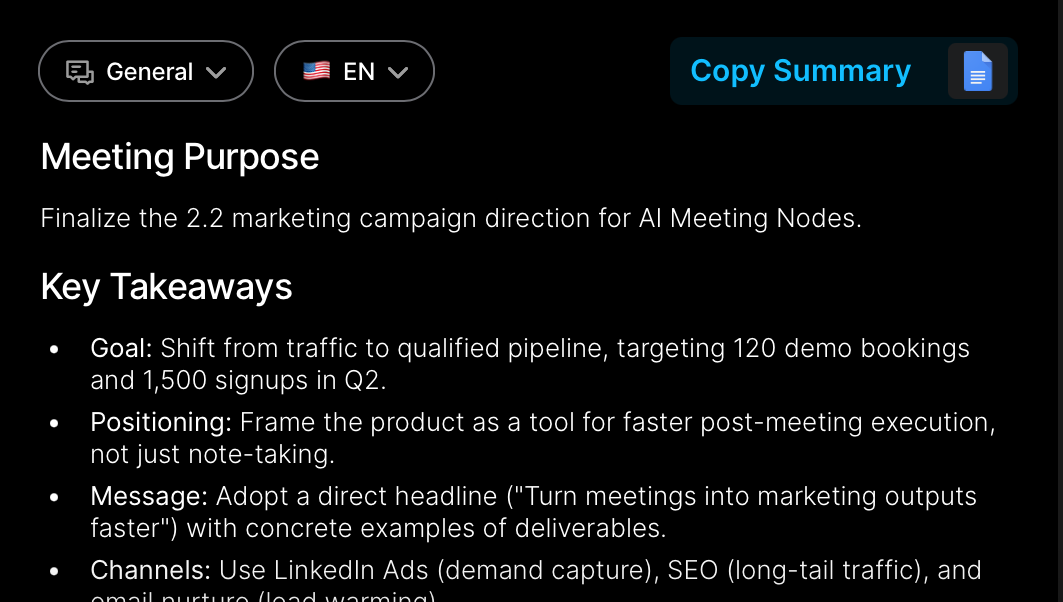
Fathom produced a structured, easy-to-scan summary and did a fairly good job surfacing next steps. It was particularly useful for quickly understanding the flow of the discussion, though a few summary elements felt slightly more inferred than explicitly grounded.
Rimo Voice:
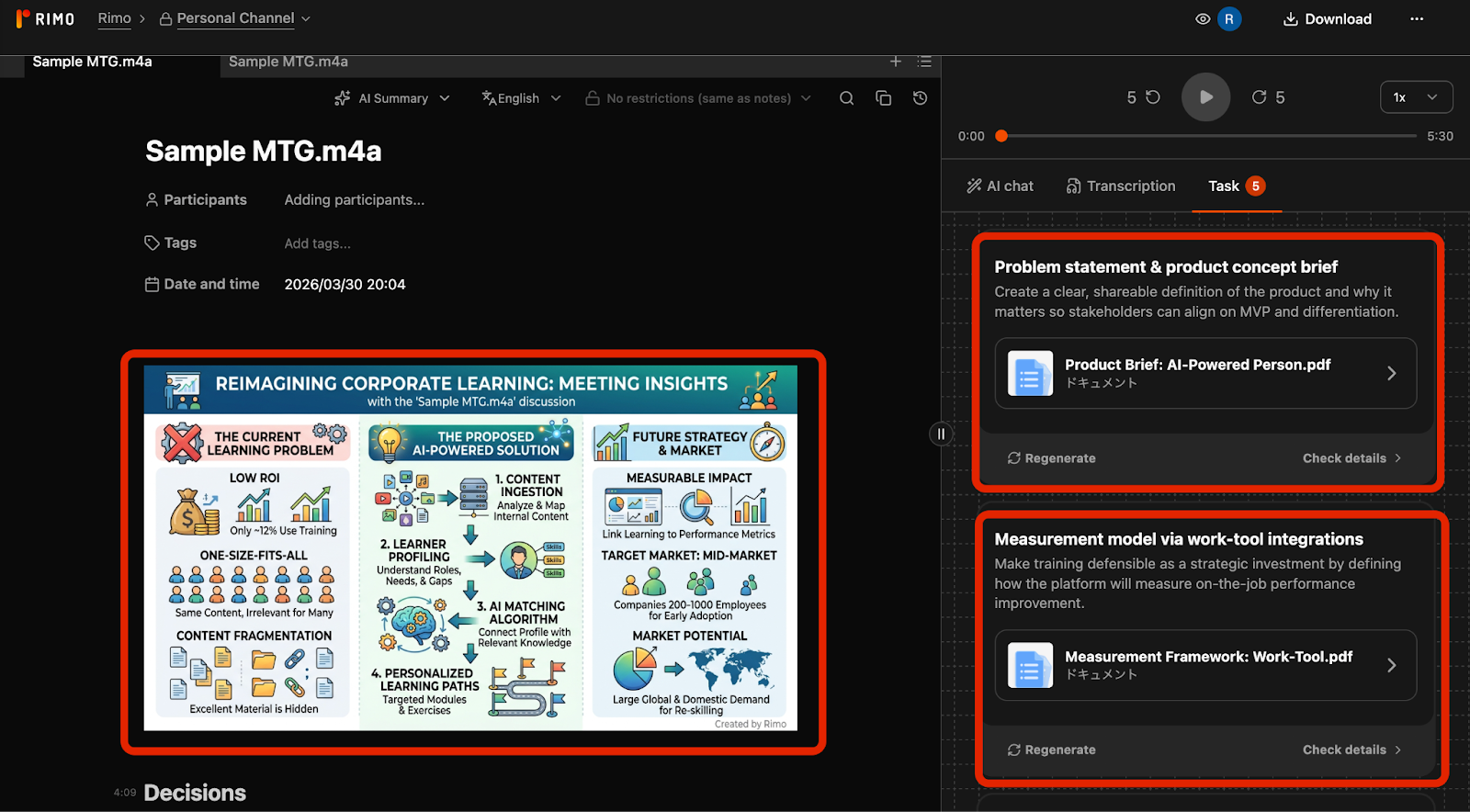
Rimo Voice stood out for how well it preserved not just the meeting topics, but the relationships between decisions, priorities, and follow-up actions. Even when the transcript itself was not perfect word-for-word, the summary remained highly usable because the core meaning and action flow came through clearly. It also generated a visual meeting map, which made the discussion easier to understand at a glance and helped connect the summary to the overall structure of the conversation.
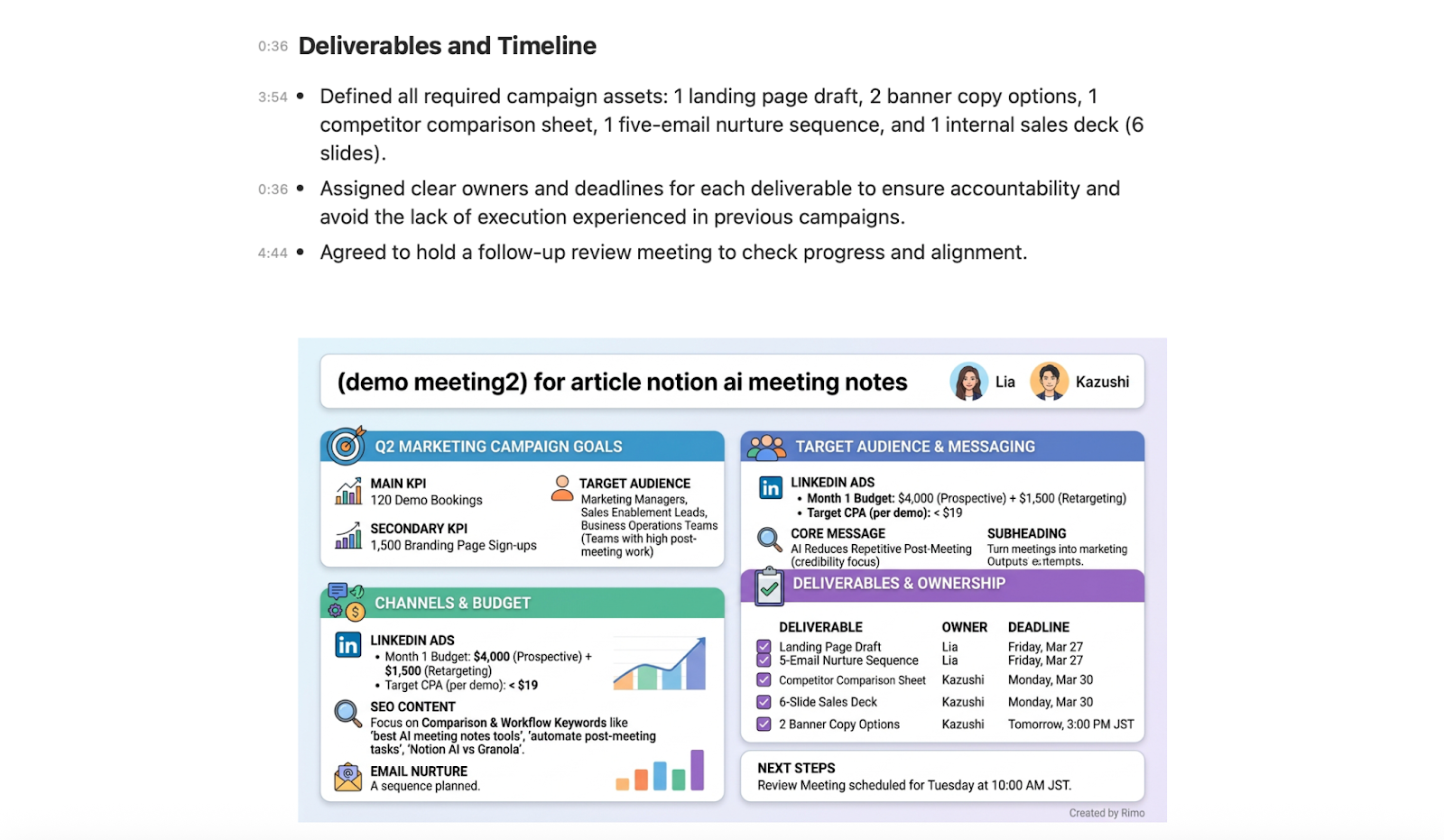
Overall, the gap between tools became more obvious at the summary layer than at the transcript layer. Several tools could produce readable summaries, but fewer could turn the conversation into action-ready output with clear priorities, usable structure, and dependable next steps. In this test, Rimo Voice was the strongest on contextual understanding and action flow, while Notion AI Meeting Notes and Fathom also performed well in structured summarization.
Post-Meeting Task Execution
The gap in post-meeting workflows opens up less around summary quality and more around what each tool can actually do beyond that point. In this section, we evaluated how far each tool could support real task execution after the same 5-minute demo meeting.
Tool | Native Integrations | Zapier / API | CRM Auto-Sync | Slack Auto-Notify | Auto-Generated Deliverables |
Notion AI Meeting Notes | Medium (Slack, GitHub, Asana, Google Drive, etc.) | ◯ (Meeting Notes block access limited) | △ Via Agent, requires setup | ◯ | △ (via Prompt) |
Granola | Small (Attio, HubSpot, Affinity, Slack, Notion + MCP) | ◯ (Enterprise API) | ◯ | ◯ | ✗ |
Fireflies | Largest (50+ native, 200+ AI apps) | ◯ (GraphQL API) | ◯ | ◯ | ✗ |
Otter.ai | Medium (Salesforce, HubSpot, Jira, Asana, MCP) | ◯ | △ Enterprise only | ◯ | ✗ |
Fathom | Small–Medium (HubSpot, Salesforce, Asana, Slack) | ◯ | ◯ | ◯ | ✗ |
Rimo Voice | Medium (Zoom, Teams, Meet, Google/Outlook Calendar, Slack, Email) | ー | ◯ | ◯ | ◯ Rimo Actions (see next section) |
Key: ◯ = Supported / strength △ = Partial support or conditions apply ✗ = Not supported
Notion AI Meeting Notes
Notion AI Meeting Notes is strongest inside the Notion workspace itself. After a meeting, teams can build follow-up workflows through Notion, and Slack connectivity is available, but support for CRM auto-sync is more limited and typically depends on extra setup through Notion’s broader automation layer rather than Meeting Notes alone. While Notion offers external integrations and API access, post-meeting execution is still more workspace-centered than externally action-driven.
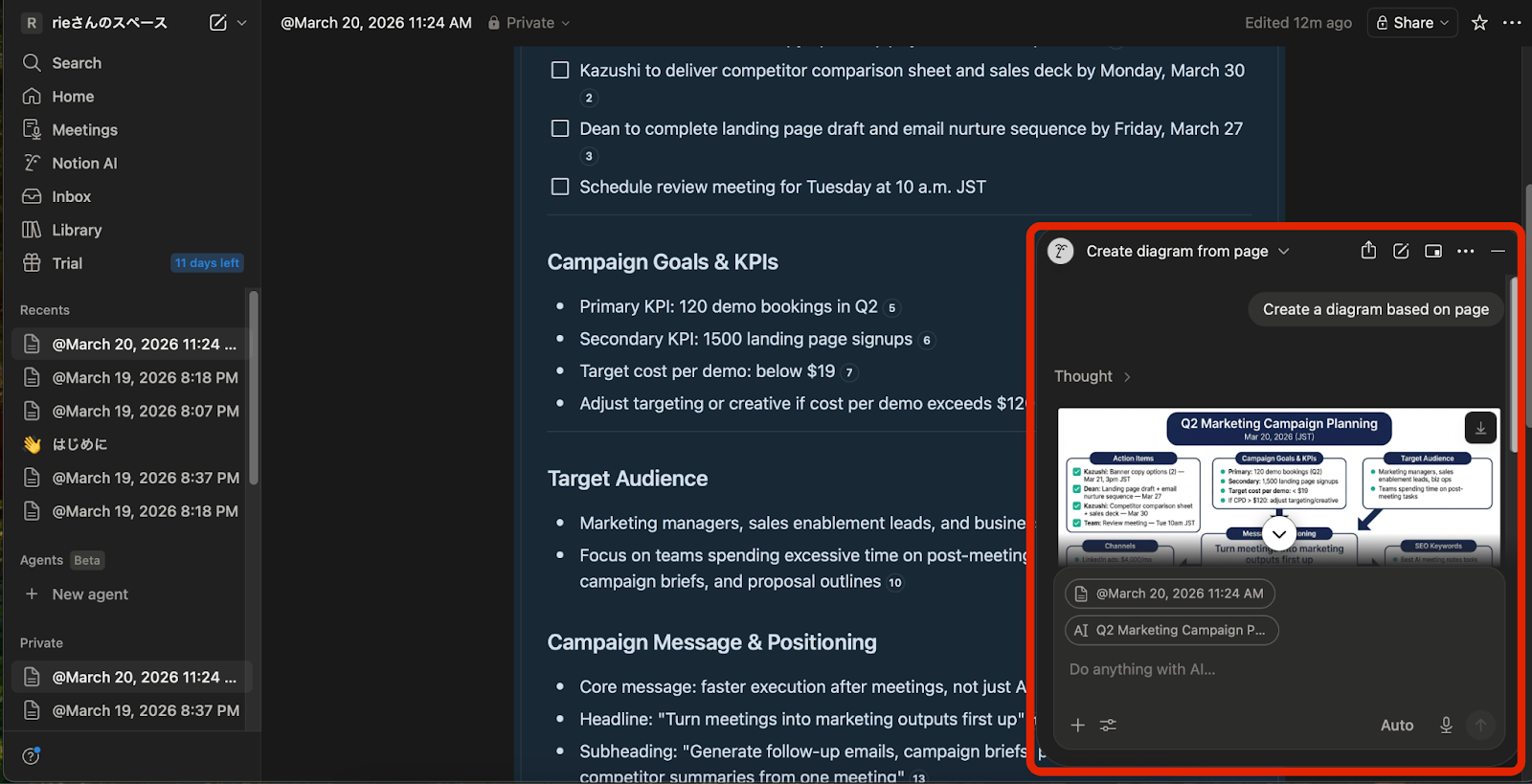
Notion AI can also generate visual diagrams (such as flowcharts via Mermaid syntax) based on meeting summaries. By providing a simple prompt, you can instantly transform complex discussions into clear, structured charts directly within your workspace.
Granola
Granola takes a lighter integration approach, but it does support CRM-connected follow-up through tools like Attio, HubSpot, and Affinity, along with Slack notifications and Zapier-based expansion. Its API access is tied to Enterprise, so flexibility depends on plan level. Compared with more automation-heavy platforms, Granola is better described as a focused meeting tool with selective downstream workflow support rather than a broad execution system.
Fireflies
Fireflies offers the broadest post-meeting integration coverage in this group. It supports CRM auto-sync, Slack notifications, and expansion through both workflow tools and API access, making it one of the strongest options for moving meeting outputs into external systems automatically. Its strength is less about generating final deliverables and more about distributing notes, tasks, and updates across connected tools at scale.
Otter.ai
Otter.ai supports a solid range of native integrations and external workflow connections, including Zapier and API-based extensions. Slack auto-notify is supported, but CRM auto-sync is more conditional than in Fireflies or Fathom and may depend on plan tier or deployment context. As a result, Otter is better positioned for connected meeting intelligence than for full post-meeting execution on standard plans.
Fathom
Fathom provides a practical middle ground for post-meeting workflows. It supports direct CRM sync, Slack notifications, and broader automation through Zapier and related workflow tools. This makes it well suited for teams that want meeting notes and action items to move quickly into sales or collaboration systems, even though it does not generate downstream deliverables on its own.
Rimo Voice
Rimo Voice focuses on the meeting-to-action flow. It supports native connections with major meeting platforms, calendars, Slack, and email, and it can push post-meeting updates into team communication channels. Even as a standard feature, it can automatically generate visual diagrams and flowcharts to clarify complex discussions.
Its true differentiation comes from Rimo Actions, which goes beyond syncing or notifying and moves into actual deliverable generation—such as drafting LPs or slide decks—based on what was decided in the meeting. These automated visuals are just the beginning; we’ll look at the full power of Rimo Actions more closely in the next section.
Comparison Table
Tool | Transcription Accuracy | Speaker Identification | Summary Quality | Action Item Extraction | Task Automation |
Notion AI Meeting Notes | Good(86.8%) | - | Good | Good | Good(within Notion workflows) |
Granola | Fair(84.7%) | - | Good | Fair | Fair |
Fireflies | Good(87.6%) | ◯ | Good | Fair | Good |
Otter.ai | Fair(85.9%) | △ | Good | Fair | Fair |
Fathom | Good(88.3%) | ◯ | Good | Good | Good |
Rimo Voice | Excellent(91%) | △ | Excellent | Good | Excellent (deliverables with Rimo Actions) |
Post-Meeting Work: How Much Can AI Actually Do After the Call?
The meeting is over. You close your laptop, grab a coffee, and look at your to-do list—which has just gotten significantly longer. Someone needs to write up the recap, assign action items, send follow-up emails, and build the proposal deck that was just signed off on. At the end of the day, someone still has to build it all from scratch.
This is the wall most meeting tools hit. You have the recording, the transcript, and the summary. But how do you bridge the gap to actual execution? Let’s look at the strengths of the latest Notion AI and how Rimo Actions takes it a step further.
What Notion AI Does Well: Capture, Summarize, and Prompt-Based Execution
Notion AI Meeting Notes handles the capture side of things exceptionally well. The transcript is clean, the summary is structured, and everything lands directly inside your Notion workspace.
However, the true power of Notion AI lies beyond simple summarization. With the right prompts, you can instantly turn those summaries into actionable outputs.
1. Transforming Summaries into Diagrams and Drafts
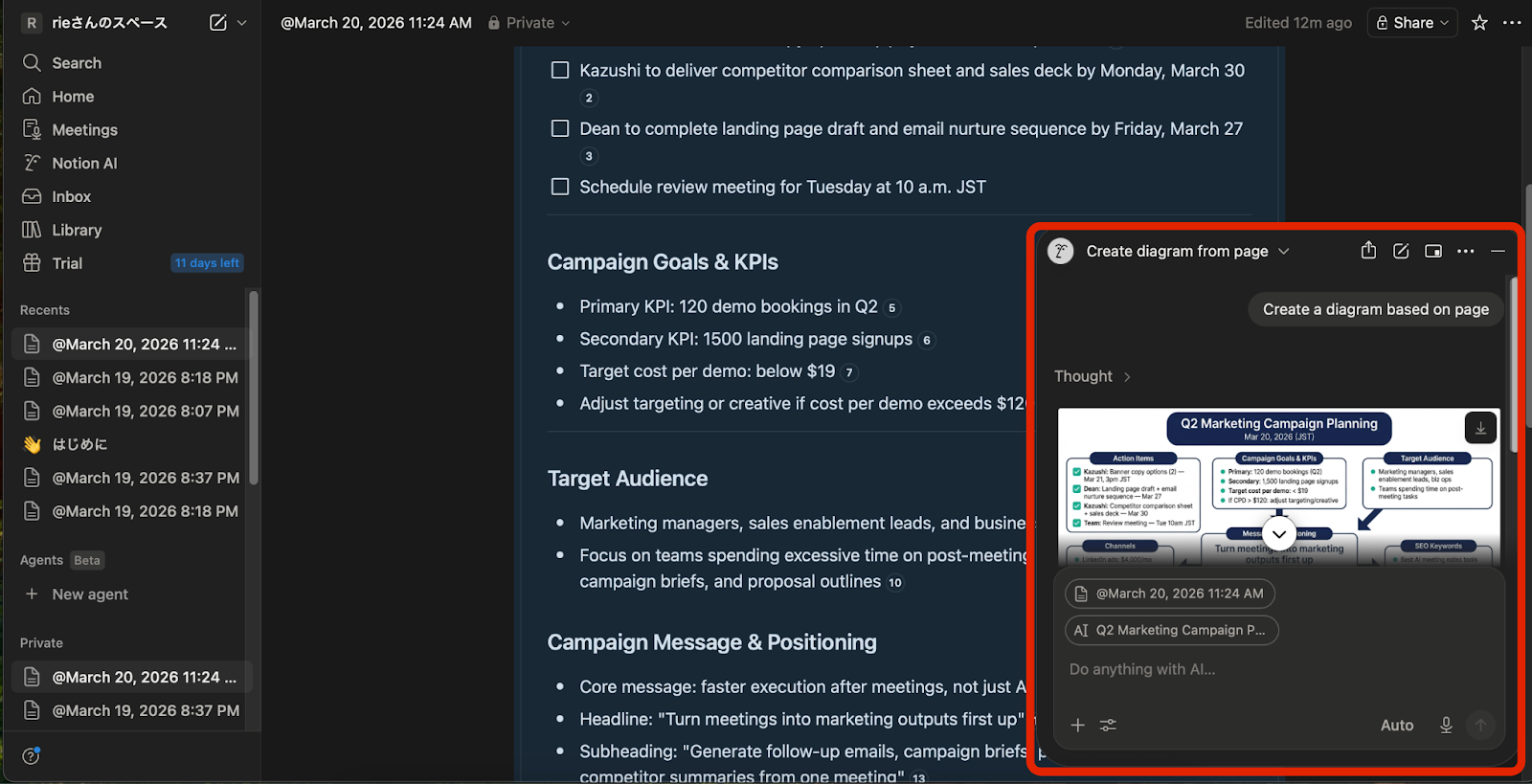
With the right prompts, Notion AI can instantly bridge the gap between a raw summary and a final product. You can instruct the AI to generate visual flowcharts (via Mermaid syntax) to map out processes or draft professional, ready-to-send follow-up emails based on the meeting’s conclusions.
2. Instant "Present" Mode for Meetings (Beta)
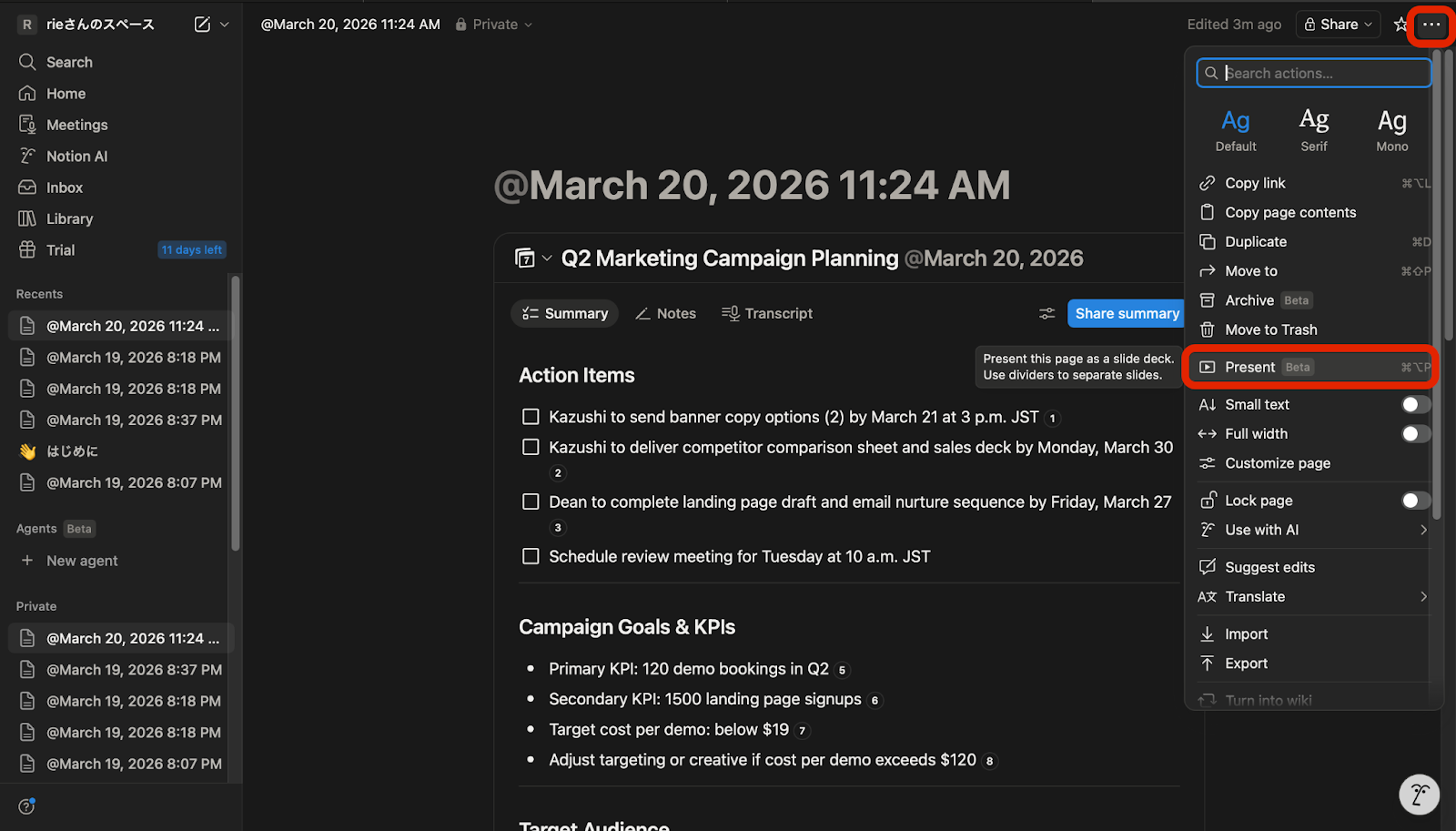
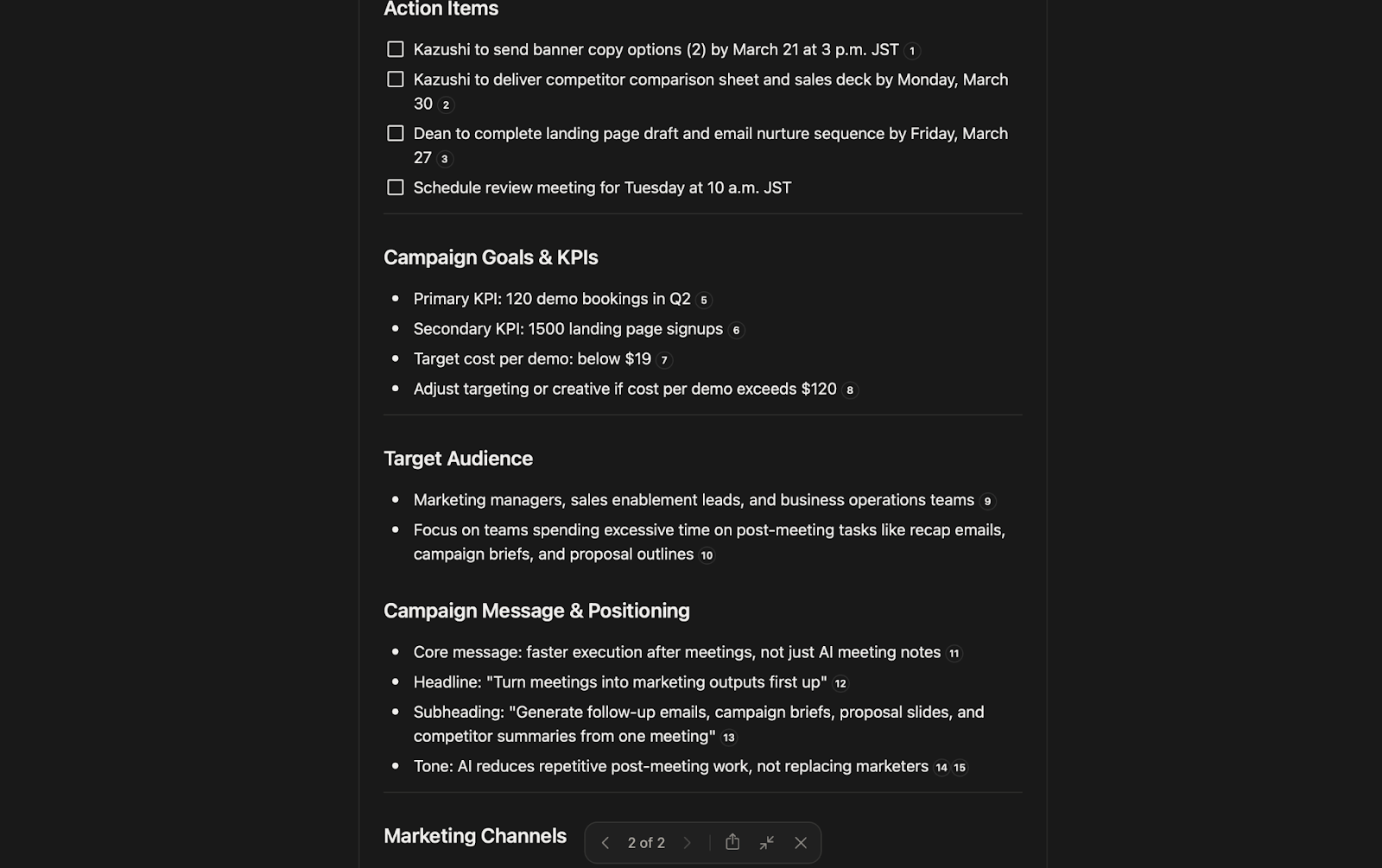
For immediate sharing, Notion offers a "Present" mode (currently in Beta) that transforms your meeting notes into a slide format with one click. It’s important to note that the AI doesn’t re-organize the content into a dedicated slide deck; rather, it displays your existing notes and headers as slides, allowing you to use your workspace content for a presentation without any manual copying.
If your team lives in Notion, the AI acts as a powerful Execution Assistant, making it a natural and formidable extension of your existing workflow.
The Gap: Manual Prompting vs. Autonomous Execution
The limitation, however, remains: Notion AI still requires human intervention (prompting) to move from a note to a result.
The action items or email drafts Notion AI generates are the result of "waiting for instructions." Someone has to open the page, trigger the AI, provide the right prompt, and then manually bridge the gap to other tools—like copy-pasting into a slide deck or email client.
・With Notion AI: Meeting ends → Review summary → Human gives a prompt → AI creates draft → Human transfers work to other tools for execution. hopping" becomes a bottleneck that kills momentum. |
Beyond Notes: Rimo Actions for Seamless Execution
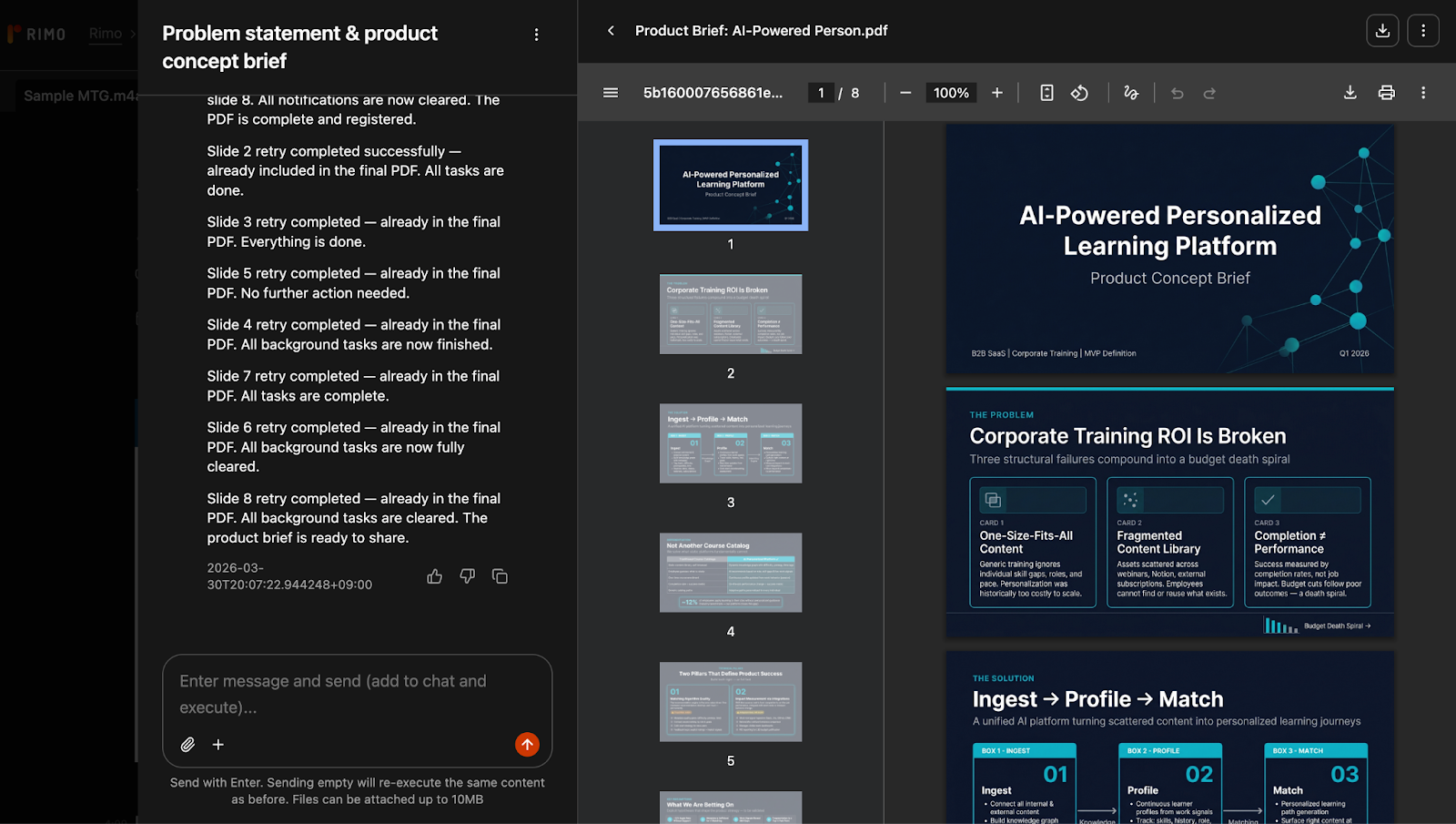
Rimo Actions was built to eliminate that "prompting" friction and create a straight line from decision to execution.
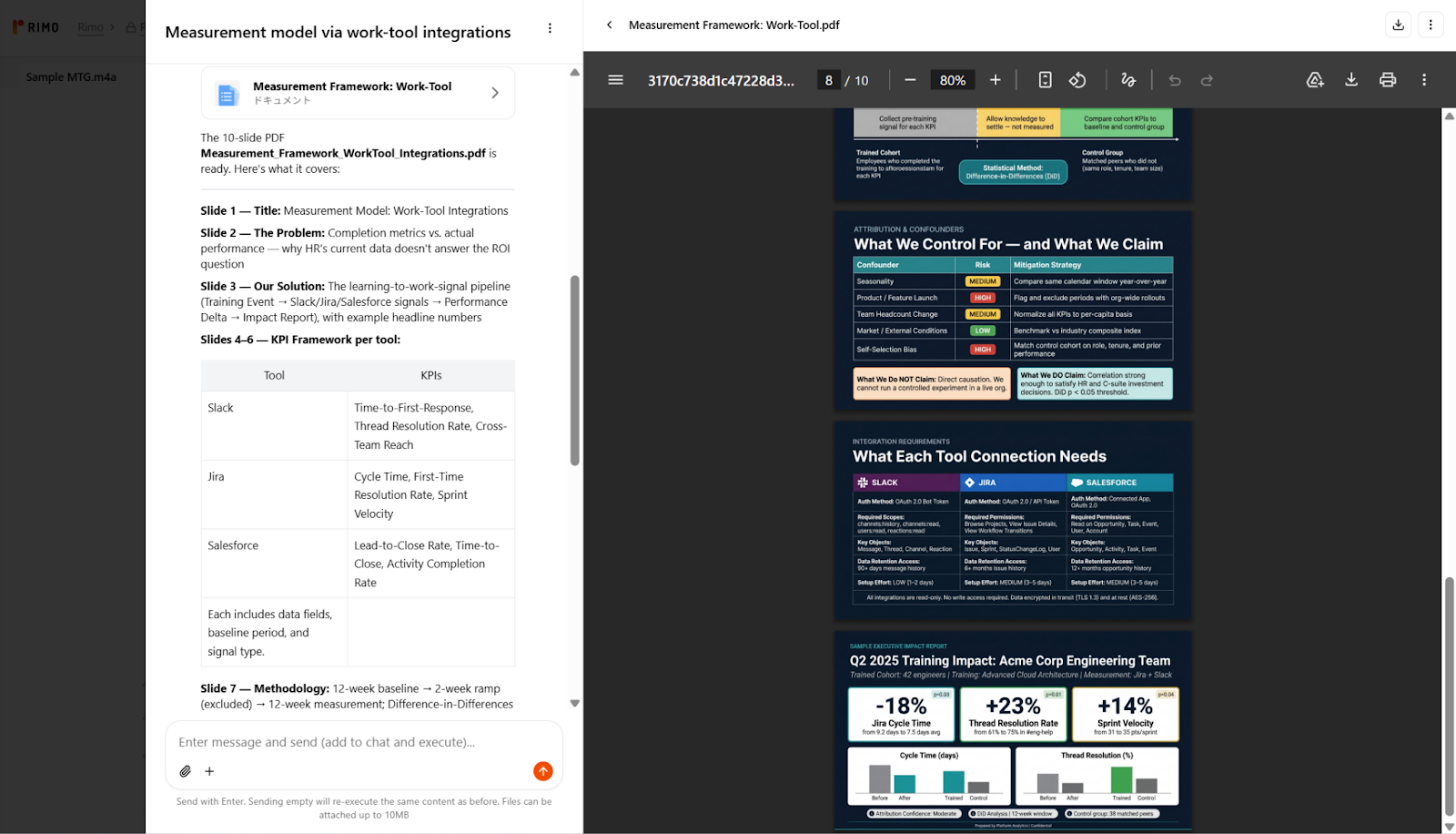
While Notion AI is a "highly capable assistant," Rimo Actions functions more like an autonomous project member. It understands the context of the meeting and turns decisions into real deliverables within minutes of the call ending—without waiting for a human to type a prompt.
LP & Ad Assets: Before the planning meeting is even over, Rimo can generate landing page designs and ad visuals.
Seamless Integration: It automates "execution" across tools—creating GitHub Issues, sending Slack reminders, or drafting Gmails—without manual handoffs.
Autonomous Planning: It doesn't just wait for orders; it uses the full context of your meetings to plan strategy and suggest the next steps.
Of course, every output goes through human review before being finalized, ensuring you maintain full control.
For teams moving so fast that they don’t even have time to "tell the AI what to do," this seamless automation is the future of work beyond Notion.
Verdict: Pros, Cons, and Who Notion AI Meeting Notes Is Best For
Notion AI Meeting Notes is a strong tool — especially for teams already using Notion, and still worth testing if you're evaluating a broader workspace shift.
Pros
No meeting bot — clean, unobtrusive recording
Native workspace integration — notes land where your team already works
High-quality, structured summaries with calendar sync
Free 30-day trial
Cons
No speaker identification
Business plan required ($15/user/month, billed annually)
Execution stops at the notes — everything after is manual
Best for: Teams already running on Notion who want better meeting capture without adding another tool to their stack. And if you're not on Notion yet, the 30-day trial is a practical way to test both the meeting notes feature and the broader platform at the same time.
Not the right fit if: Your bottleneck isn't capturing decisions — it's executing on them. If you need the slide deck built, the research done, and the follow-up sent automatically, that's where Rimo Actions picks up where Notion leaves off.
Frequently Asked Questions
Is Notion AI Meeting Notes free
No — AI Meeting Notes requires the Business plan ($15/user/month, billed annually). A 30-day Business trial is available, but usage limits and billing conditions apply, so it’s best to confirm the latest details before starting.
How to turn off Notion AI Meeting Notes
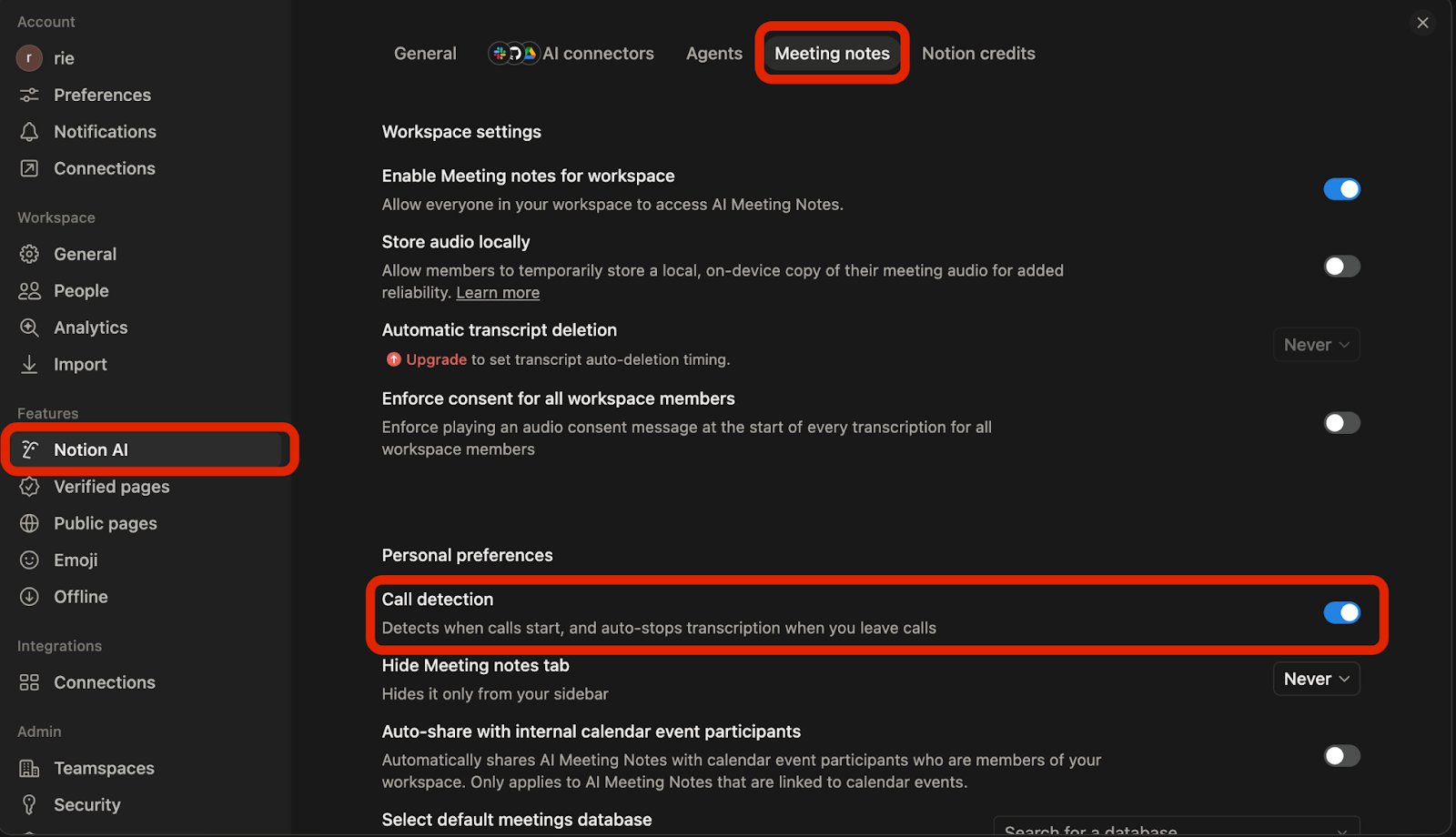
Open Settings in Notion.
Go to the Notion AI tab.
Open Meeting Notes.
Under Personal preferences, turn off Call detection.
This makes Notion ask for confirmation before starting transcription or recording, giving you the option not to activate AI Meeting Notes for that call.
Notion AI Meeting Notes transcription
Notion AI Meeting Notes supports 16 languages, including English, Japanese, French, German, Spanish, and Korean. Transcription accuracy is generally strong for clear audio, though it can struggle with heavy accents or fast-paced technical discussions. One notable limitation: speaker identification is not supported — the transcript captures what was said, but not who said it.
Notion AI Meeting Notes not working
If the feature isn't launching or transcription has stopped, check the following:
macOS version — macOS 13 or later is required on Mac
App version — make sure you're on Notion desktop app v4.7.0 or higher
Permissions — Notion needs access to your microphone and system audio (check System Settings → Privacy & Security)
Plan — AI Meeting Notes is only available on Business and Enterprise plans
Workspace settings — if the /meet command isn't showing up, ask your workspace owner to enable AI Meeting Notes under Settings → Notion AI
Notion AI Meeting Notes vs Granola
Both tools take a no-bot approach — audio is captured directly from your device, keeping your meetings clean and uninterrupted. Granola is currently Mac-only, while Notion is available across Mac and Windows.
The key difference comes down to where you work. Notion's strength is deep workspace integration — your notes connect directly to your projects, tasks, and databases. Granola is lighter and standalone, making it a better fit for individuals who want great meeting notes without committing to an entire platform.
Choose Notion if your team already lives in Notion and you want everything connected.
Choose Granola if you want a simple, no-fuss meeting note tool without the overhead of a full workspace.
For a deeper look at Granola on its own, check out our full review: Granola Review: Is This AI Meeting Tool Worth It?
Related articles
Return to List