
Descript AI Review (2026): The Video Editor That Treats Your Timeline Like a Google Doc



In 2026, the bottleneck for content creation isn't recording; it's the hours lost in the editing room. Descript AI has fundamentally changed the game by treating video like a Google Doc. If you can edit a Word document, you can now produce a professional video. But is it the right tool for your specific workflow? From its AI co-editor "Underlord" to its latest text-based editing engine, here is everything you need to know about the most productive way to edit in 2026.
What is Descript AI? The End of Traditional Video Editing
Traditional editing requires hunting through waveforms and complex timelines. Descript replaces that struggle with a text-based interface. It’s designed for a world where speed and clarity matter more than mastering technical software.
The Concept: Editing Video Like a Word Document
Imagine you’re editing a key interview, and the speaker says "um" or repeats a sentence. In traditional software, you’d hunt for those tiny bumps in a complex waveform, zoom in, blade the clip, and close the gap. It’s exhausting.
Descript changed the game by translating the "grammar of video" into the "grammar of text." Since its massive AI updates in 2024 and 2025, the barrier to entry has vanished. If you can delete a word in a Word doc, you can edit a video in Descript. By utilizing their transcript-first Text-based editing engine, users have reported reducing the time spent on podcast and talking-head rough cuts by up to 50%. You aren't "scrubbing through footage" anymore; you’re proofreading it.
Who is it for? From YouTubers to Marketing Teams
YouTubers: Those who want to go from "Record" to "Post" in one sitting, including descriptions and captions.
Marketing Teams: Professionals repurposing webinars into 60-second LinkedIn clips without hiring a full-time editor.
Educators: Teachers needing clear, searchable transcripts and auto-generated chapters for long lectures.
Teams: Anyone tired of "Feedback Hell"—Descript allows comments and real-time collaboration just like Google Docs.
Standout Features: Why Descript is a Creative Powerhouse
Descript isn't just a transcription tool; it's an AI-driven production studio. Features like "Underlord" automate the tedious chores that used to take hours, allowing you to focus on the story rather than the manual labor.
Underlord: Your AI Co-Editor that Never Sleeps
Underlord is the brain of Descript. It doesn't just "help"; it performs the tedious labor you hate. With one click, it identifies and removes filler words ("um," "uh," "you know") and silences. In a 10-minute raw clip, Underlord can remove obvious filler and dead air very quickly.
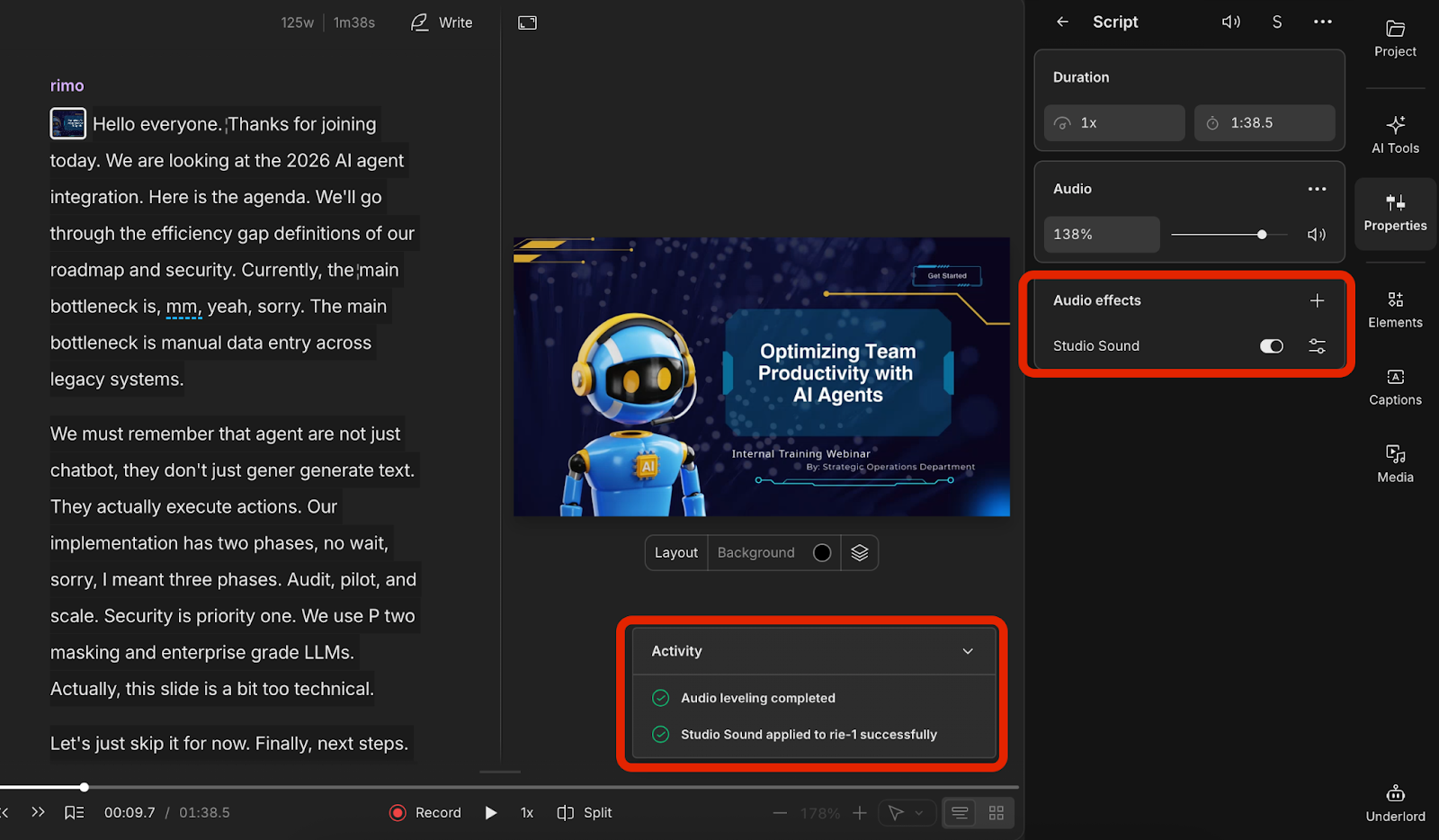
Studio Sound & Overdub: Fixing Audio in Post
We’ve all been there: you record the perfect take, but a siren wails in the background.
Studio Sound: Uses AI to reconstruct your voice, transforming a grainy laptop mic into professional studio-grade audio as if you recorded with a high-end condenser microphone.
Overdub: If you flubbed a specific word, you can simply type the correct word, and Descript’s AI generates it in your voice. (Note: Ethical safeguards require you to verify your voice identity first).
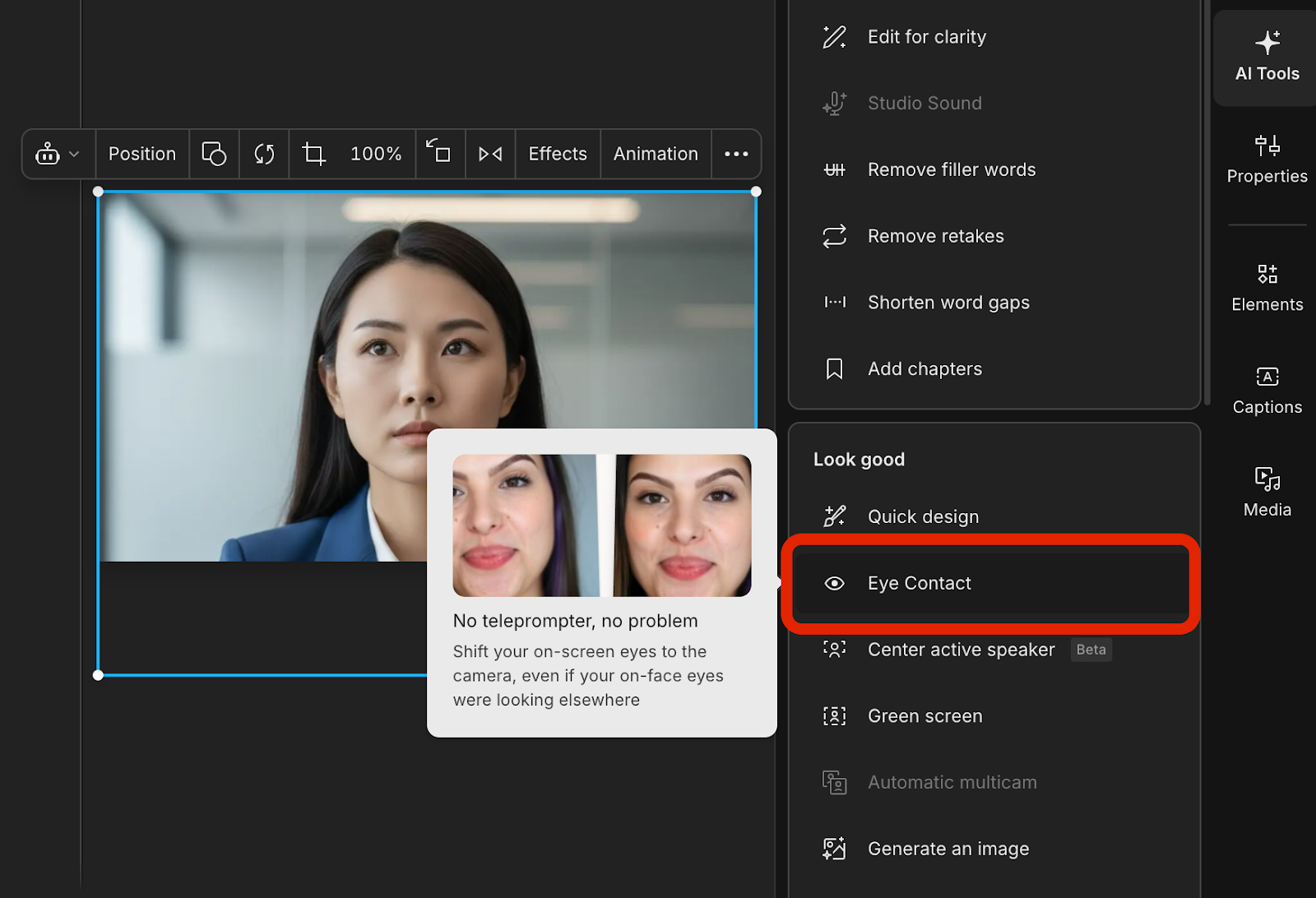
Eye Contact & Green Screen: Professional Polish in Seconds
Reading from a script? Eye Contact uses AI to adjust your pupils so you’re looking directly at the lens, even if you were looking at your notes. Pair this with the AI Green Screen, which removes messy backgrounds instantly, and you have a professional studio setup in your bedroom.
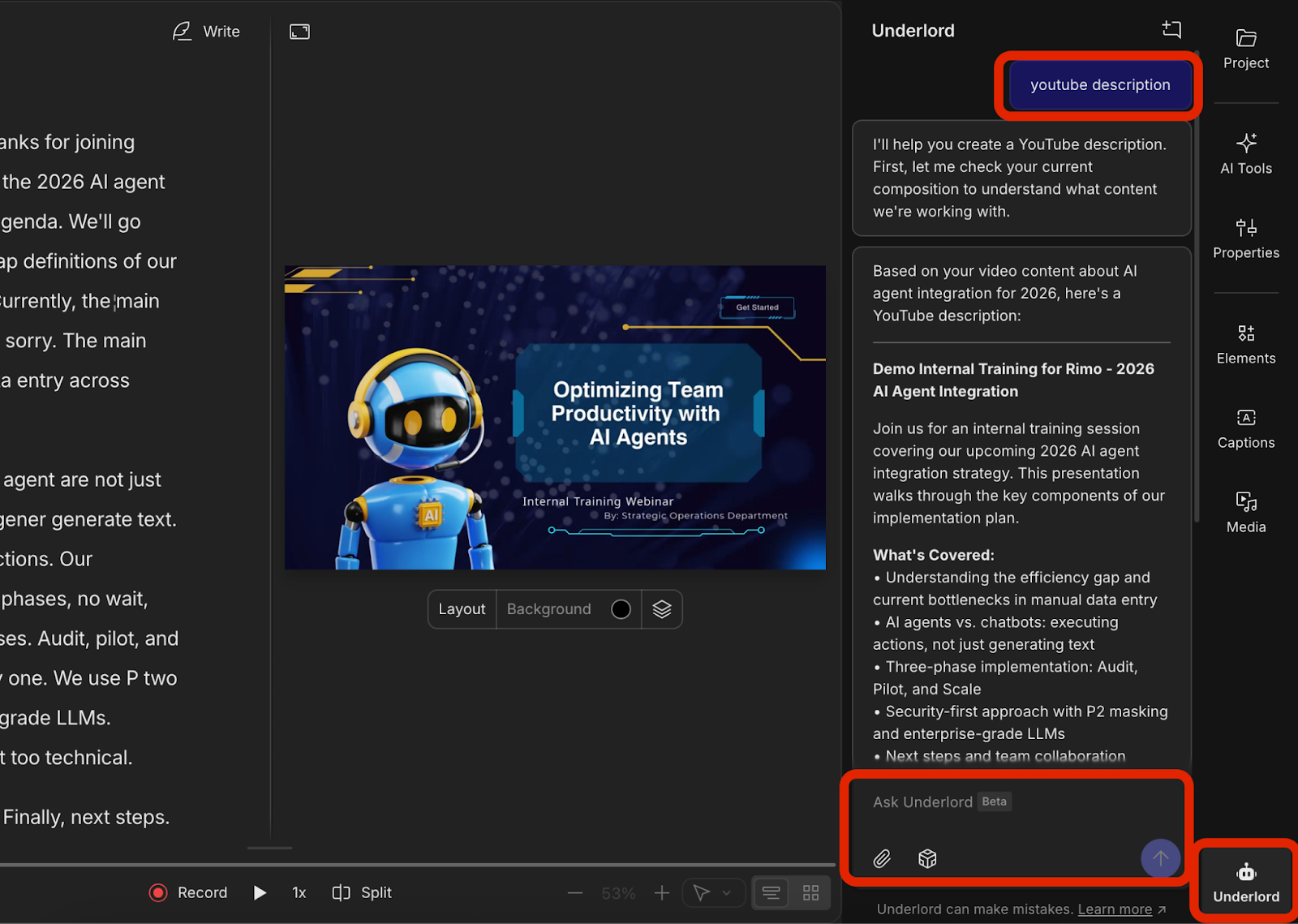
AI Description & Metadata Generator
The work isn't done when the video is rendered. Descript’s AI Description & Metadata Generator creates YouTube titles, descriptions, and timestamps based on your transcript. It’s the final push that gets your content from your hard drive to the world.
The Pros and Cons: A Brutal 2026 Reality Check
No tool is perfect. While Descript feels like a "cheat code" for productivity, it has specific limitations regarding project scale and internet dependency that every professional should understand before switching.
Pros: Why Descript Feels Like a Creative Cheat Code
If you’ve ever felt the "timeline fatigue" of staring at blue and green bars for hours, Descript will feel like a breath of fresh air. It’s not just a tool; it’s a productivity hack that makes editing actually fun again.
Fast cuts without timeline fatigue Editing by deleting text is a revelation. Especially for talking-head videos or webinars, you can "skim" your video at the speed of reading. Removing a 30-second tangent takes exactly two taps on your keyboard. Your brain stays focused on the story, not the software.
Post-production shortcuts that actually matter We used to spend hours hunting for "ums" and "uhs." Descript’s AI does this in a heartbeat. It’s like having a meticulous assistant who cleans up your verbal clutter and polishes your audio while you grab a coffee.
Collaboration that doesn’t feel like a video tool Sharing a video for review used to mean giant file transfers and confusing email chains. Descript works like Google Docs—send a link, let your client or boss leave a comment on a specific word, and fix it instantly. The friction of production simply evaporates.
Publish support: Your "After-Work" is already done The moment you finish the edit, your YouTube title, SEO-friendly description, and social media clips are drafts in a few clicks. It reduces the "distance to publish," meaning you stay consistent without burning out.
Cons: Where Descript Can Cost You Time (and How to Avoid It)
Descript is powerful, but it’s not magic. If you treat it like a traditional high-end editor without a plan, you might hit a wall.
Heavy projects can slow you down Because Descript is heavily cloud-integrated, working on a 2-hour 4K raw file with a weak internet connection can be frustrating. You’ll see the "spinning wheel of death" more than you’d like.
Don't dump a 60-minute raw clip into one project. Split your recording into 15-minute segments and optimize your media before importing.
The "Caption Tax": Names, Numbers, and Jargon While the AI is elite at English, it’s not a mind-reader. It will struggle with technical jargon, specific product names, or dates.
The issue isn't the "accuracy percentage"—it's the rework time. If you have a deadline, fixing 100 small typos in captions can eat up the time you saved during the edit.
The Hidden Tax: Rework after the edit It’s easy to get a "rough cut" done in minutes, but the "polish phase"—aligning captions, checking terminology, and refining AI-generated summaries—can expand to fill your schedule if you're not careful.
Battle of the AI Editors: Descript vs. The Competition
How does Descript stack up against giants like CapCut and Premiere Pro? It’s not about which is "better," but which one matches your creative logic. Let’s compare their workflows side-by-side.
Quick UI Tour: How Each Editor “Wants” You to Work
Choosing a video editor in 2026 isn't about which software has the most buttons; it’s about how the tool wants you to think. Each of these three heavyweights approaches your raw footage from a completely different angle.
Imagine you’ve just finished recording our "AI Workflow" webinar. Here is what happens when you open the gates:
Feature | Descript | CapCut | Adobe Premiere Pro |
Primary Logic | Document-based | Template-based | Timeline-based |
Best For | Interviews, Training, Podcasts | Trending Reels, TikToks | Films, High-end Commercials |
AI Strength | Structural editing (Words) | Visual flair & Viral effects | Precision & Generative Extend |
Learning Curve | Near Zero (if you can type) | Low (Mobile-first) | High (Professional grade) |
Descript: The Editor for "Wordsmiths"
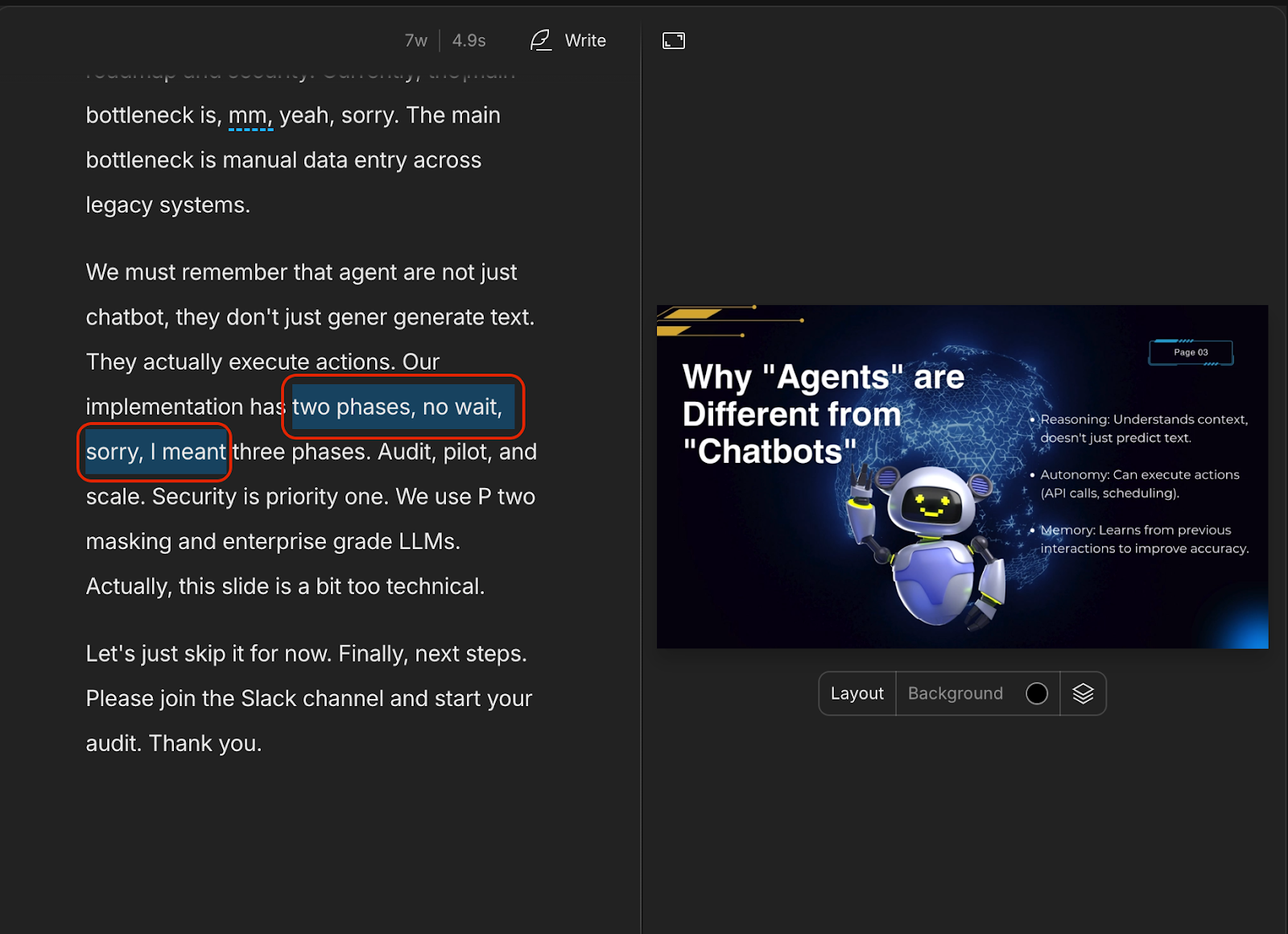
Descript treats your video like a living document. If you can edit a blog post, you can edit a video here.
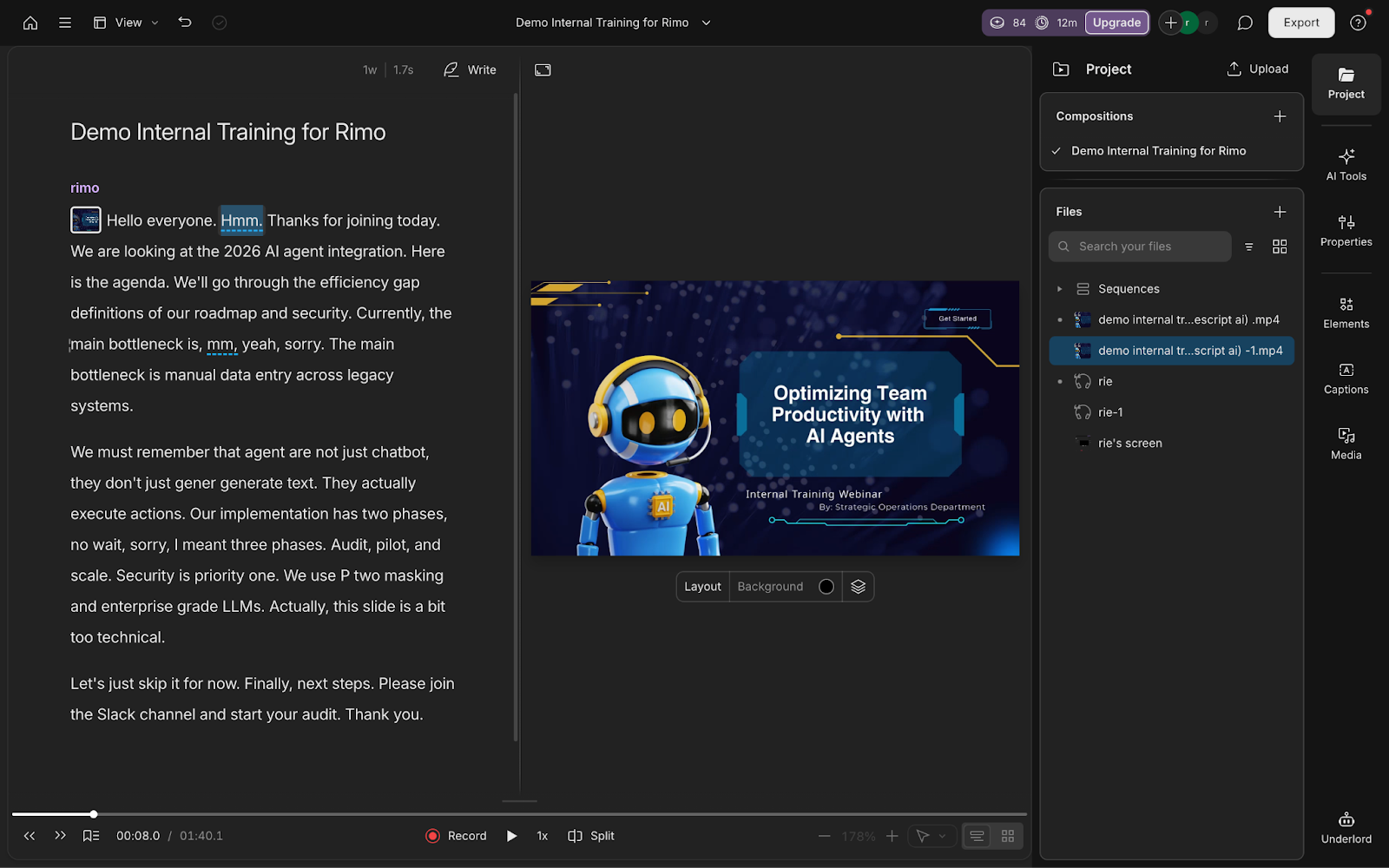
Primary Workspace (The Script): Timeline is optional—script-first is the default. Your main stage is the text script on the left. You interact with words, not waveforms.
How You Cut (The Highlight & Delete): Cutting is as simple as backspacing a typo. You highlight the "Um" or the "No, wait..." in the text, hit delete, and the video frames vanish instantly.
Where AI Lives (The Underlord): AI isn't a filter; it's an assistant. The "Underlord" panel sits right next to your text, proactively offering to scrub your fillers or enhance your audio.
CapCut: The Editor for "Visual Vibes"
CapCut is designed for the TikTok generation, where speed and visual energy are everything.
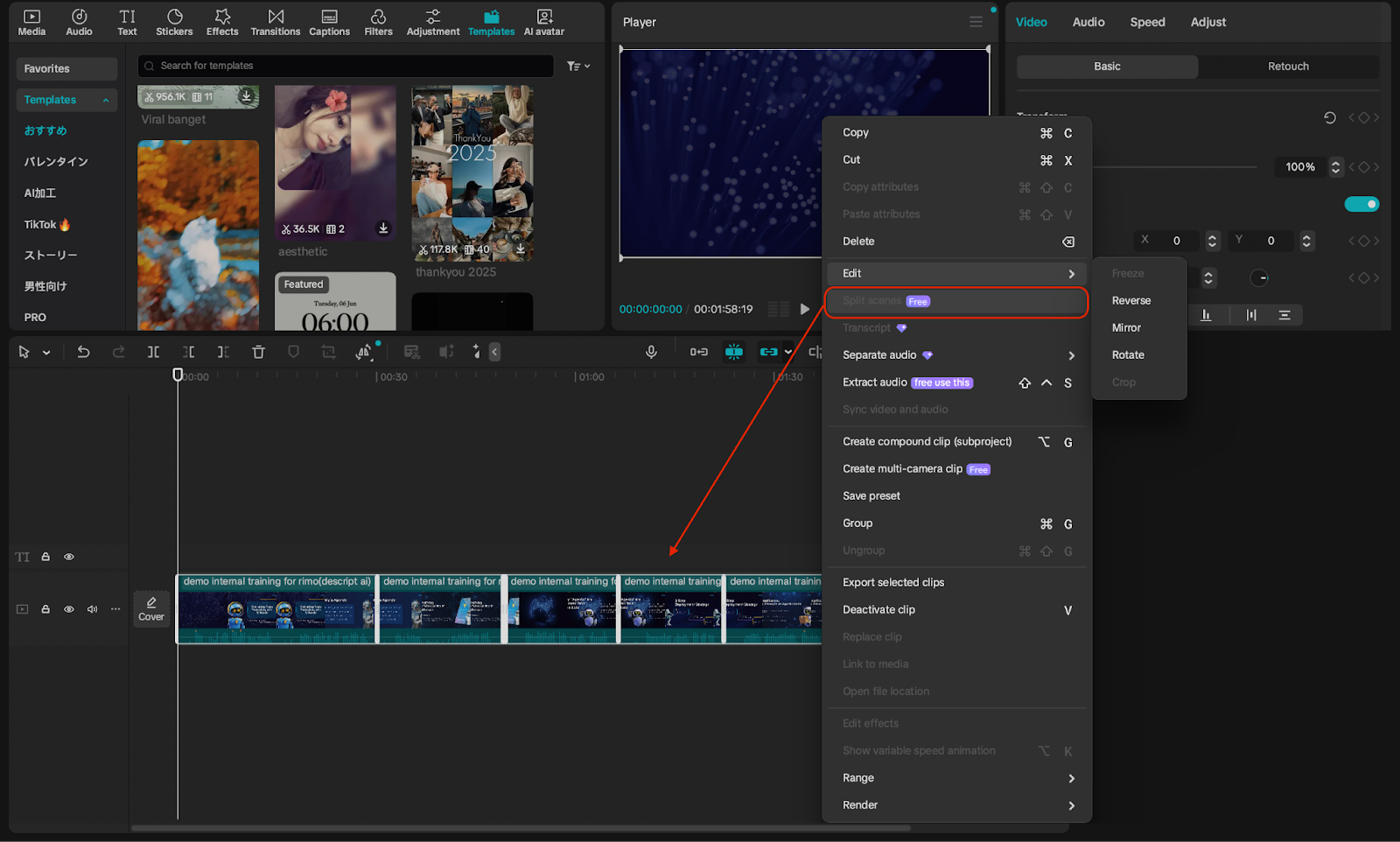
Primary Workspace (The Preview Window): The center of the universe is the preview screen. It’s all about how the stickers, captions, and effects look in real-time.
How You Cut (The Template & Auto-Split): You don't "craft" a cut; you "apply" one. You use AI auto-cutters or split clips based on the beat of the music.
Where AI Lives (The Style Menu): AI is a creative decorator. It’s found under "Auto-captions" or "Body Effects," ready to turn a boring slide into a viral-ready clip with one tap.
Adobe Premiere Pro: The Editor for "Craftsmen"
Premiere remains the gold standard for those who need surgical precision over every single frame.
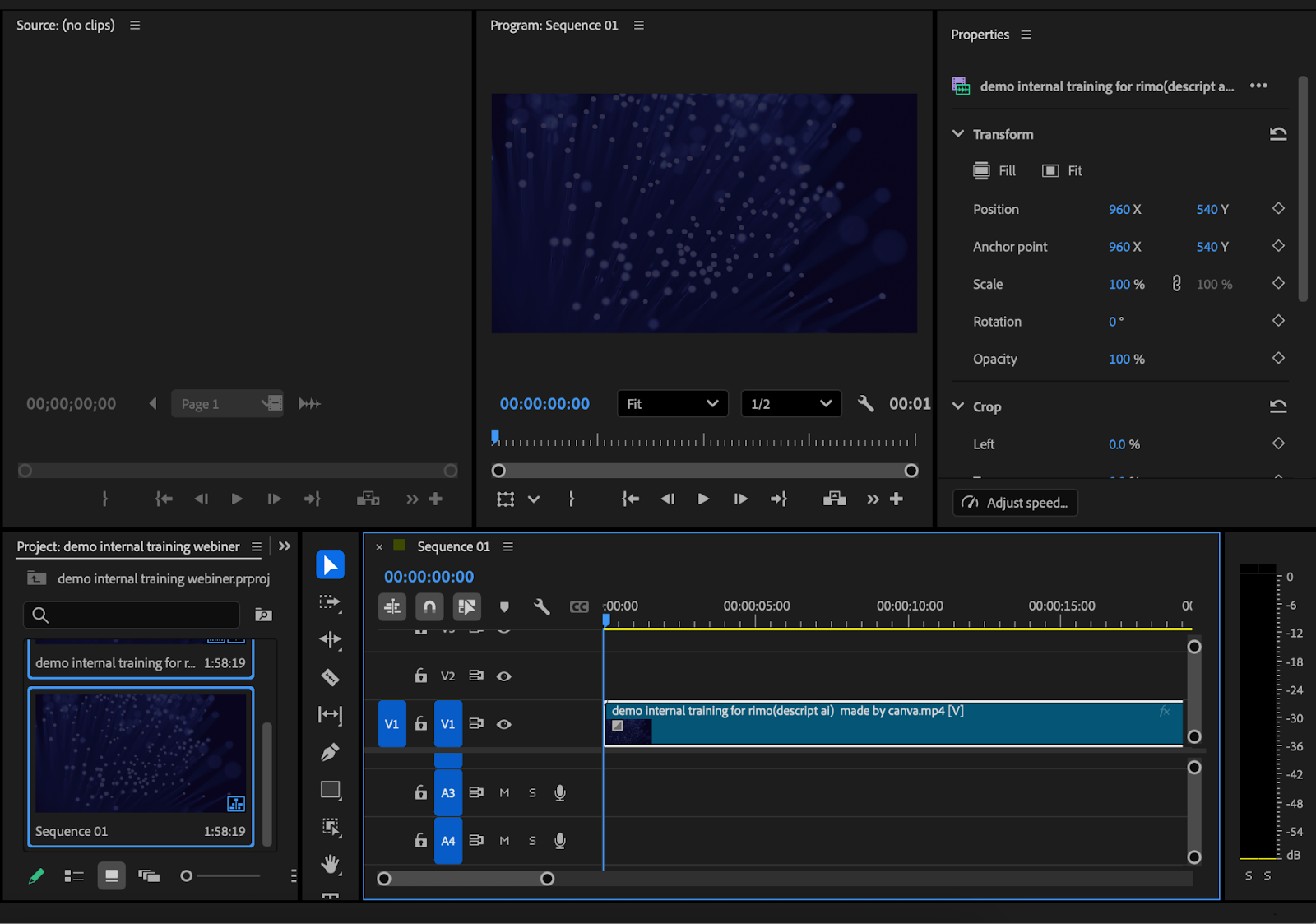
Primary Workspace (The Timeline): The timeline is a massive, multi-layered dashboard. This is where you manage the intricate relationship between audio, B-roll, and color.
How You Cut (The Razor Tool): You are a surgeon. You use the "Razor Tool" to hunt for the exact millisecond where a sentence ends, ensuring a frame-perfect transition.
Where AI Lives (The Technical Panels): AI is a deep-level technician. It hides inside the "Essential Graphics" or "Workspaces" menus, waiting for you to trigger complex tasks like Generative Extend.
The Hands-On Comparison: One Clip, Three Workflows
To see the real-world impact, I took our 90-second internal training webinar clip—complete with intentional "ums," long silences, and verbal slips—and edited it across all three platforms. The results revealed a clear divide between "AI-assisted" and "AI-native" workflows.
Comparison Metric | Descript | CapCut | Adobe Premiere Pro |
Time-to-First-Cut | ~2 mins (Seamless text sync) | ~5 mins (AI split + Manual cleanup) | ~10 mins (Powerful but complex) |
Primary Logic | Text-Native | Visual-First (with AI help) | Timeline-First (with Text plugin) |
Best For | Efficient internal updates | Social media flares | High-end cinematic polish |
Descript: The "One-Click" Structural Clean
Descript handled the webinar like a pro. Because it’s built on a transcript-first engine, removing all "ums" and the verbal mistake on Slide 3 was instant. You aren't just cutting a clip; you are editing the story. For a 90-second presentation, I reached a "ready-to-publish" state before I even finished my coffee.
CapCut: The Smart Assistant (With a Catch)
CapCut’s AI has improved significantly. Its Auto-Caption and AI-Split features successfully identified the most obvious silences and clear "filler words." However, the AI was a bit too cautious. While it caught the big mistakes, I still had to manually hunt through the timeline to trim those awkward "half-second" pauses and subtle stumbles that the AI missed. It’s a great assistant, but it still expects you to do the manual "fine-tuning" on the waveform.
Premiere Pro: The Professional Overkill
Adobe has recently integrated Text-Based Editing, and it’s undeniably powerful. You can cut by deleting text just like in Descript. However, the UI remains a cockpit of a jet fighter. For a simple internal training video, having hundreds of pro-level knobs and dials feels like "overkill." It takes longer to set up the project and navigate the menus than it does to actually edit the clip. It’s a magnificent tool, but for routine company videos, it’s like using a diamond-encrusted scalpel to cut a piece of paper.
A Simple Decision Rule: Pick by Output Complexity
The "best" editor doesn't exist in a vacuum; it only exists in relation to the complexity of your goal. To help you decide, I’ve broken down the choice based on the type of complexity your project demands.
Low Complexity: Template-Driven Output (Speed Wins)
The Scenario: You need to churn out short-form videos, Instagram Reels, or standardized social clips daily.
What Matters Most: Turnaround time, ease of use, and "vibe" over precision.
The Winner: CapCut CapCut is unbeatable when you want to look good without doing the heavy lifting. If your workflow depends on Templates and Mobile-First delivery, don't overcomplicate it. Stay in CapCut and keep the momentum moving.
High Complexity: Craft-Heavy Output (Control Wins)
The Scenario: You are producing high-end commercials, mini-documentaries, or videos requiring complex color grading, multi-cam syncing, and custom VFX.
What Matters Most: 100% control, frame-perfect precision, and "no-limits" creative freedom.
The Winner: Adobe Premiere Pro When the output requires Craftsmanship, Premiere remains the gold standard. It’s for the professional who needs to adjust every shadow and every millisecond. If your goal is a cinematic masterpiece, you need the industrial-grade power of Adobe.
Script-Heavy Complexity: Words-First Output (Clarity Wins)
The Scenario: You are editing a Talking-head video, a deep-dive interview, or an internal training webinar like the one we made today.
What Matters Most: Narrative flow, removing fillers, correcting verbal slips, and fast transcription.
The Winner: Descript If the Words are the Main Character, you are wasting time using a traditional timeline. Descript allows you to edit video at the speed of thought by focusing on the script. For business professionals and educators, this "Words-First" approach is the ultimate productivity hack.
Who Should Use Descript (And Who Should Look Elsewhere)
Descript is a revolutionary tool, but it isn't a one-size-fits-all solution. Depending on your industry and the level of precision you require, it can either be a massive time-saver or a potential bottleneck. Let’s identify which category you fall into.
Recommended for: Social Media Creators & Educators
If you need to turn a 60-minute lecture into a 1-minute clip with publishable captions, Descript is a "creative cheat code." It's perfect for those who prioritize information density over cinematic flair.
Not Recommended for: Corporate Legal & High-Precision Teams
If your video is 100% data, numbers, or legal jargon, the "edit by text" workflow can be dangerous. A single typo in the script could accidentally cut a crucial "not" or "only" from your video. For these teams, use Descript for the rough cut, but finalize your accuracy with a high-trust tool like Rimo Voice.
Pricing & Value: Is it Worth Your Subscription?
Value is measured by how much time you "buy back." We break down the 2026 tiers to help you find the sweet spot where the subscription pays for itself in reclaimed hours.
Breaking Down the Tiers: From Free to Pro
As of early 2026, Descript uses a hybrid model of Media Hours and AI Credits. Here is the breakdown.
Plan | Price (Annual) | Media Hours | Key Features |
Free | $0 | 1 hr /mo | 720p export with watermark. |
Hobbyist | $16 /mo | 10 hrs /mo | 1080p, watermark-free, 400 AI Credits. |
Creator | $24 /mo | 30 hrs /mo | 4K export, 800 AI Credits, Stock Media library. |
Business | $50 /mo | 40 hrs /mo | Team collaboration, 1,500 AI Credits, Brand Kits. |
Enterprise | Custom | Custom | Custom media minutes & AI credits (enterprise controls like SSO/SCIM) |
Tip: The Creator Plan is the best value for most. It unlocks 4K and enough AI credits to use "Eye Contact" and "Studio Sound" without constantly checking your balance. |
The ROI of "Buying Back Your Time"
When you look at the monthly fee for Descript, don't view it as just another software subscription—view it as buying back your hours. For a busy professional, a 30-minute webinar typically requires 3 to 5 hours of manual editing to remove mistakes, sync audio, and add captions. At a standard hourly rate, that "hidden cost" easily exceeds $200 per video. With Descript, that same workflow is compressed into less than an hour. Even on the Creator Plan, the tool pays for itself the moment you finish your first project of the month.
The true ROI lies in eliminating the friction between "Recorded" and "Published." Instead of outsourcing to an editor—which can take days of back-and-forth—or letting footage rot on your hard drive because you're too busy to edit, Descript allows you to hit "Export" before the inspiration fades. If your time is worth more than $24 an hour, the ROI isn't just positive; it’s exponential.
The Caption & Content Upgrade: How Rimo Voice Complements Descript
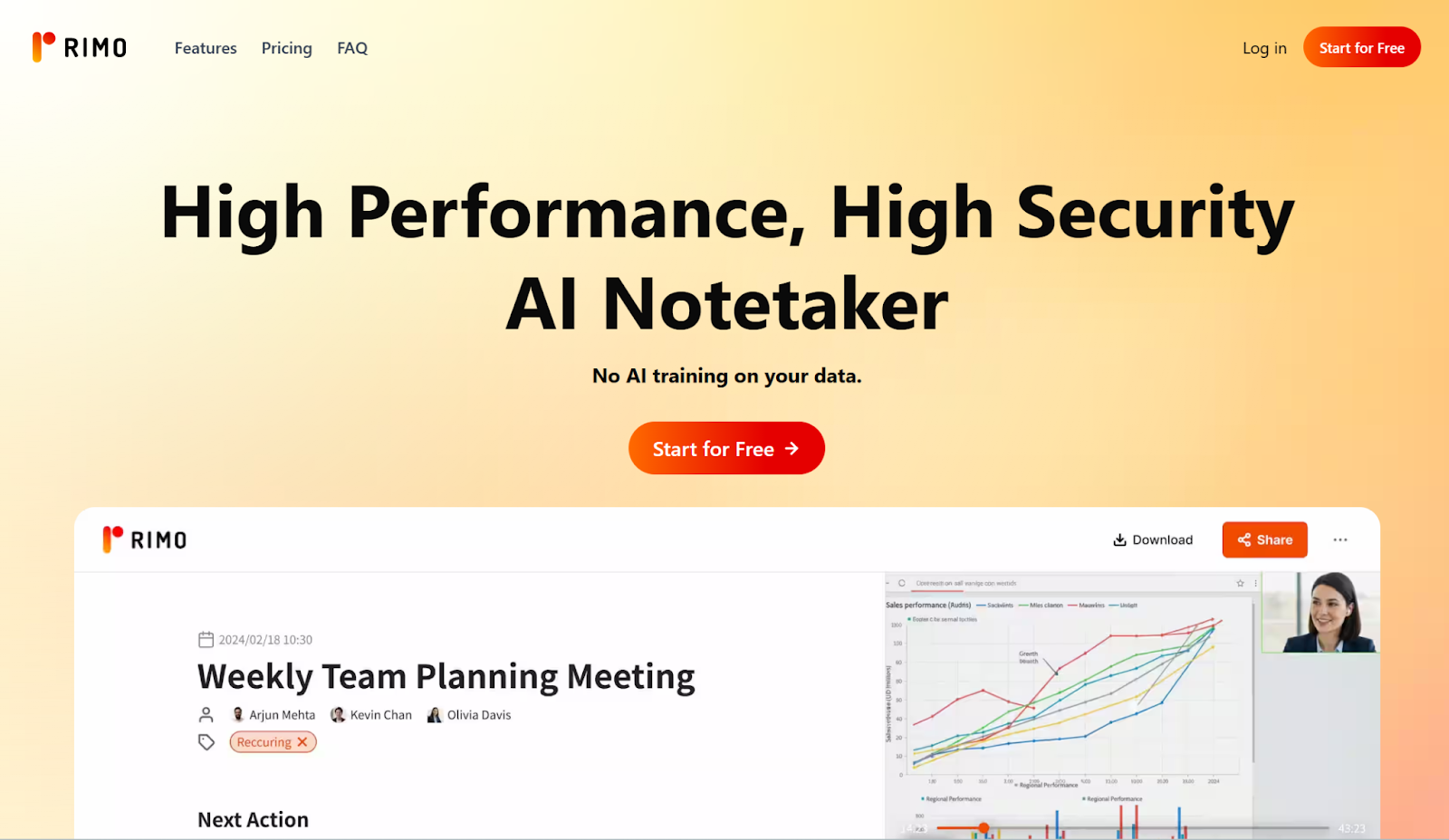
Beyond subtitles, Rimo Voice’s AI summaries and chat-style editing help you turn the same transcript into publish-ready assets—article drafts, platform-specific social captions, and clean descriptions—without starting from scratch.
While Descript excels at the “Physical Edit,” Rimo Voice masters the “Information Layer.” By combining Descript’s speed with Rimo’s context-aware, high-precision accuracy, you can reduce caption correction and accelerate repurposing—turning each video into reliable, reusable content for business.
Why This Matters: When “Good Enough” Captions Aren’t Good Enough
We’ve all been there. The video editing is finished, but then comes the "Caption Hell." You spend hours manually fixing typos, misaligned timings, and mangled technical terms.
In a professional workflow, the bottleneck isn't the "accuracy percentage"—it’s the correction cost. Every time you have to re-type a person's name, a product model, or a specific date, your productivity bleeds away. AI captions are often "good enough" for a quick social post, but they often struggle with:
Proper nouns and brand names
Technical jargon and abbreviations
Numerical data (amounts, dates, currency)
Subtle accents or fast-paced industry talk
What Rimo Voice Is (In One Line): High-Trust Transcripts for Publishing
If you want to eliminate that rework, you need a specialized engine. Rimo Voice provides high-precision transcripts designed to be the foundation for subtitles, summaries, and content repurposing.
Think of it as the "Gold Standard" of text data for your video. Rimo stands on three pillars:
Ultra-High Precision: Optimized for complex business contexts and technical terminology across multiple languages.
Blazing Speed: Generates a full transcript in minutes, not hours.
Enterprise Security: ISO 27001 / ISO 27017 certified, ensuring your internal data stays private.
Real-World Test: Descript vs. Rimo Voice
I ran a "stress test" using a 90-second technical webinar clip. Both platforms processed the exact same audio, packed with the following challenging terms:
The Stress Test Keywords:
Technical: 8,400 IOPS, V-Core API, Edge-computing
Financial: OpEx vs. CapEx, Churn Rate, 18.25%
Compliance: Tier-4 Data Sovereignty, SLA, BPA
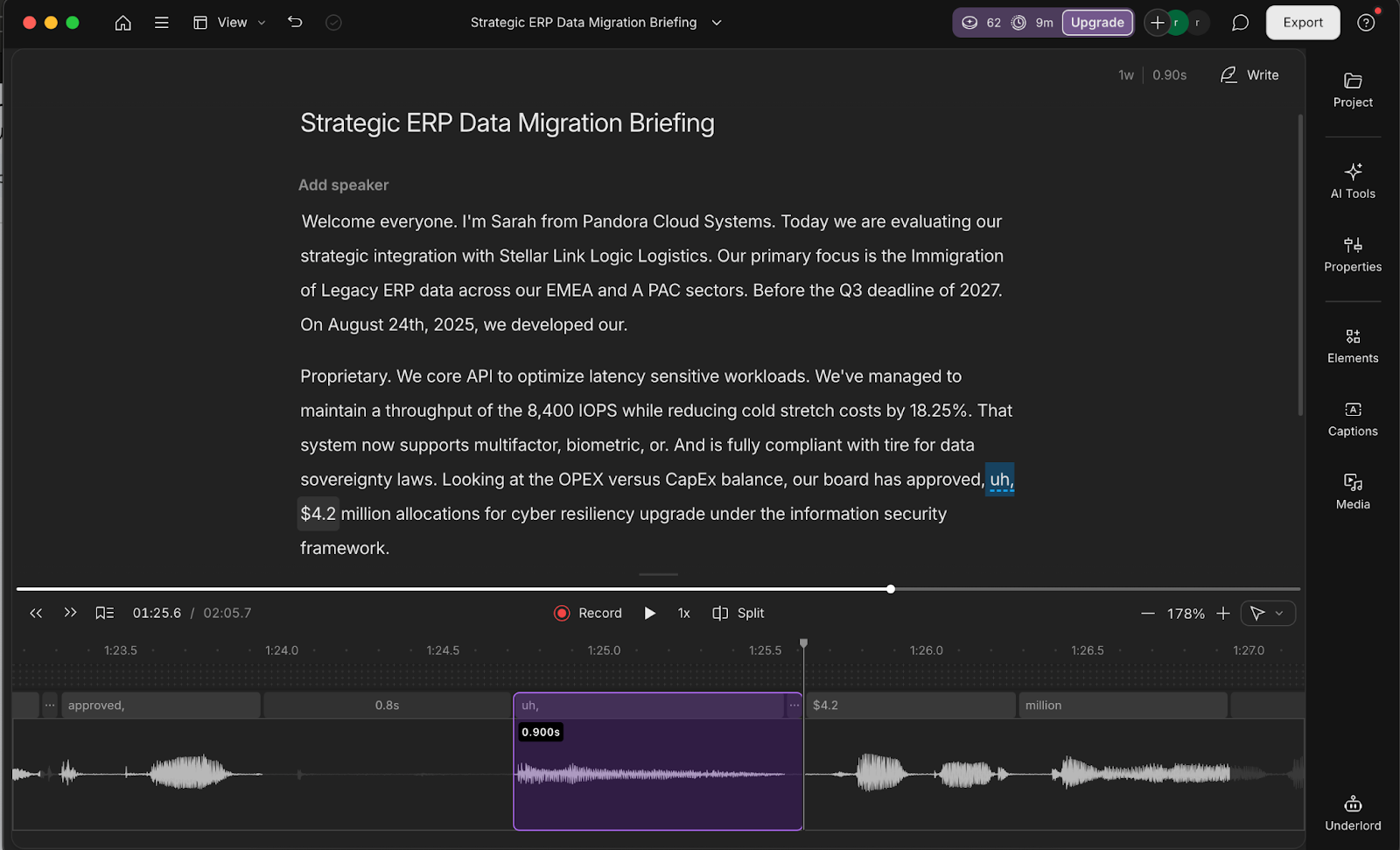
【Descript】
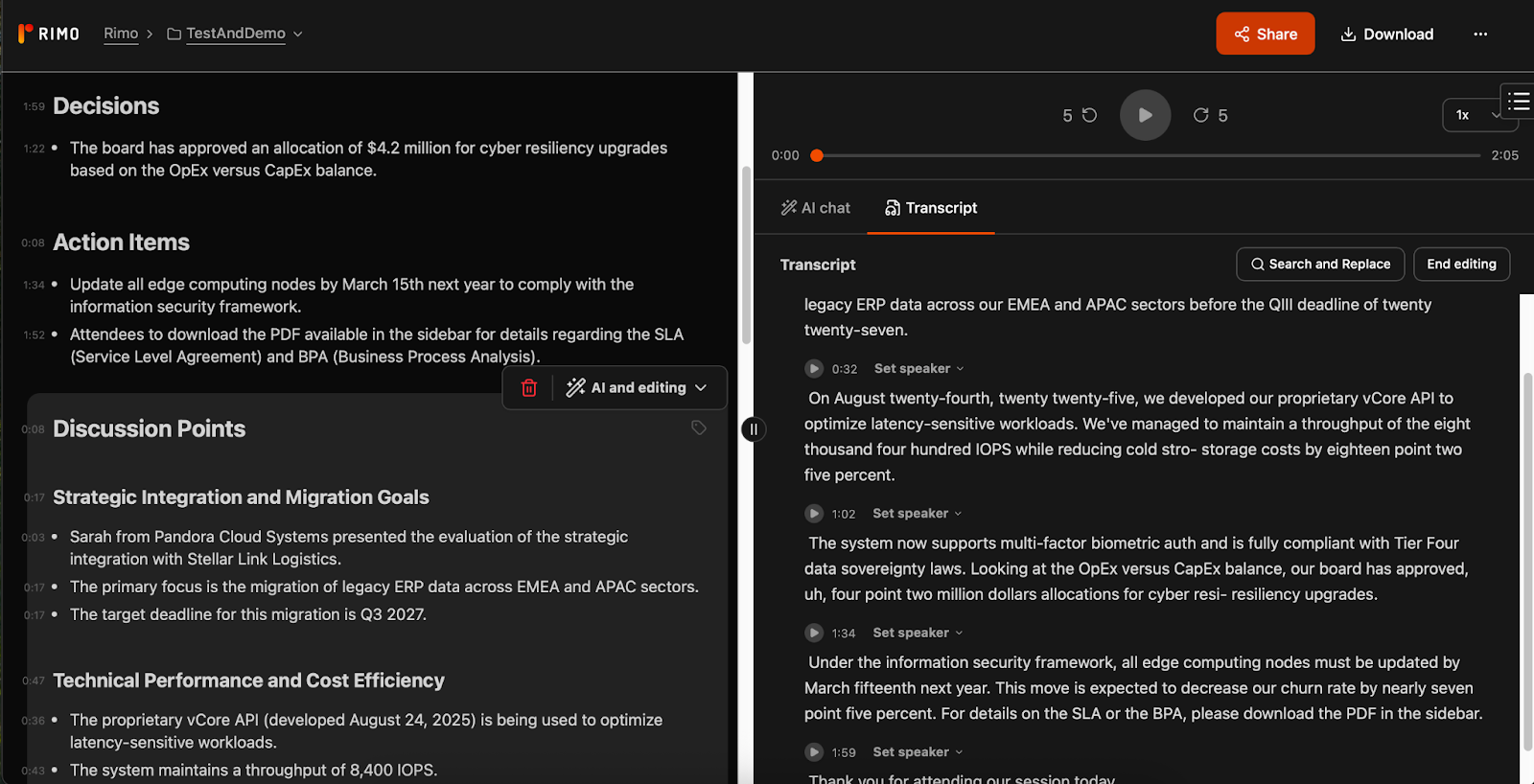
【Rimo Voice】
Metric | Descript (Internal AI) | Rimo Voice |
Fix Count (Typos/Jargon) | 12 corrections | 4 corrections |
Why the Gap?
Context over Sound: Descript fell for "sounds-like" errors—mistaking "Migration" for "Immigration" or "Tier-4" for "Tire for." Rimo Voice used superior contextual intelligence to nail the meaning on the first pass.
Professional Formatting: Terms like "OpEx" and "18.25%" were formatted perfectly by Rimo. Descript struggled with spacing (e.g., "A PAC" instead of "APAC"), requiring tedious manual cleanup.
The results showed a staggering difference: Descript required nearly 10 extra corrections for this short clip alone. For a busy creator, this is the difference between "deciphering" a mess and "polishing" a professional script. This workflow reduces your correction workload to just one-third, saving you from the tedious cycle of re-typing technical terms.
Beyond Captions: Turn Videos into Reusable Assets
The real magic happens after the video is rendered. Using a high-fidelity transcript from Rimo Voice doesn't just make subtitles easier; it turns your video into a searchable asset.
Once you have a highly reliable transcript, the manual labor of "post-production" is significantly reduced. You can instantly:
Extract Summaries: Generate key takeaways for Slack or internal reports.
Blog & SNS Conversion: Repurpose the core message into text-based content without starting from scratch.
The “Best of Both Worlds” Case: Teams Publishing at Scale
For professional teams and corporations, the ultimate power move is the Dual-Tool Strategy: Descript + Rimo Voice.
The Workflow:
Descript: Use it for the "Physical Edit"—cutting clips, removing filler words, and perfecting the visual flow.
Rimo Voice: Use it for the "Information Layer"—generating high-precision subtitles, creating meeting minutes (Rimo's specialty!), and archiving searchable content.
Who is this for?
Marketing Teams: Who need to repurpose one webinar into ten different content pieces.
Corporations: Who require strict accuracy and high security for internal training.
Production Agencies: Who want to stop wasting hours on caption corrections and focus on creative storytelling.
By decoupling the "Edit" from the "Text Accuracy," you ensure that your production line never stops. Plus, Rimo Voice's ability to act as a meeting minute tool means you’re getting a 2-for-1 deal on productivity.
Special Note: You can currently try Rimo Voice at a special campaign price. It's the perfect time to upgrade your workflow from "just editing" to "asset building." |
Summary: Is Descript Worth It in 2026?
Descript is the definitive productivity engine for 2026, transforming video editing into a process as simple as editing a document. It is the perfect choice for anyone who needs to turn webinars or interviews into polished content at lightning speed. If your goal is to communicate ideas without the technical headache, Descript’s "Words-First" workflow is an unbeatable investment.
However, speed shouldn't come at the cost of trust. For high-stakes projects involving complex jargon or critical data, the internal AI may still require manual oversight. To achieve both maximum velocity and flawless accuracy, the ultimate pro-move is pairing Descript with Rimo Voice. This duo ensures you can edit with total freedom while maintaining the high-precision captions your professional brand demands.
FAQ: Descript AI
Is Descript AI good for beginners (no timeline editing experience)?
Absolutely. Most beginners quit because they get overwhelmed by "Timeline Anxiety"—the complex layers of audio and video. Descript replaces that anxiety with a familiar document interface. It automates the hardest parts of beginner editing: it cleans up your audio (Studio Sound), removes your "ums" (Underlord), and generates your captions automatically. It’s the shortest bridge between "I have an idea" and "I have a video."
Can Descript generate YouTube descriptions and metadata automatically?
Yes, and it’s a lifesaver. Using the "Write" or "Underlord" features, Descript can draft your YouTube titles, descriptions, and show notes based on the actual content of your video.
Treat it as a "High-Quality Draft." While it’s great at summarizing, you should spend 2 minutes tweaking the tone to match your brand voice and double-checking the SEO keywords.
How accurate is Descript transcription for captions?
Descript is highly reliable for standard conversation, but like all AI, it has blind spots. It typically struggles with "The Three Pillars of Rework": Proper nouns (Brand names), Numbers (Dates/Prices), and Industry Jargon.
Remember: Accuracy isn't just about a score; it’s about time cost. If you have a high-stakes corporate video where a wrong digit could be a disaster, you’ll spend significant time proofreading. In these cases, many professionals choose to supplement their workflow with a high-precision transcription service (like Rimo Voice) to ensure a flawless foundation for their captions before publishing.
How to use Descript AI (quick start for first-time users)
Import: Drop your video file into Descript.
Transcribe: Let the AI turn your speech into text (takes just a few minutes).
Edit by Text: Read through the script. Highlight and delete the parts you don't want. The video clips will magically shorten themselves.
Polish & Export: Hit "Underlord" to remove fillers, apply "Studio Sound" to make your mic sound pro, and click "Publish."
How does Descript’s AI compare to other video editing tools?
Descript: The king of "Script-to-Video." Best for when the message is the priority and you need to move fast.
CapCut: The king of "Visual Vibes." Best for mobile-first creators who need trendy templates, stickers, and fast-paced visual energy.
Adobe Premiere Pro: The king of "Professional Control." Best for cinema-grade projects where you need 100% manual control over every pixel and frame.
Descript isn't trying to replace Premiere or CapCut; it’s creating a new category where storytelling through text is the fastest way to create.
Related articles
Return to List