
Otter.ai Review 2026: AI Chat, Pricing, and a Real In-Person Recording Test


Trying to take notes while someone is speaking sounds easy until you are the one trying to listen, understand, think, and write everything down at the same time.
That is the problem Otter.ai promises to solve. It records conversations, transcribes them, summarizes key points, and lets you ask questions about what was said later. For students, that might mean reviewing a fast-moving lecture. For professionals, it might mean finding a decision from last week’s meeting. For interviewers, it might mean focusing on the person in front of them instead of typing every sentence.
But in 2026, AI transcription tools are no longer judged only by whether they can create a transcript. The bigger question is what happens after the recording. Can the notes help you study, follow up, write, plan, or make decisions faster?
In this Otter.ai review, we look at how Otter.ai works, who it is best for, how its pricing works, and where it fits compared with alternatives like Rimo Voice and Rimo Actions. We also leave room for a real in-person recording test to see how Otter.ai performs when recording professor-style lectures, not just clean online meetings.
What Is Otter.ai?
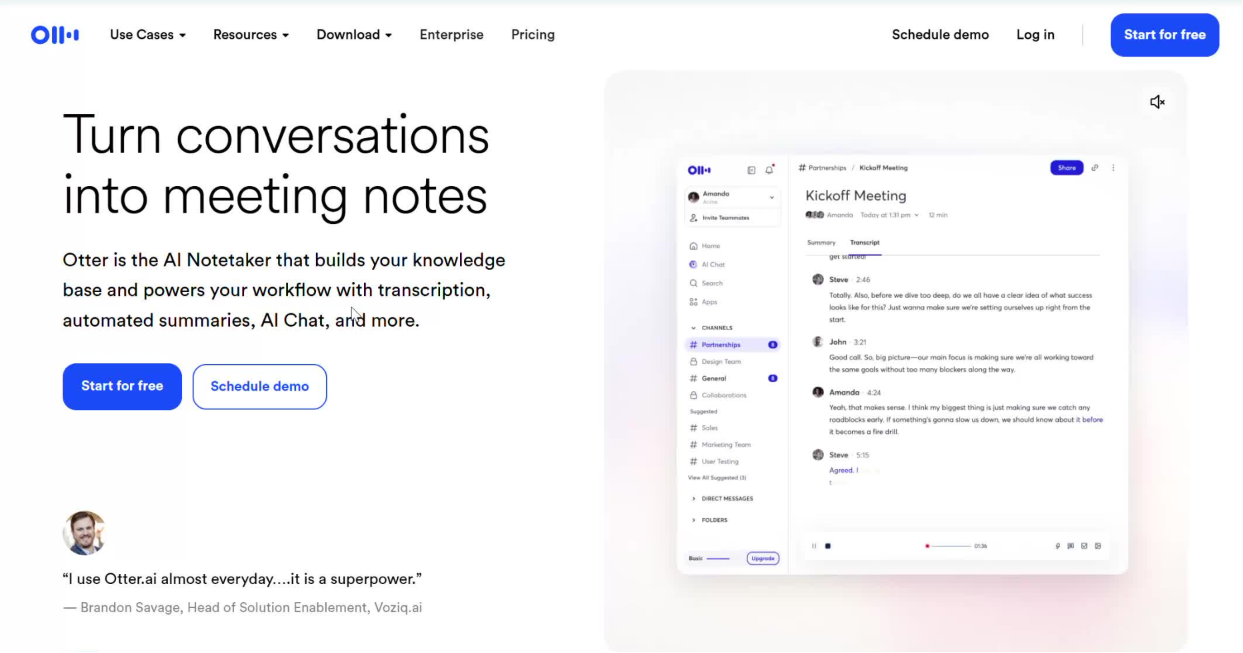
Before comparing features or pricing, it helps to understand what Otter.ai is really trying to replace. It is not just replacing a recorder. It is replacing the messy process of taking notes, searching through memory, replaying audio, and asking people to repeat what was already said.
Otter.ai in One Sentence
Otter.ai is an AI transcription and note-taking tool that records conversations, turns them into searchable transcripts, summarizes key points, and helps you ask questions about what was said.
That sounds simple, but its value becomes clearer in everyday situations. A student may use it after a lecture to review a term they missed. A manager may use it to confirm who owns the next action item. A journalist may use it to find the exact quote from an interview. A sales rep may use it to revisit how a customer described their biggest concern.
In other words, Otter.ai is not just for people who hate taking notes. It is for anyone who has ever thought, “I remember someone said this, but I cannot find where.”
Who Is Otter.ai Best For?
Otter.ai is best for people who need to capture spoken information first and make sense of it later.
For students, that can mean recording a class and reviewing the main points before an exam. For business professionals, it can mean keeping a searchable record of meetings and discussions. For interviewers, it can reduce the pressure of typing while listening. For sales teams, it can preserve the exact language customers use when they describe problems, objections, or buying signals.
The common thread is not the user’s job title. It is the need to remember conversations accurately.
Otter.ai is especially useful if your problem sounds like one of these:
I understood the lecture, but I could not write everything down.
I need to find what we decided last week.
I want to review an interview without replaying the whole recording.
I need to check the customer’s exact wording.
However, if your real bottleneck starts after the notes are created — for example, turning a conversation into a proposal, email draft, article outline, research report, or campaign plan — Otter.ai may only solve the first half of the problem. In that case, it is worth comparing it with tools that focus more on structured notes and post-recording outputs, such as Rimo Voice and Rimo Actions.
Why This Review Also Compares Otter.ai with Rimo Voice
This review also compares Otter.ai with Rimo Voice because AI transcription tools are no longer used in just one way.
Some readers may be looking for a simple way to record online meetings. Others may want to review lectures, clean up interview notes, share class discussions, or turn long recordings into something easier to understand later.
Otter.ai and Rimo Voice both belong in this conversation because they can help users capture spoken content and turn it into notes. But they do not always feel useful for the exact same reasons.
For example, one reader may care most about finding a specific moment in a transcript: “Where did they mention the deadline?” Another may care more about whether the notes are easy to read afterward: “Can I actually use this to study, write, or prepare the next step?”
That is why this review does not only ask whether Otter.ai can transcribe audio. It also looks at what the output feels like after the recording is done — especially when the recording comes from a class, interview, in-person conversation, or everyday meeting.
As you read, the useful question is not “Which tool wins?” right away. It is:
What do you want your recording to become after the conversation ends?
How Otter.ai Works: From Recording to AI Chat
Otter.ai’s workflow is simple on the surface: record, transcribe, summarize, and ask questions. But the way you use it changes depending on the situation — joining an online meeting, recording a lecture in person, uploading an old interview, or trying to find one important detail inside a long conversation.
Online Meeting Recording with Zoom, Google Meet, and Microsoft Teams
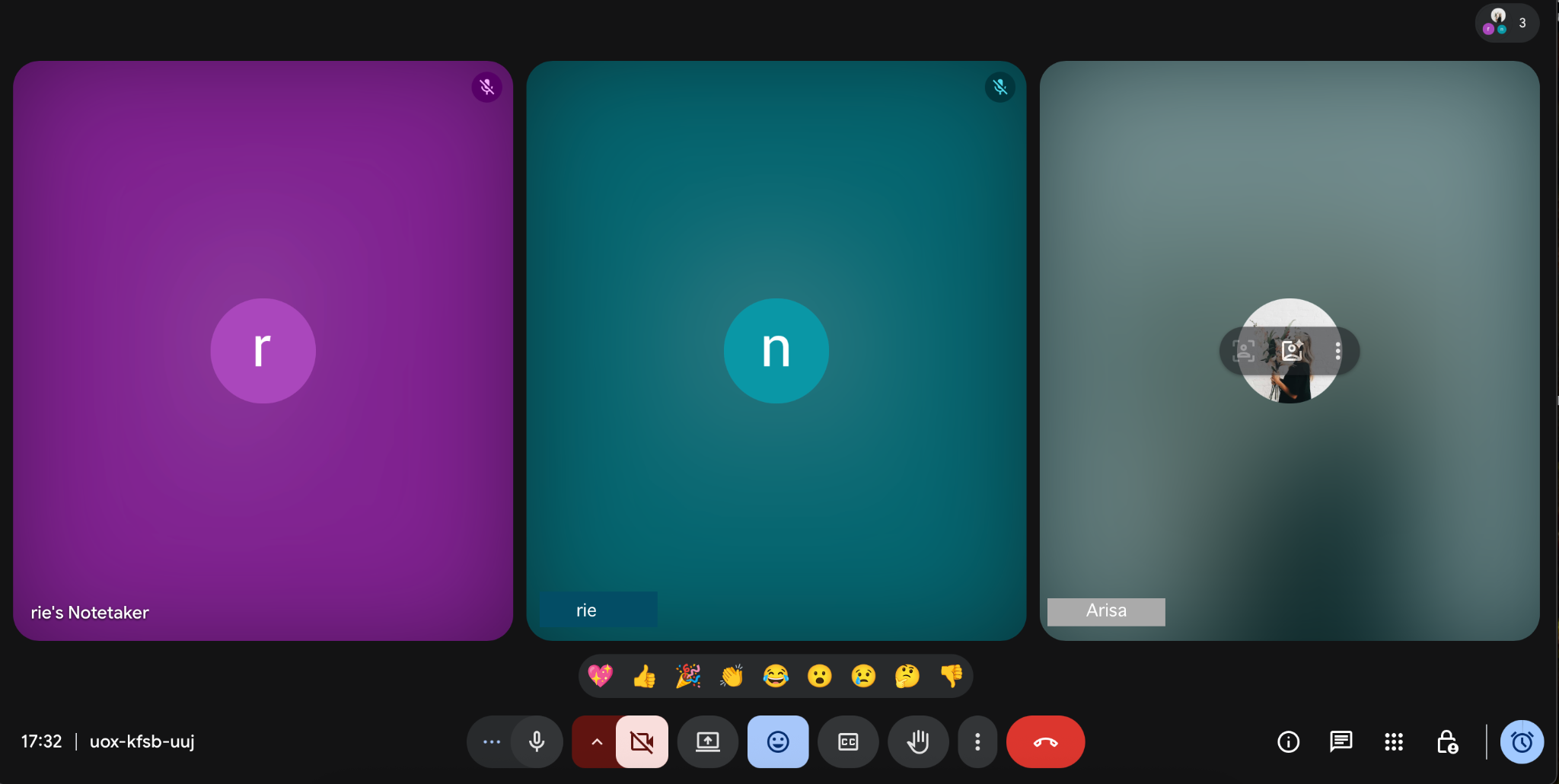
For online meetings, Otter.ai works like an AI notetaker that can join the call, listen in real time, and create a transcript and summary while the conversation is happening.
This is useful when you are in the meeting but cannot type fast enough. It is also useful when you want to review a class discussion, webinar, team call, or customer conversation afterward without relying only on memory.
Imagine a weekly project meeting. The team talks about deadlines, budget, user feedback, and who owns the next task. Without a tool like Otter.ai, those details can end up scattered across someone’s notebook, a Slack thread, and a vague memory of “I think we decided something.” With Otter.ai, the conversation becomes a searchable record that can be reviewed later.
Otter Notetaker can automatically join supported calendar meetings with Zoom, Google Meet, or Microsoft Teams links, and users can manage which meetings it joins through Notetaker settings.
The point is not that you should stop paying attention. The point is that you do not have to choose between listening and documenting.
In-Person Recording with the Otter App
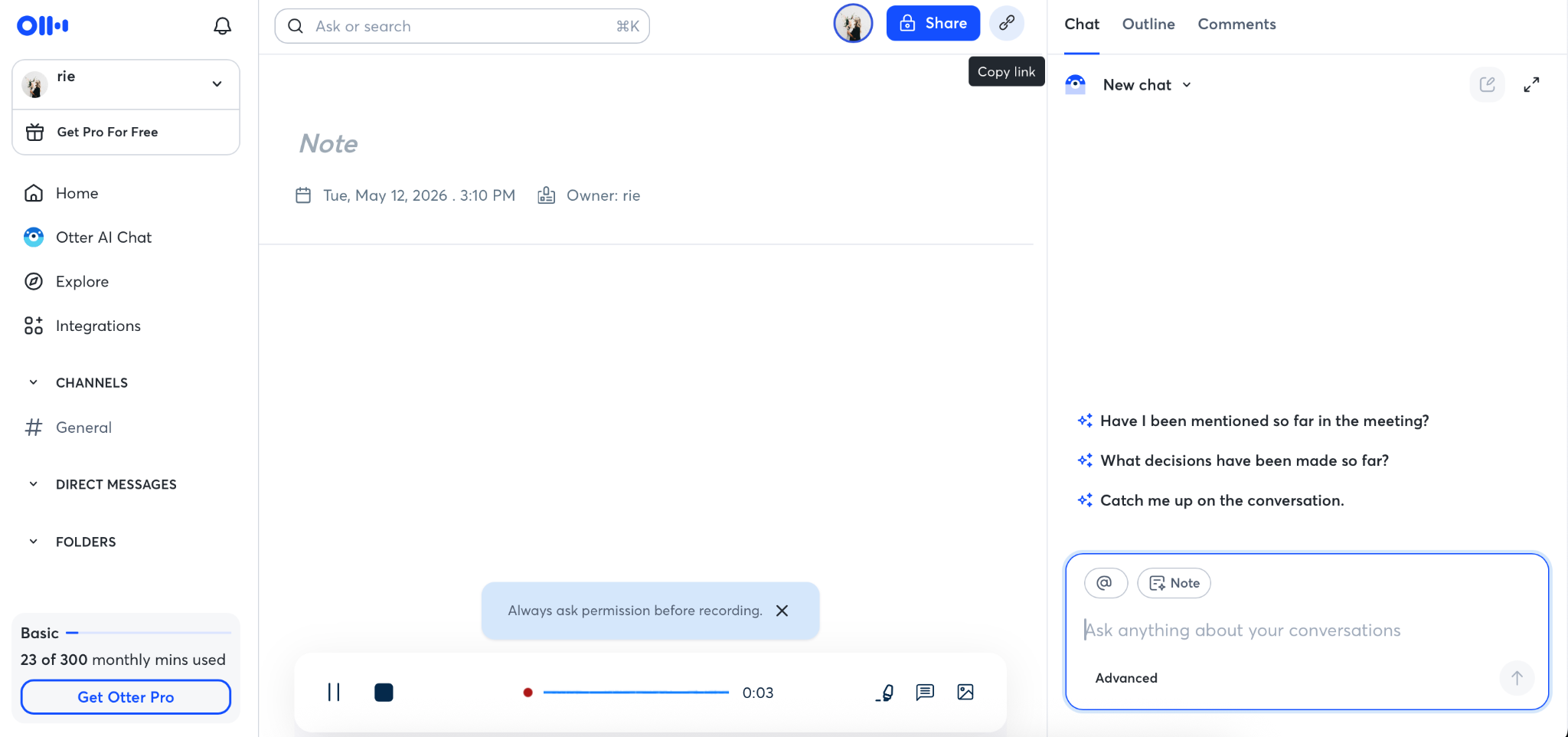
Otter.ai is not limited to online meetings. You can also use it for in-person conversations, such as lectures, interviews, workshops, seminars, and small-group discussions.
This is where many users have a very practical question: can Otter.ai record a professor in class?
The answer depends less on the brand name and more on the recording environment. A clear voice from a nearby speaker is very different from a professor speaking at the front of a large classroom while students type, cough, move chairs, and whisper in the background.
For in-person recording, three things matter most:
the distance between the device and the speaker
the amount of background noise
and the quality of the microphone
This is why the in-person recording test in this review is important. Instead of assuming Otter.ai will work perfectly in every classroom, lecture hall, or meeting room, we test how useful it feels when the audio is realistic.
Uploading Audio and Video Files
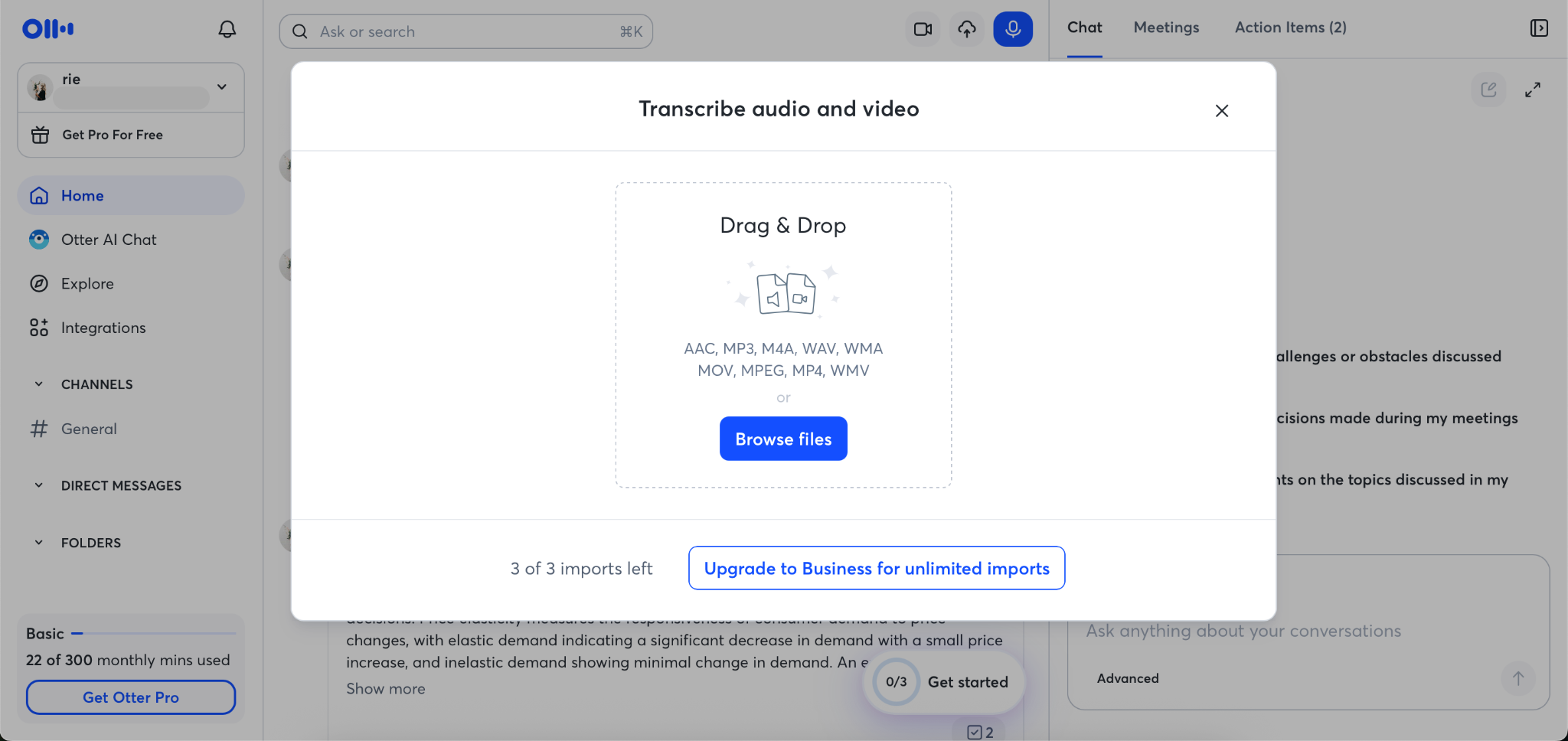
Otter.ai can also transcribe uploaded audio and video files. This is useful when the conversation has already happened and your problem is not live note-taking, but post-recording organization.
For example, you might have:
a recorded interview
a webinar replay
a lecture recording
a seminar video
a customer call saved as an audio file
Instead of replaying the whole file and manually writing notes, you can upload it and turn it into a transcript you can search, skim, and summarize.
This is especially useful for writers, researchers, students, and marketers. A 45-minute interview can become a source document. A webinar can become a content brief. A lecture can become study notes. A customer call can become a list of pain points.
Still, the same rule applies: the transcript is only as good as the audio allows. If the original file has heavy background noise, overlapping speakers, unclear pronunciation, or poor microphone quality, you should expect to review and clean up the transcript before relying on it.
Asking Questions with Otter AI Chat
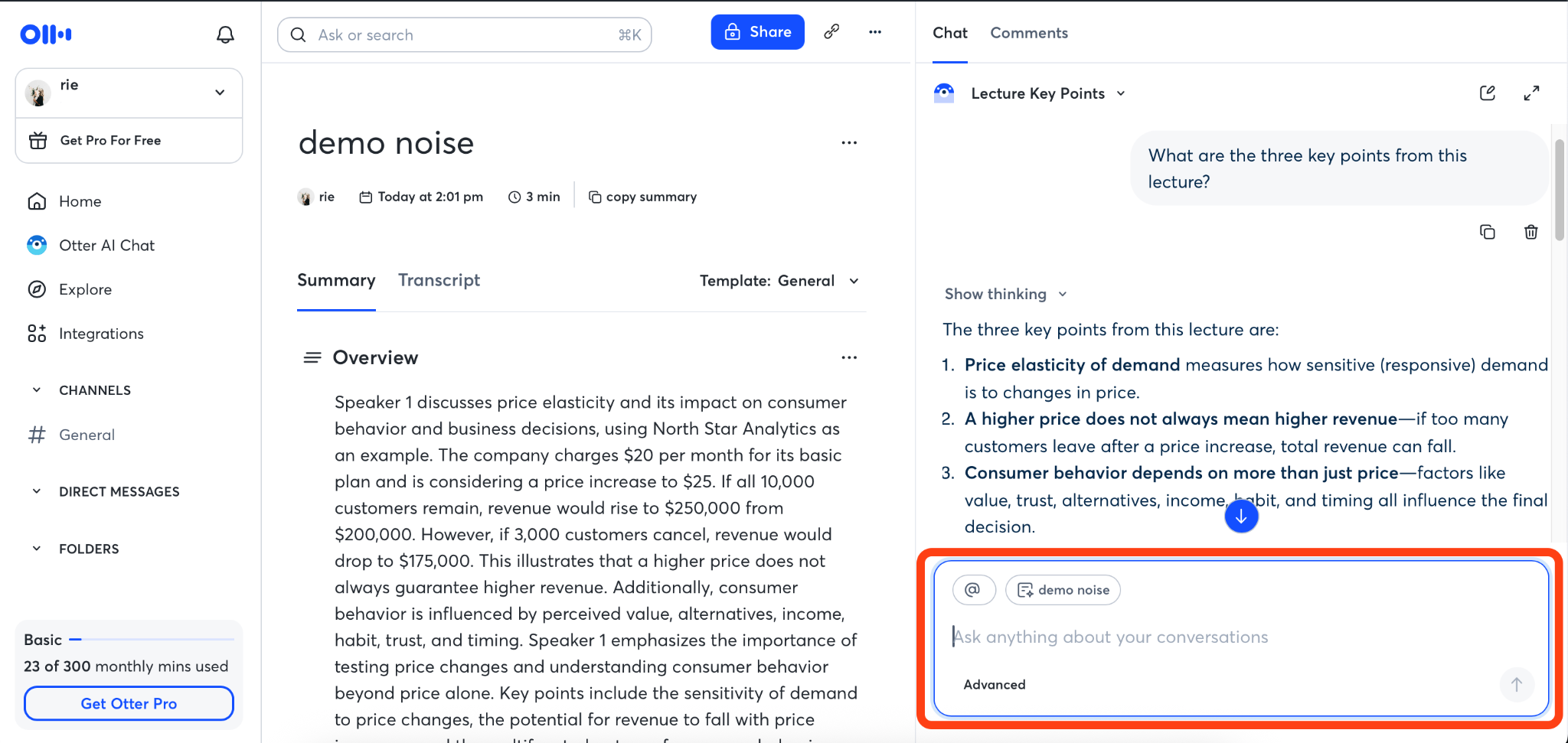
Otter AI Chat is where Otter.ai starts to feel less like a recorder and more like a memory you can talk to.
Instead of scrolling through a long transcript, you can ask questions such as:
“What were the main points of this lecture?”
“What decisions were made in this meeting?”
“What did the customer say about pricing?”
“What terms should I review before the next class?”
“What are the action items?”
This changes how you use transcripts. You are no longer only reading the record. You are interacting with it.
For a student, that could mean asking for the key concepts from a lecture before studying. For a manager, it could mean checking the owner of a task before sending a reminder. For a sales rep, it could mean pulling out the prospect’s concerns before preparing the next email.
However, it is important to set the right expectation. Otter AI Chat is helpful for asking questions about recorded content.It can help you locate and summarize information from the recording. But it is not the same as a full post-recording execution tool that independently turns a discussion into a polished proposal, campaign plan, research report, or client-ready document.
Where Otter AI Chat Still Feels Limited
Otter AI Chat is useful, but it does not remove all the work that happens after a class, interview, meeting, or customer call.
This distinction matters because many people do not struggle only with recording. They struggle with the gap between “I have the transcript” and “I know what to do with it.”
For example, Otter.ai can help a student find the part of a lecture where the professor explains a difficult concept. But the student may still need to turn that explanation into flashcards, a study guide, or exam notes.
Otter.ai can help a marketer find the part of an interview where a customer described a pain point. But the marketer may still need to turn that insight into landing page copy, ad messaging, or a content brief.
A simple way to think about it is this:
Otter.ai is strong at helping you find and understand what was said.
Post-recording execution tools are stronger when you want to turn what was said into what needs to be done next.
Can Otter.ai Record Professors in Class? Our In-Person Recording Review
Yes, Otter.ai can record professor-style lectures, but it works best as a review backup rather than a perfect replacement for taking notes. In our in-person recording test, Otter.ai captured the main topic, key terms, and important details from a short university-style lecture played from a PC speaker across close-distance, medium-distance, and medium-distance-with-light-noise conditions.
However, real classrooms can be harder. Echo, background noise, nearby student conversations, professor movement, and weak audio can reduce transcription accuracy. Students should also check school policies and get permission before recording lectures.
Test condition | Scenario simulated | Setup |
Close distance | Sitting near the professor or speaker | The phone was placed about 1 meter from the speaker. |
Medium distance | Sitting farther away in a classroom | The phone was placed about 4 meters from the speaker. |
Medium distance + noise | A more realistic classroom or in-person setting | The phone was placed about 4 meters away, with light background noise added. |
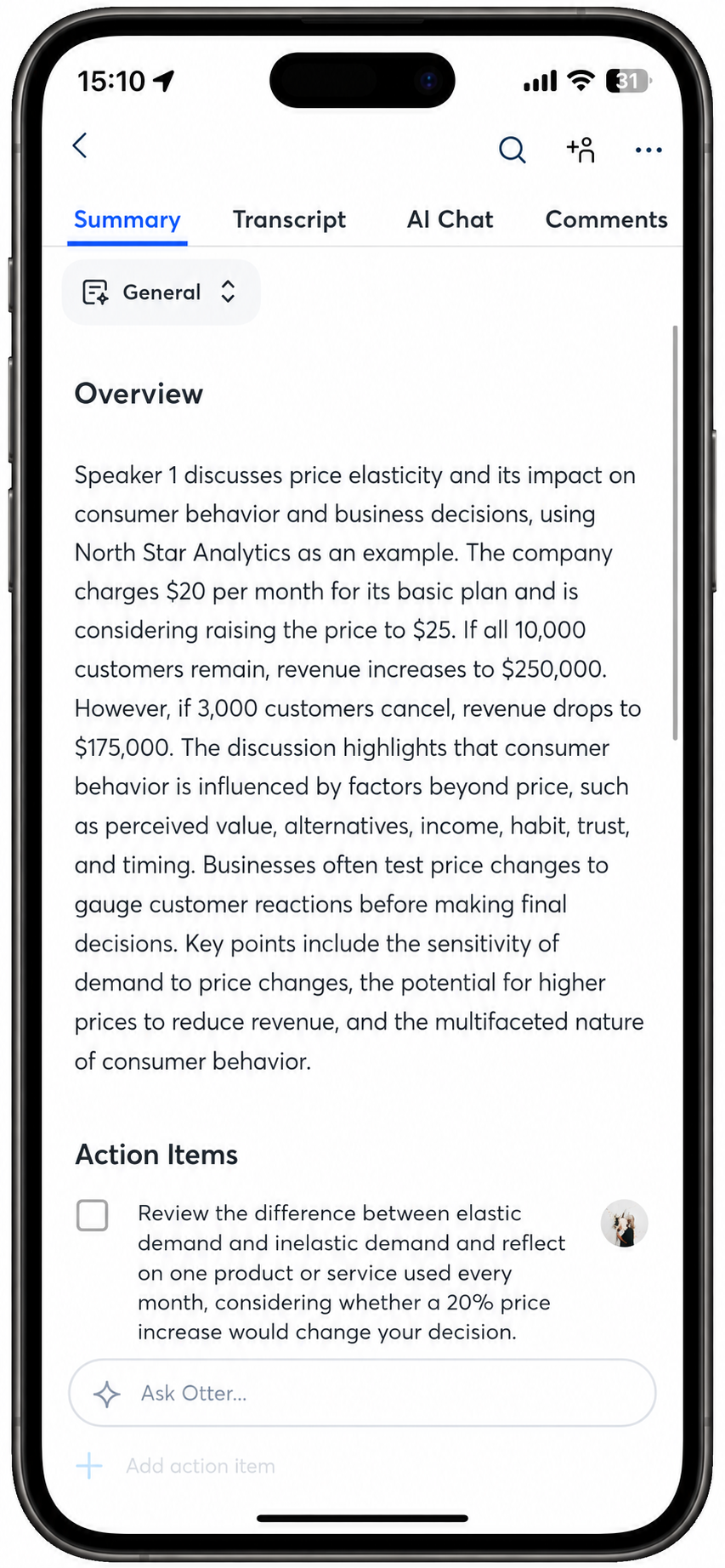
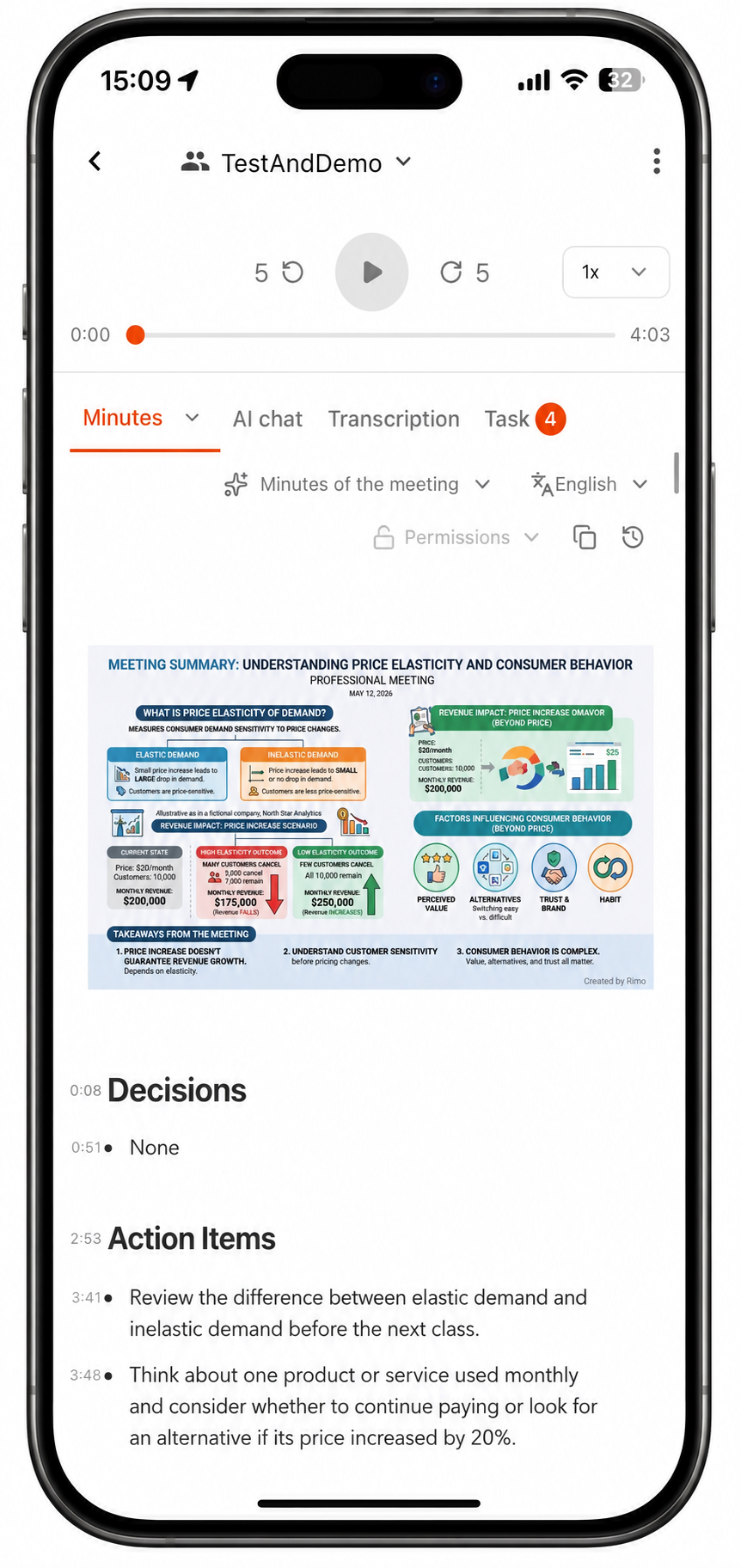
For this test, we recorded the lecture-style audio with the mobile apps for both Otter.ai and Rimo Voice, since in-person lecture recording is usually done on a smartphone. The screenshots below are shown from the desktop versions where possible so the transcript, summary, and structured notes are easier to read. Recordings made on mobile can also be reviewed and shared from desktop, which makes it easier to check the results on a full screen after recording.
Otter.ai mobile app recording screen
Rimo Voice mobile app screen
Otter.ai Transcription Results: What It Got Right
Across all three test conditions, Otter.ai worked well as a searchable record of the lecture. The transcript was strongest in the close-distance test, but even at medium distance and with light background noise, it still captured the main topic, key terms, and many important numerical details.
Test condition | What Otter.ai did well | What still needed attention |
Close distance | Produced the cleanest transcript. It preserved the flow of the explanation, key technical terms, and business-related details such as prices, dates, percentages, customer numbers, and revenue-related figures. | The transcript was useful, but still not polished study material. |
Medium distance | Still captured the core lecture content, including the main topic, key terms, and important examples. | The output felt slightly more dependent on later checking and light cleanup. |
Medium distance + light noise | Preserved the main meaning of the lecture and many important details. | Small non-lecture sounds were more likely to appear as extra words, and punctuation or sentence boundaries were not always smooth. |
This matters for both students and professionals. Students may want to quickly find a term, date, or number from a lecture, while business users may want to locate a budget, target, price, or metric without rereading a full transcript.
Overall, Otter.ai was useful for checking missed details and reviewing the main points of the lecture. It was not perfect as polished study material, but it performed well as a searchable review backup.
Where Otter.ai Struggled: Distance, Noise, and Speaker Audio
Otter.ai still captured the main lecture content at medium distance and with light background noise, but the output became less polished as the recording conditions became less ideal. The main issue was not that Otter.ai lost the lecture meaning, but that the transcript required more checking and cleanup.
Challenge | What happened in the test | Why it matters |
Distance from the speaker | Even at about 4 meters from the speaker, Otter.ai preserved the main topic, key terms, and many important numerical details. | Distance did not break the transcript, but it made the output feel less clean than the close-distance recording. |
Light background noise | Otter.ai still captured the main meaning, but small non-lecture sounds were more likely to appear as extra words. | In a real classroom, typing, coughing, chair movement, or nearby talking may create similar noise. |
Raw transcript quality | The words were mostly accurate, but punctuation and sentence boundaries were not always smooth. | The transcript was useful for review, but not always ready to use as polished lecture notes. |
Speaker movement and real classroom audio | This test used audio played from a PC speaker. A real professor may move around, turn away from the microphone, speak more softly, or respond to students. | Real lecture halls may be harder than this controlled test, especially if the phone is far from the speaker. |
So, even though Otter.ai performed well in this test, it would still be risky to place a phone at the back of a large classroom and expect perfect notes. Otter.ai is useful as a review backup, but it should not fully replace listening, taking notes, or checking important details afterward.
Otter.ai Summary and AI Chat: Was It Useful for Reviewing the Class?
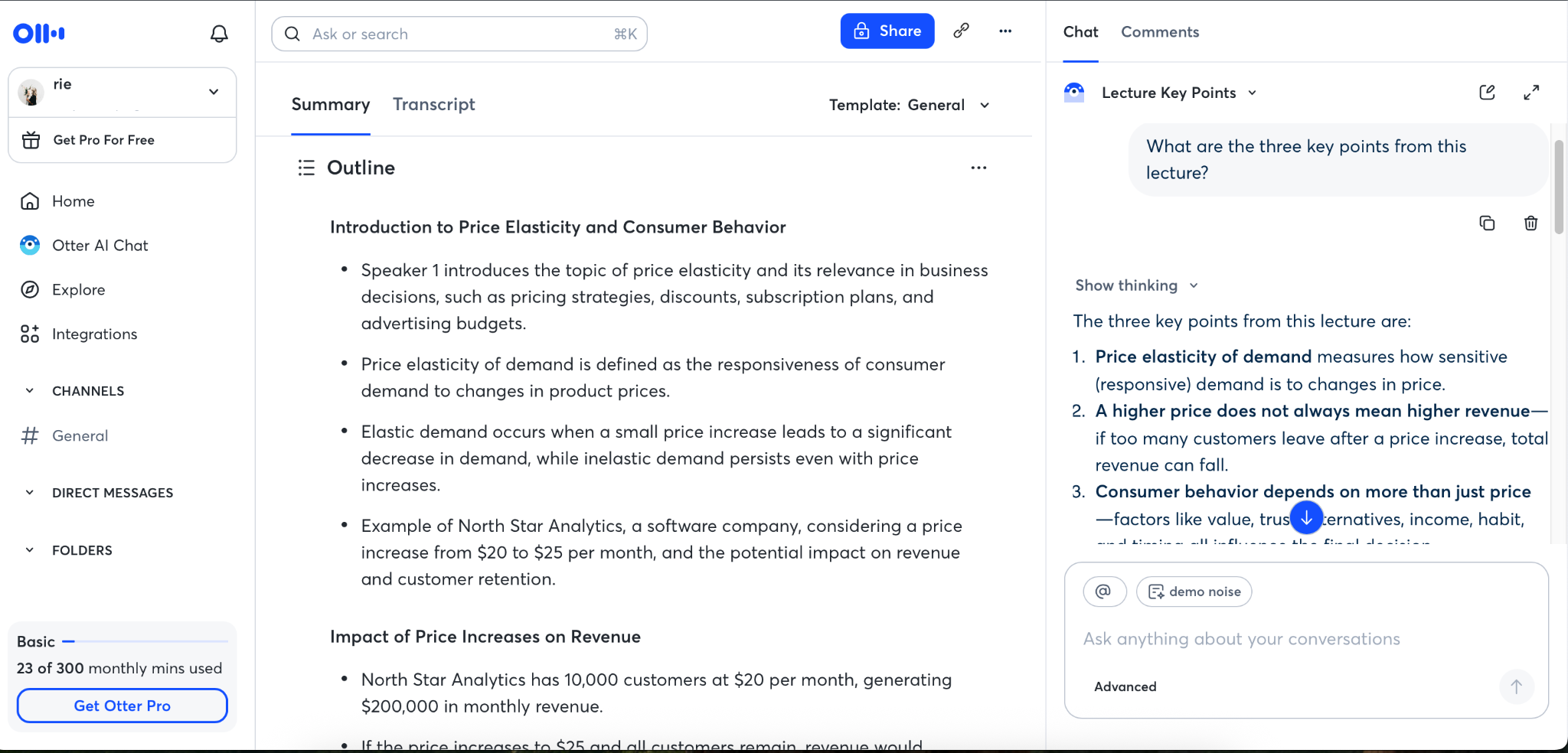
Otter.ai’s summary and AI Chat were useful for reviewing the lecture at a high level. The summary helped identify the main topic and key points without rereading the full transcript, while AI Chat made it easier to ask follow-up questions such as “What were the main examples?” or “What numbers were mentioned?”
However, the output still worked best as a review aid, not as polished study material. The user would still need to check important numbers, rewrite the notes, or organize them into a study guide if they wanted exam-ready material.
Rimo Voice Results: Structured Notes, Context, and Review Usability
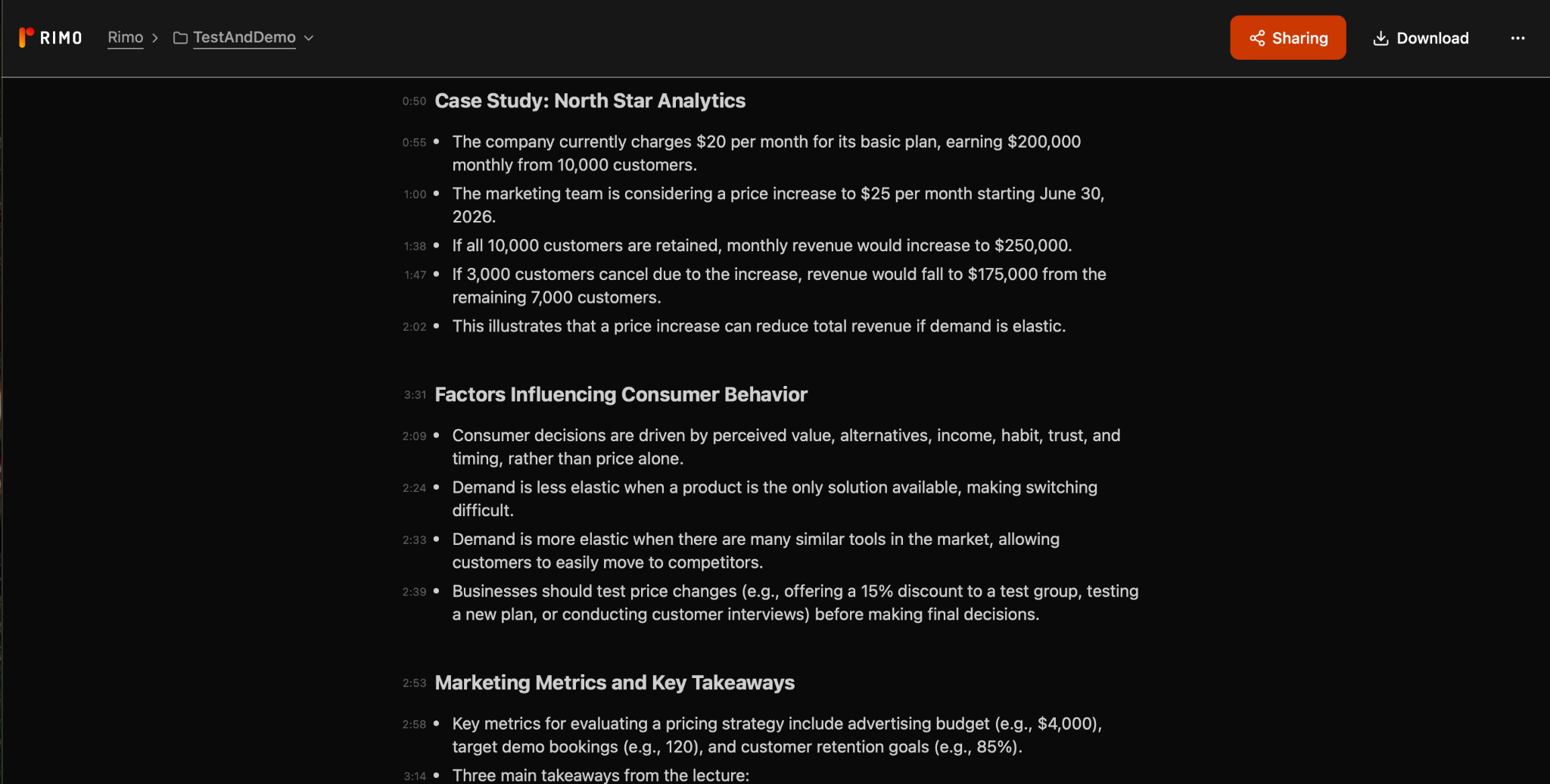
Rimo Voice also captured the main lecture content accurately, but its biggest strength was what happened after transcription. Across all three test conditions, it turned the lecture-style audio into structured, review-friendly notes with visual diagrams, making the content easier to understand at a glance.
Test condition | Rimo Voice result |
Close distance | Clearly captured the overall topic, explanation flow, key terms, numerical details, and main review points. |
Medium distance | Continued to preserve the lecture structure and important details, even with the phone placed about 4 meters from the speaker. |
Medium distance + light noise | Still produced understandable, review-friendly notes that kept the main topic, key takeaways, and important details clear. |
Where Rimo Voice stood out was the way it organized the content. Instead of leaving the user with only a raw transcript or a short overview, it generated structured notes with sections such as discussion points, key takeaways, and next steps. The automatically generated diagrams also helped show the relationship between the main concept, supporting examples, and conclusions in a more visual way.
The screenshots below show how Rimo Voice presented the lecture content in a more organized and visual format. This made it easier to review, understand, and reuse the recording afterward.
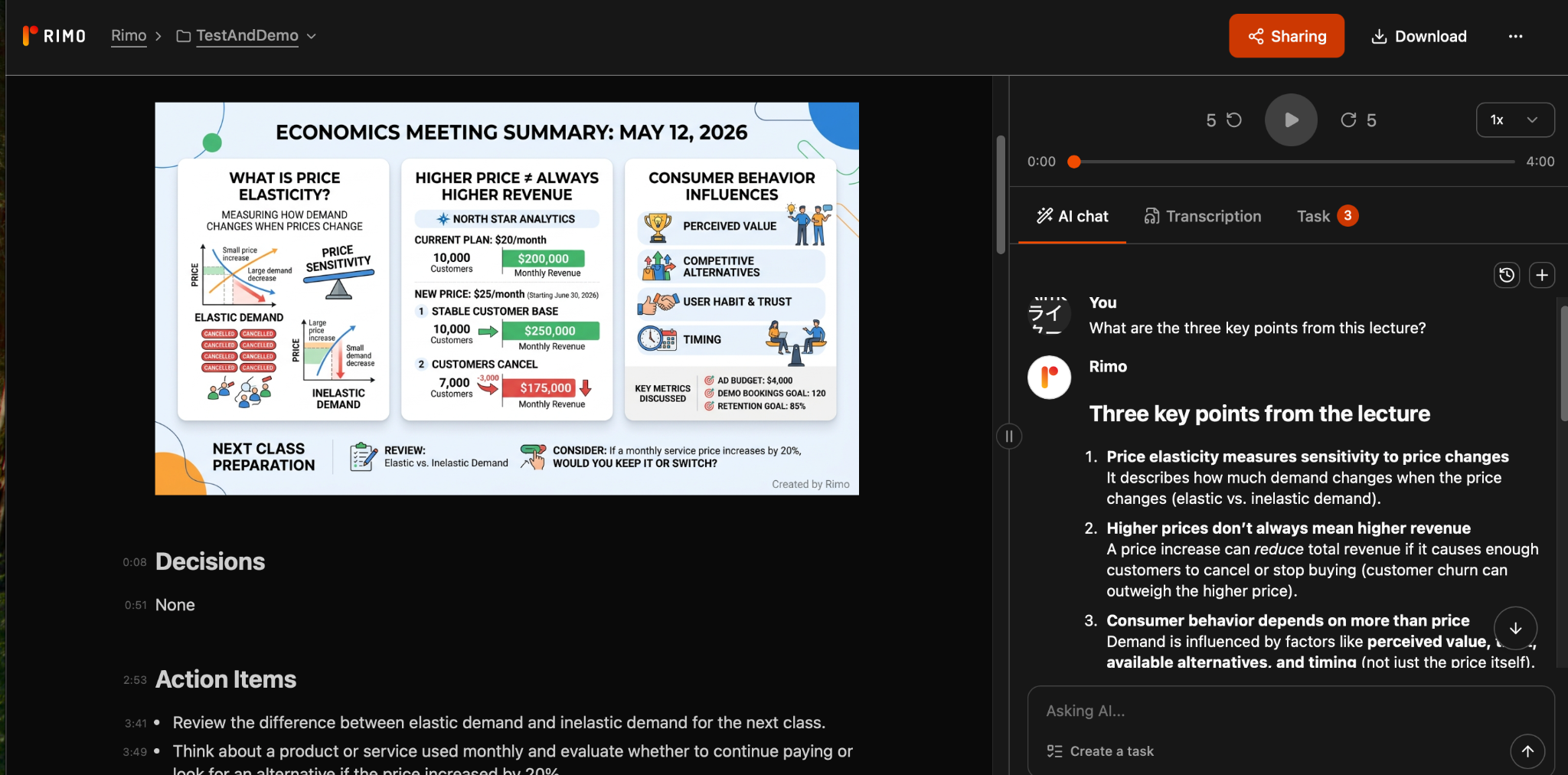
One small limitation was that some labels felt slightly meeting-oriented rather than purely classroom-specific. Still, for users who want recorded content to become readable notes and visual summaries they can review, share, or reuse, Rimo Voice felt especially practical.
Otter.ai vs Rimo Voice: Which One Is More Useful After Recording?
A transcript is useful, but it is rarely the final destination. After a class, meeting, interview, or customer call, most people still need to review, share, study, write, or take action. That is where the difference between Otter.ai and Rimo Voice becomes clearer.
Choose Otter.ai If You Want Searchable Meeting Memory
Choose Otter.ai if your main goal is to keep a searchable record of what was said.
This is where Otter.ai feels especially useful. After a lecture, meeting, interview, or customer call, you may not need a perfectly polished document right away. You may simply need to find the moment when someone mentioned a deadline, explained a concept, shared a number, or assigned a next step.
In our in-person recording test, Otter.ai did a strong job preserving the core lecture content, including key terms and numerical details. That makes it useful for people who want to revisit spoken information later without replaying the entire recording.
For students, that could mean checking a term from class before studying. For professionals, it could mean finding a decision from last week’s meeting. For sales teams, it could mean searching a customer call for pricing concerns, objections, or buying signals.
Otter.ai is a good fit when the transcript itself is the asset: something you can search, review, and ask questions about later.
Choose Rimo Voice If You Want Structured Notes You Can Reuse
Choose Rimo Voice if your bigger problem is not remembering the recording, but turning it into something useful afterward.
This matters when the transcript is only the raw material.
A lecture might need to become study notes. An interview might need to become an article outline. A strategy discussion might need to become a campaign brief. A customer call might need to become a follow-up email or proposal.
In these cases, a transcript alone can still feel like work. You may technically have the information, but you still need to shape it.
Rimo Voice is worth considering when you care about structured notes, context, and outputs that can be reused for studying, writing, reporting, planning, or sharing.
What About Rimo Actions?
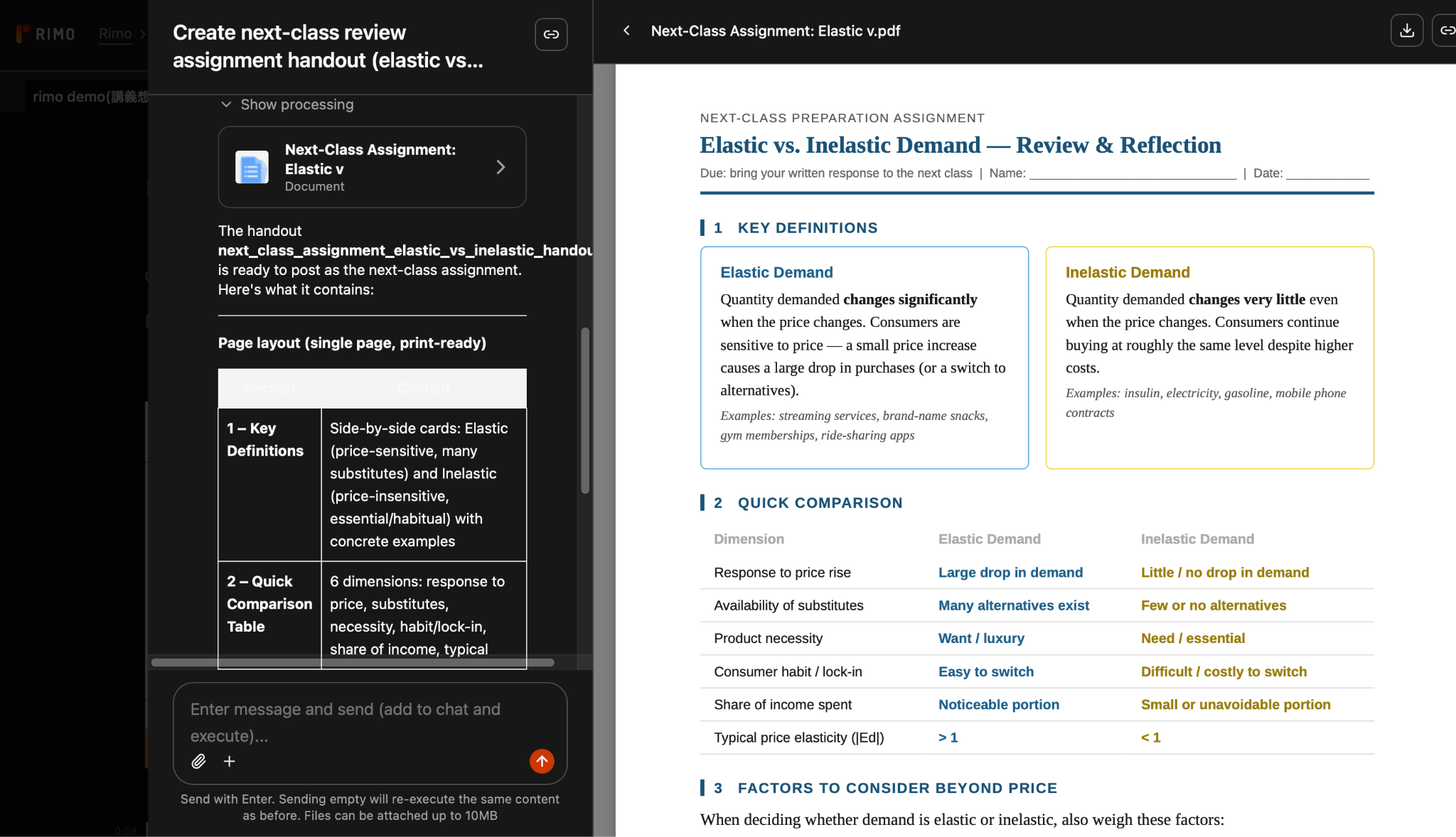
Rimo Actions is the part of Rimo Voice that pushes the idea further: from notes to post-recording execution.
Instead of stopping at “here is what happened,” Rimo Actions is designed to help turn recorded content into actual work. In practice, that could mean using a conversation to create an email draft, a report, a document, a campaign idea, a chart, or a list of next actions.
That makes it relevant for people who regularly leave recordings with a familiar problem:
“I have the transcript. Now I still need to turn it into something.”
For a student, that “something” may be review notes. For a writer, it may be an article outline. For a marketer, it may be an ad copy or a landing page brief. For a sales team, it may be a follow-up email.
Otter.ai helps you remember the recording. Rimo Actions is more about reducing the work that comes after it.
Otter.ai Pricing: Is Otter.ai Free?
Otter.ai does have a free plan, but the better question is not simply whether you can use it for free. The better question is whether the free plan fits the way you actually record and review classes, meetings, interviews, or sales calls.
Plan | Price | Best for | Key limits / features |
Basic | Free | Trying Otter.ai for short recordings | 300 monthly transcription minutes, 30 minutes per conversation, 3 lifetime audio/video file imports, live transcription, speaker identification, AI Chat |
Pro | $8.33/user/month, billed annually | Individuals and small teams | 1,200 monthly transcription minutes, up to 90 minutes per meeting, 10 monthly audio/video file imports, advanced search/export/playback |
Business | $19.99/user/month, billed annually | Teams that record frequently | Unlimited meetings and in-app recordings, up to 4 hours per meeting, unlimited audio/video file imports, admin features, usage analytics, 3 concurrent meetings |
Enterprise | Custom pricing | Large companies | Everything in Business, plus SSO, SCIM, domain capture, enterprise security controls, Otter API and webhooks, custom integrations |
Otter.ai Free Plan: What You Can and Cannot Do
Otter.ai has a free Basic plan, which makes it easy to test the tool before paying. As of May 2026, the Basic plan includes 300 monthly transcription minutes, live transcription, speaker identification, audio playback, AI Chat, mobile apps, and three lifetime audio or video file imports.
For casual users, this is a practical starting point. If you only want to record a short class, a personal meeting, a quick interview, or a one-off conversation, the free plan may be enough to see whether Otter.ai fits your workflow.
However, the free plan is not built for heavy use. If you regularly record long lectures, weekly meetings, interviews, webinars, or customer calls, the monthly limit and file import restrictions may become frustrating.
The best way to think about the free plan is this: it is useful for testing Otter.ai, but it may not be enough if transcription becomes part of your weekly study or work routine.
Otter.ai Paid Plans: Who Should Upgrade?
You should consider upgrading Otter.ai when transcription starts saving real time, not just when the tool feels interesting.
As of May 2026, Otter.ai’s Pro plan is listed at $8.33 per user per month with annual billing, while the Business plan is listed at $19.99 per user per month with annual billing. The Pro plan includes higher recording limits, more file imports, advanced search, export, playback, team vocabulary, and taggable speakers. The Business plan adds more team-oriented features, including longer meeting limits, enhanced admin features, usage analytics, and the ability to join multiple concurrent meetings.
A paid plan is more likely to make sense if you:
record several meetings, classes, or interviews every week
need longer recording limits
upload audio or video files regularly
share transcripts with a team
need better search, export, or collaboration features
use transcripts as part of sales, research, writing, or content workflows
For students or occasional users, it is reasonable to start with the free plan. For professionals, the decision is different. If Otter.ai saves you time after several conversations each week, the paid plan may be easier to justify.
The better question is not simply “Is Otter.ai cheap?” It is “How much time do I lose when I have to replay, summarize, search, or ask someone what was said?”
Otter.ai for Different Use Cases
Otter.ai does not feel the same for every user. A student recording a lecture, a manager reviewing a team meeting, a journalist transcribing an interview, and a sales rep analyzing a customer call all need different things from the same tool. This section breaks down where Otter.ai fits best by use case.
Otter.ai for Students and Lectures
For students, Otter.ai is most useful as a lecture review tool. It can record a class, create a searchable transcript, summarize the main points, and help students check terms, dates, numbers, or examples they missed during the lecture.
However, students should not treat the transcript as perfect notes. In real classrooms, accuracy can be affected by distance, background noise, professor movement, and overlapping student voices. Otter.ai works best as a backup for reviewing what was said, not as a replacement for listening, taking notes, or checking important details afterward.
Students should also confirm school or professor policies before recording lectures.
Otter.ai for Business Meetings
In business meetings, Otter.ai is useful because the most important details are often not the loudest ones.
A meeting may include a decision, a risk, a deadline, a customer quote, and three action items — all hidden inside a 45-minute conversation. If nobody captures them well, the team leaves with different memories of what was agreed.
Otter.ai helps by creating a record that people can revisit. This is useful for weekly team meetings, one-on-ones, project updates, client calls, and cross-functional discussions.
For example, a product manager can check exactly what engineering said about a release delay. A manager can review what was discussed in a one-on-one before the next meeting. A team member who missed the call can catch up without asking everyone to repeat the conversation.
However, if your meeting notes are only the beginning, not the end, you may need more than Otter.ai. If the meeting needs to become a proposal, campaign brief, sales follow-up, or internal report, tools like Rimo Actions are worth comparing.
Otter.ai for Sales Calls and Customer Interviews
Sales calls and customer interviews are not just conversations. They are raw customer intelligence.
A prospect may casually mention that pricing is the biggest concern. A customer may explain why the onboarding process felt confusing. A buyer may reveal that the real decision-maker is someone who was not on the call.
These details are easy to miss when you are trying to lead the conversation, ask good questions, and build trust at the same time.
Otter.ai helps by preserving the customer’s words. Later, you can search for pricing, timeline, competitor names, objections, feature requests, or decision criteria.
This is valuable because customer language is often better than internal language. The exact words a customer uses can improve sales follow-ups, product messaging, FAQ pages, landing page copy, and internal reports.
But again, the question is what happens next. If you only need to review the call, Otter.ai may be enough. If you want to turn the call into a follow-up email, proposal outline, CRM update, or customer insight report, you should compare it with tools that focus more directly on workflow automation and output generation.
Otter.ai for Non-Native English Speakers
For non-native English speakers, Otter.ai can reduce the anxiety of missing something important in a fast conversation.
In an English meeting, you may understand the overall topic but miss a number, a name, a deadline, or a short phrase. That small missed detail can matter. Was the budget $15,000 or $50,000? Did the client say June or July? Was the next step assigned to your team or theirs?
A transcript gives you a second chance.
That said, Otter.ai should not be treated as a perfect interpreter. Accuracy can still be affected by fast speech, accents, overlapping voices, poor audio, proper nouns, and technical vocabulary.
For non-native speakers, the most realistic way to use Otter.ai is as a safety net: not a tool that removes the need to listen, but one that lets you confirm what you heard afterward.
If your work involves multilingual meetings, translation, or summarizing non-native speech into polished notes, it may also be worth comparing Otter.ai with tools that focus more strongly on multilingual context and structured summaries, such as Rimo Voice. In our separate Rimo Voice test with non-native English speakers, Rimo Voice showed strong contextual understanding even when accents and pronunciation were not perfect.
Otter.ai Alternatives: Do You Really Need Another Tool?
Before choosing an Otter.ai alternative, ask one question:
What exactly do you want to replace?
If you want better transcription, that is one comparison. If you want cleaner meeting summaries, that is another. If you want CRM automation, that leads to a different set of tools. If you want meeting content to become articles, emails, reports, or proposals, the comparison changes again.
The mistake is to search for “Otter.ai alternatives” and then compare ten tools as if they all solve the same problem.
They do not.
Some tools are better at recording. Some are better at summaries. Some are built for sales teams. Some are designed for people who want to reuse meeting content as real work output.
If You Want More Reusable Notes from Recordings: Rimo Voice
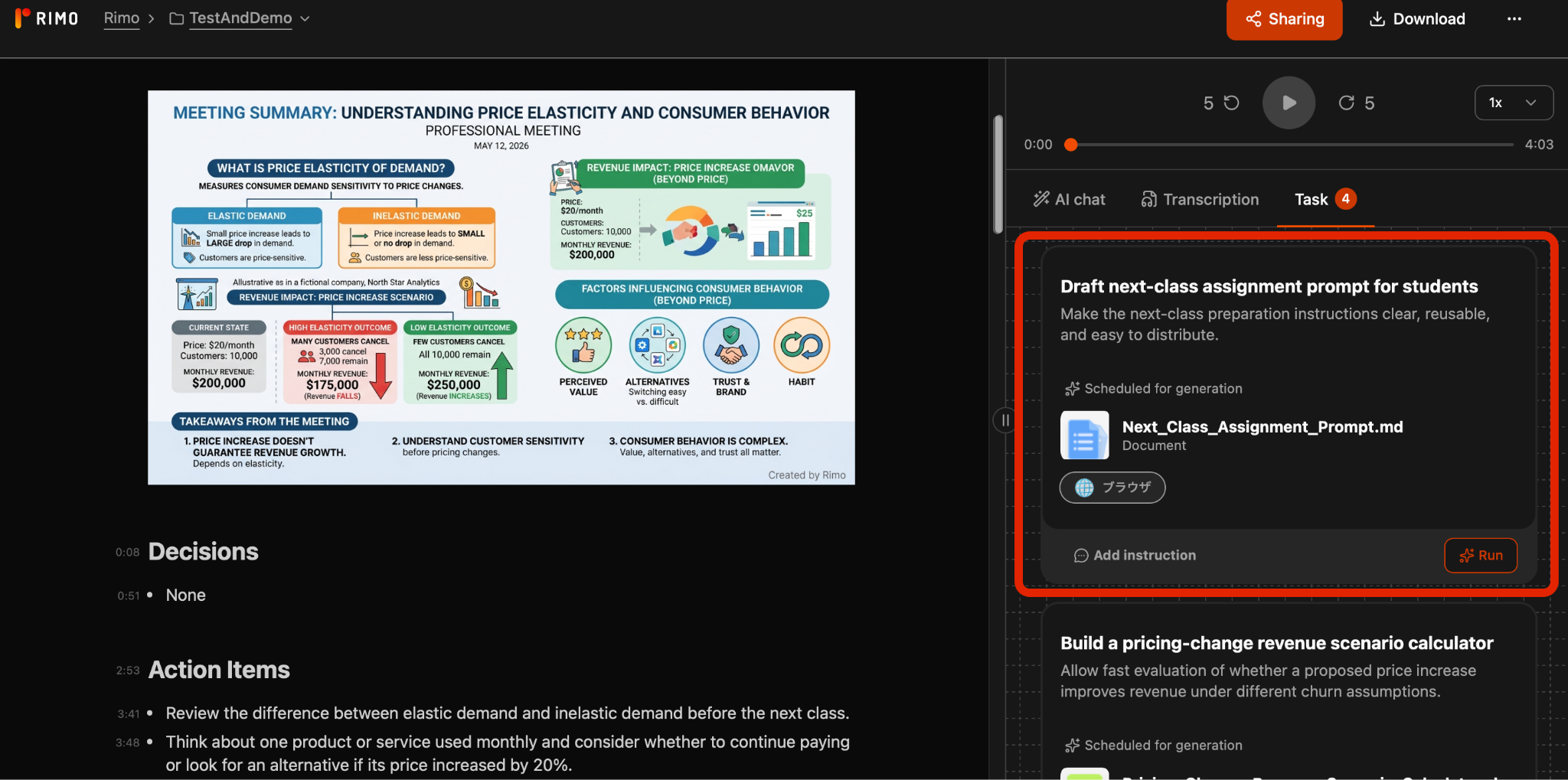
If your main frustration with Otter.ai is that the transcript still feels like raw material, Rimo Voice is one of the most relevant alternatives to consider.
Rimo Voice is useful when you want meeting or lecture content to become structured notes that are easier to read, share, and reuse. This matters for people who record conversations because they need to create something afterward.
For example:
A writer can turn an interview into an article outline.
A marketer can turn a strategy meeting into a campaign brief.
A sales team can turn a customer call into follow-up material.
A consultant can turn a client discussion into a report structure.
Rimo Actions extends this idea further by helping turn meeting content into post-meeting outputs such as documents, emails, reports, and other deliverables.
So if Otter.ai feels like a strong memory tool, Rimo Voice is better framed as a tool for people who want meeting notes to become reusable work assets.
If You Want CRM and Sales Workflow Automation: Fireflies.ai
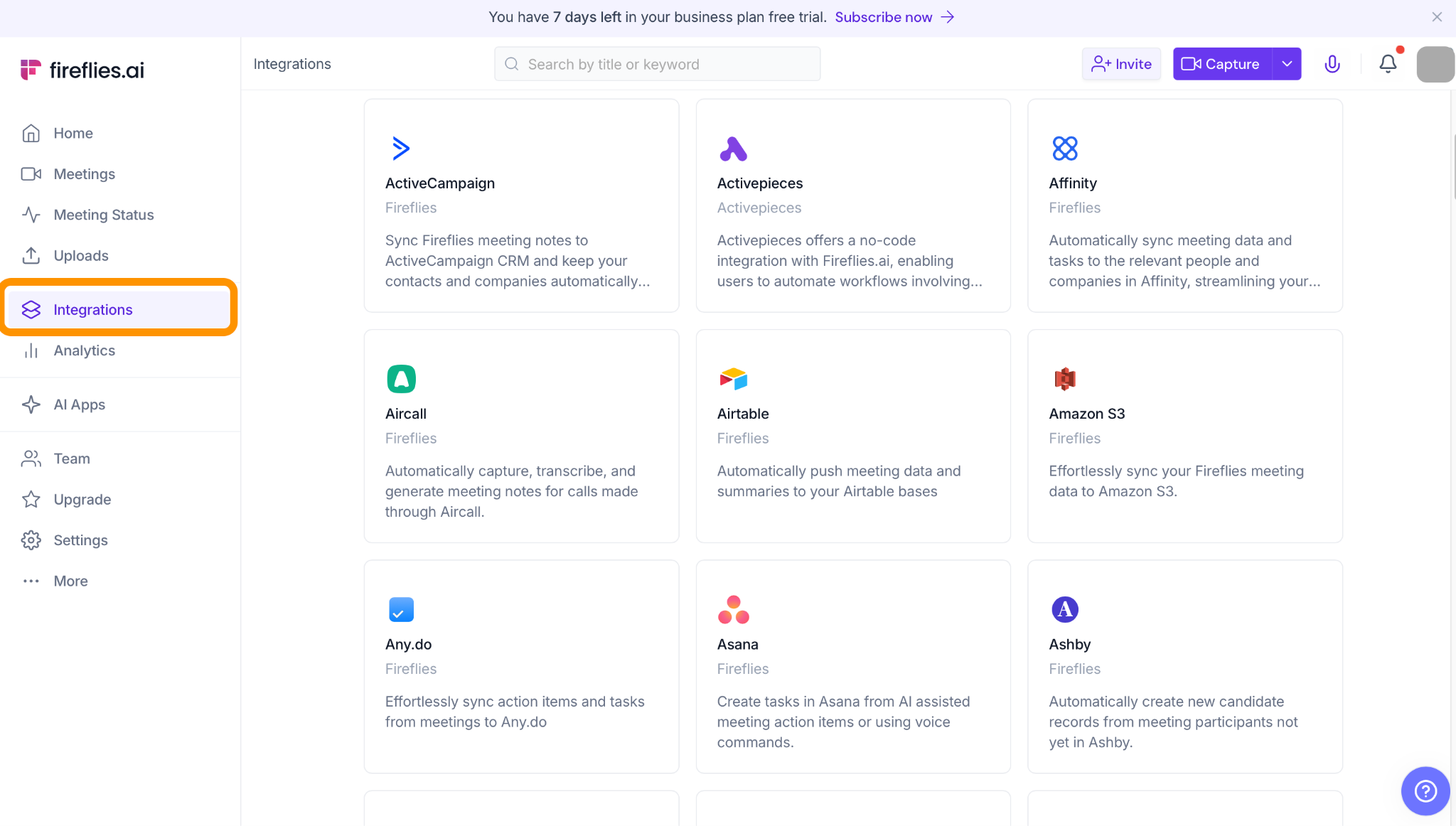
Fireflies.ai is worth comparing if your meeting notes are closely tied to sales operations.
For sales teams, the transcript is rarely the final goal. The real goal is to understand customer objections, update the CRM, share insights with the team, and prepare the next follow-up.
That is where sales-oriented meeting tools become relevant. If your team cares about CRM workflows, sales call analysis, and customer conversation intelligence, Fireflies.ai may be a better comparison point than a general note-taking app.
However, for readers who simply want to record lectures, interviews, or general meetings, Fireflies.ai may feel more sales-focused than necessary.
For more details on Fireflies ai, see our related article.
If You Want Simple Meeting Notes: Fathom or Granola
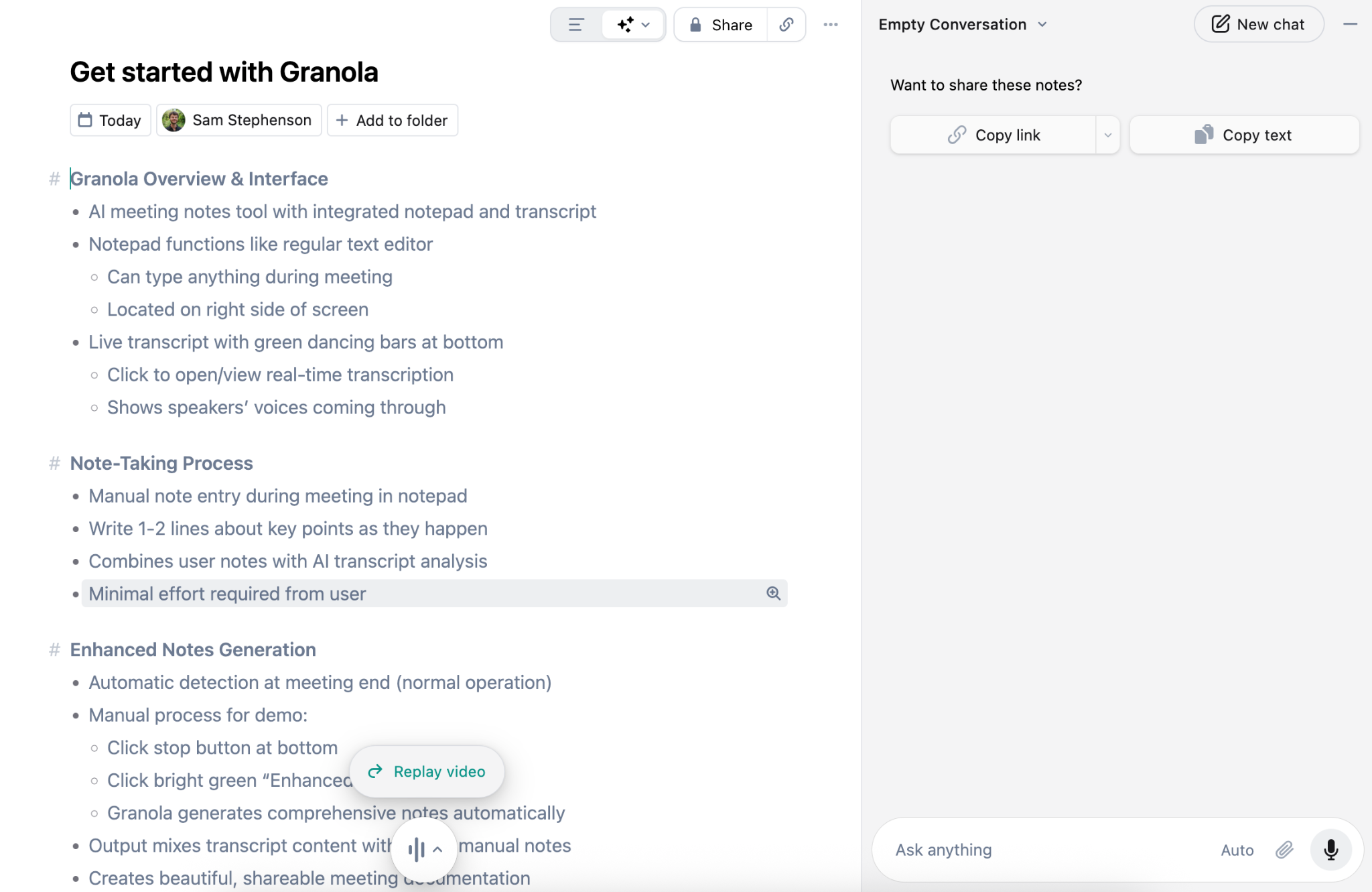
Example of Granola
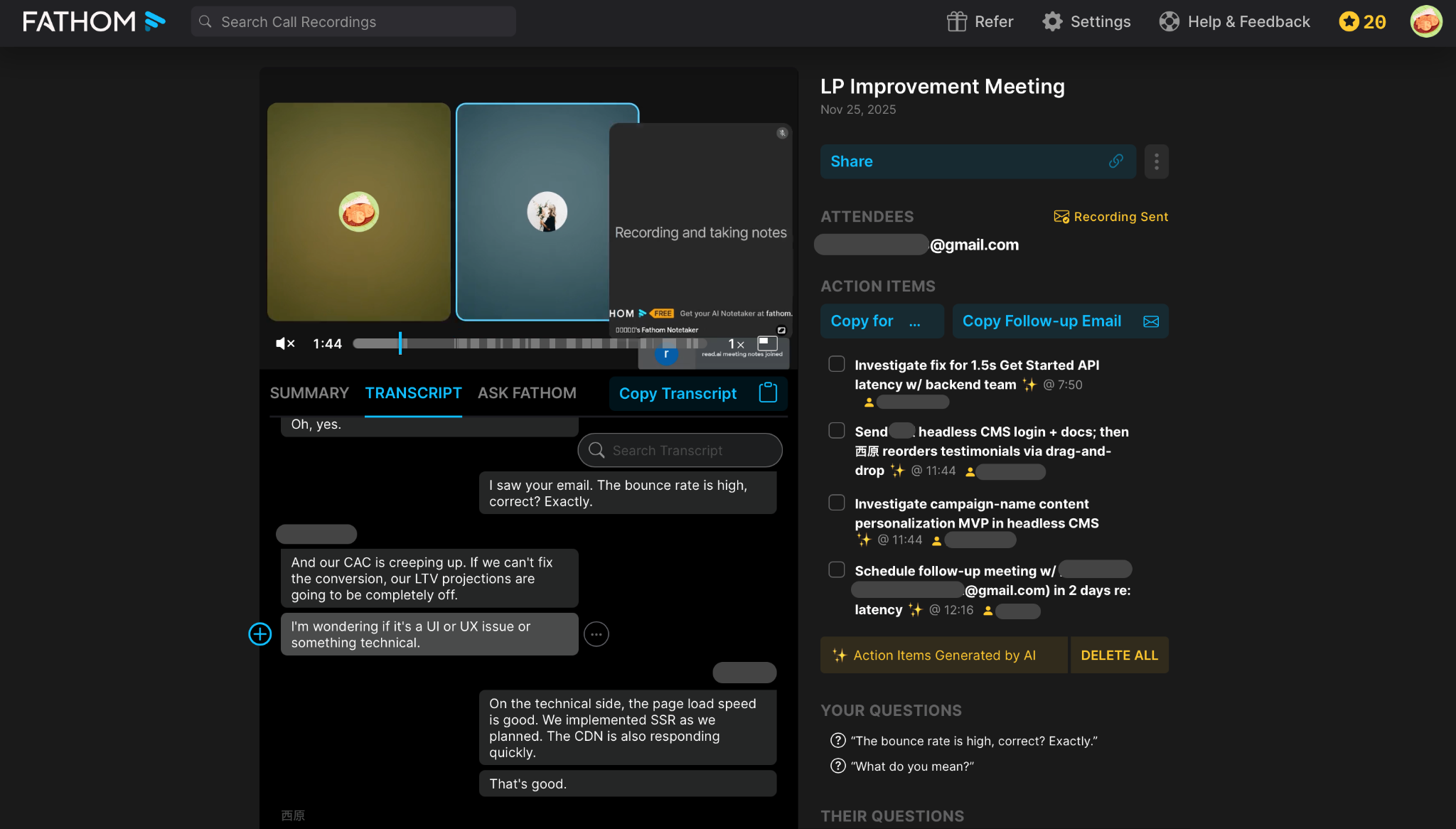
Example of Fathom
Fathom and Granola are better alternatives to consider when you want simple meeting notes without turning your workflow into a large system.
Some users do not need deep automation, advanced outputs, or heavy team workflows. They just want to finish a call and have a useful summary waiting for them.
That kind of user may prefer a lighter tool.
This is especially true for solo professionals, small teams, founders, freelancers, and people who want help with meeting notes but do not want to manage a complex knowledge base.
In other words, if Otter.ai feels too much like a searchable archive, and Rimo Voice feels more output-oriented than you need, a simpler meeting note tool may be enough.
For more details on Granola , see our related article.
For more details on Fathom ai , see our related article.
If Your Team Lives in Notion: Notion AI Meeting Notes
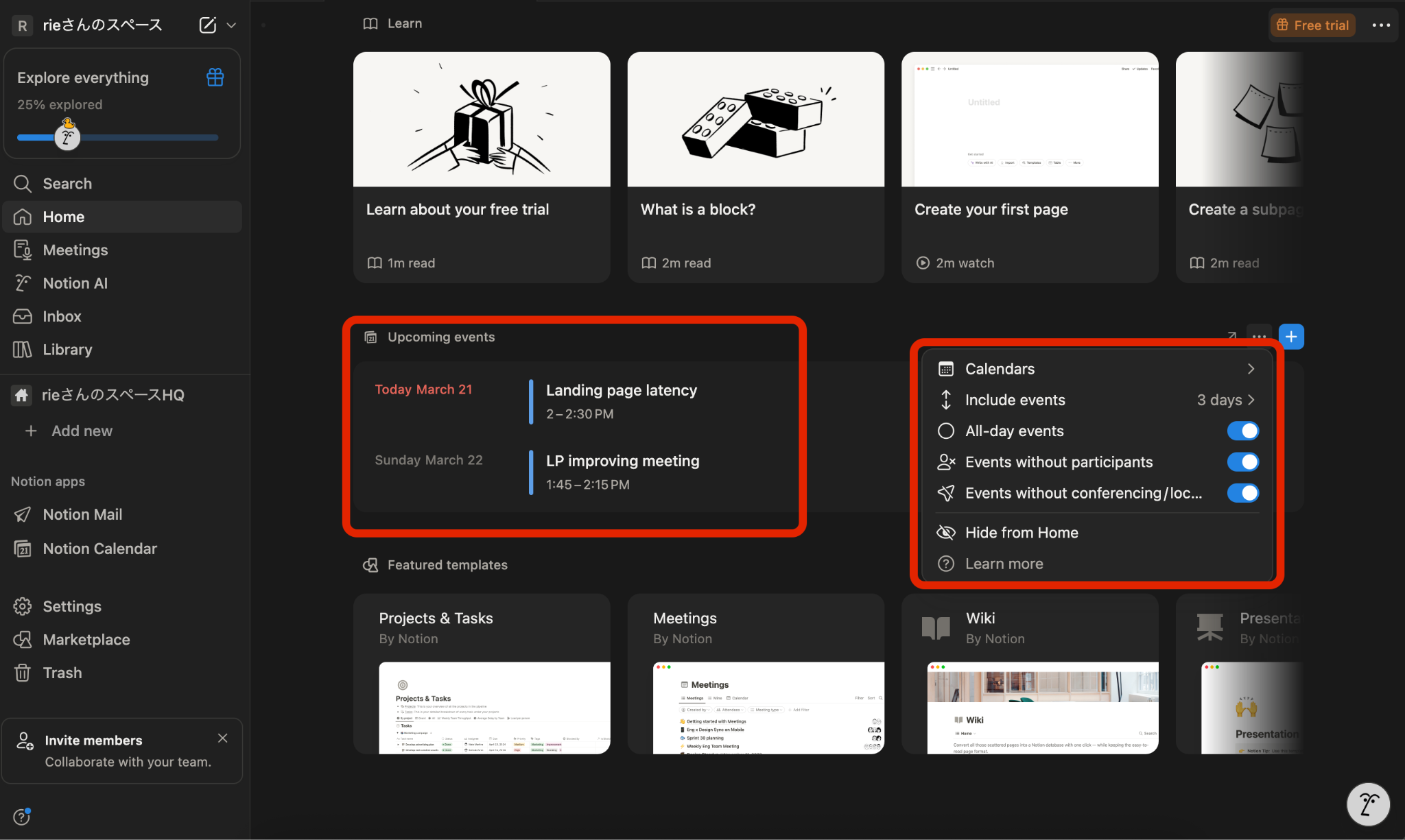
Notion AI Meeting Notes is a natural option for teams that already organize their work inside Notion.
If your projects, documents, tasks, and meeting notes already live in Notion, keeping meeting notes there can reduce context switching. Instead of recording a meeting in one tool and then moving the output into another workspace, the notes can stay closer to the rest of your work.
This is useful for teams that want meeting notes connected to internal documentation, project pages, and task lists.
However, Notion-centered workflows are not always the best fit for every team. If you need stronger post-meeting output generation, multilingual meeting handling, sales follow-up, or external deliverable creation, you should compare Notion AI Meeting Notes with more specialized tools such as Rimo Voice, Rimo Actions, Otter.ai, or Fireflies.ai.
For more details on Notion ai , see our related article.
Final Verdict: Is Otter.ai Worth It in 2026
Otter.ai is worth it in 2026 if your main problem is that conversations disappear too quickly.
It is useful for recording meetings, reviewing lectures, searching past conversations, checking decisions, and asking questions about what was said. For students, professionals, sales teams, and interviewers, it can reduce the stress of trying to listen and document everything at the same time.
But Otter.ai is not automatically the best choice for every “AI meeting notes” use case.
If you want a searchable meeting memory, Otter.ai is a strong option.
If you want cleaner, more structured notes that are easier to reuse, Rimo Voice deserves a close look.
If you want meeting content to become emails, reports, proposals, campaign briefs, or other deliverables, Rimo Actions may be the more relevant comparison.
If you want sales workflow automation and CRM-centered conversation intelligence, Fireflies.ai may also belong on your shortlist.
The best choice depends on where your work gets stuck.
If the problem is remembering what happened, Otter.ai can help.
If the problem is turning what happened into the next piece of work, you may need something more output-driven.
FAQ About Otter.ai
Before choosing Otter.ai, many readers have the same practical questions: Is it free? Is it accurate? Can it record lectures? Can it handle interviews or in-person conversations? How do you stop it from joining meetings automatically? The answers below cover the most common concerns without forcing you to dig through settings pages or support documents.
Is Otter.ai free?
Yes. Otter.ai has a free Basic plan. As of May 2026, the free plan includes 300 monthly transcription minutes and a 30-minute limit per conversation.
The free plan is useful if you want to test Otter.ai with a short meeting, class, interview, or personal recording. If you need longer recordings, more frequent use, team collaboration, or advanced features, a paid plan will likely be more practical.
Is Otter.ai accurate?
Otter.ai can be useful and accurate enough for many everyday meetings, but accuracy depends on the recording environment.
Clear audio, nearby speakers, good microphones, and minimal background noise improve the results. Distance, overlapping voices, accents, technical terms, proper nouns, and poor audio quality can reduce accuracy.
For important meetings, classes, sales calls, or interviews, you should always review the transcript before treating it as final.
Can Otter.ai record a professor in class?
Yes, Otter.ai can be used to record lecture-style audio, but the quality depends heavily on the recording environment.
In our in-person recording test, Otter.ai performed well with a short university-style lecture played from a PC speaker. It captured the main topic, key terms, and important details across close-distance, medium-distance, and medium-distance-with-noise conditions.
However, this does not mean every classroom recording will work equally well. A real lecture hall may have more echo, background noise, students talking nearby, a professor moving around the room, or a weaker audio source.
So the practical answer is: Otter.ai can help record and review lectures, but it should be used as a study backup, not as a perfect replacement for listening or taking notes. Students should also check school policies and get permission when required.
For more detail, see the in-person recording test section above.
How do I turn off Otter.ai or stop it from joining meetings?
If Otter.ai is joining meetings automatically, you can change the Notetaker setting from your account settings.
A common way to stop Otter Notetaker from automatically joining every meeting is:
Click your profile icon.
Open Account Settings.
Go to the Meetings tab.
Find the Otter Notetaker setting.
Select “Meetings I manually select."
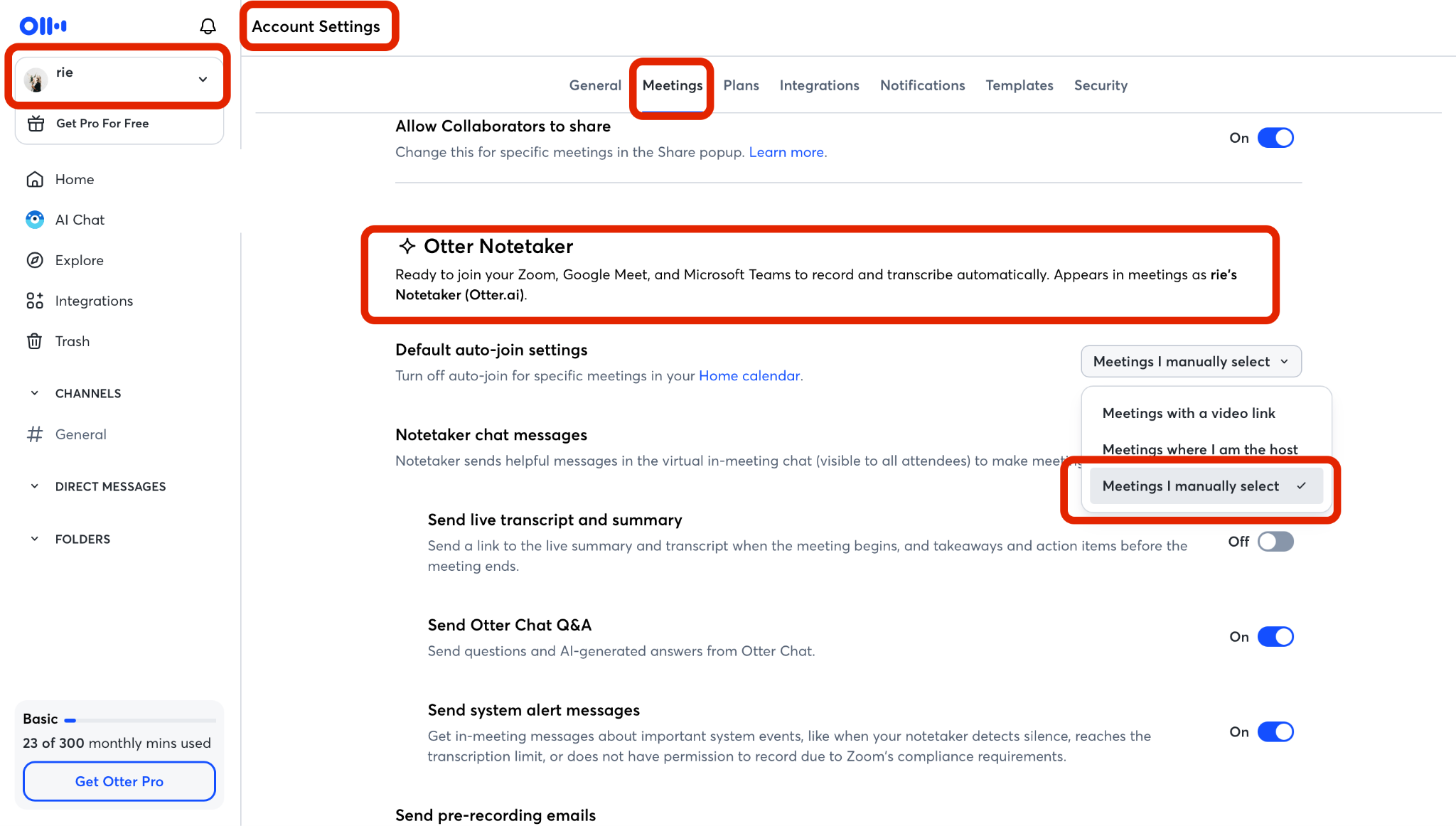
This setting tells Otter.ai not to automatically join every calendar meeting. Instead, Otter Notetaker should only join the meetings you choose manually.
This is especially important if you use Otter.ai for both work and personal calendars. You do not want an AI notetaker joining a private call, a sensitive client meeting, or a class discussion by mistake.
The exact wording may change slightly as Otter.ai updates its interface, but the key setting to look for is the Otter Notetaker auto-join option under the Meetings settings.
How do I remove Otter.ai from Zoom?
If you want to remove Otter.ai from Zoom, you can disconnect Zoom from your Otter.ai account settings.
A common way to do this is:
Click your profile icon.
Open Account Settings.
Go to the Integrations tab.
Find Zoom.
Click Disconnect.
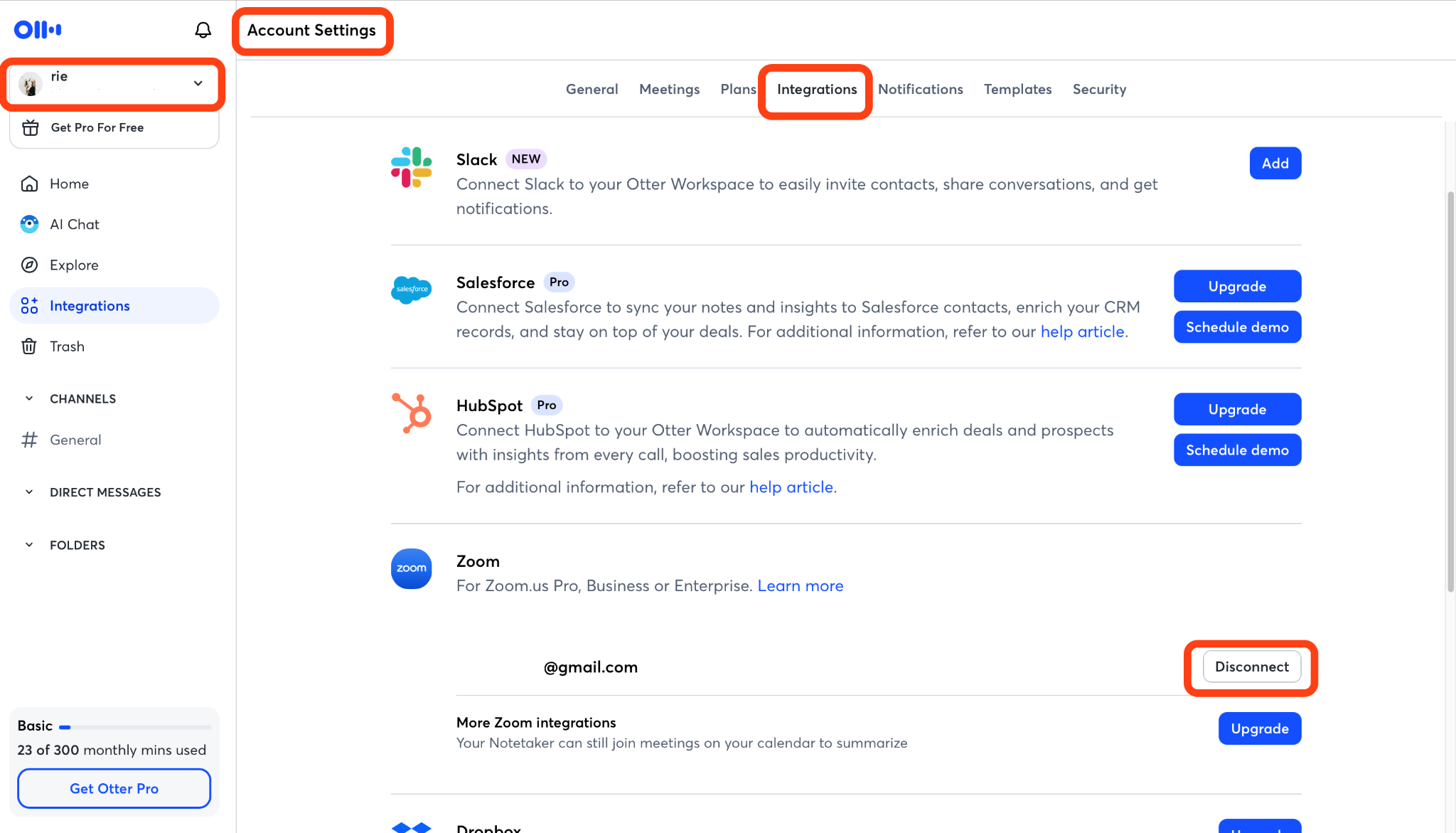
This removes the Zoom integration from your Otter.ai account. After disconnecting Zoom, Otter Notetaker should no longer join Zoom meetings through that integration.
If Otter.ai still appears in future meetings, also check your Meetings settings and make sure Otter Notetaker is set to join only the meetings you manually select.
Can Otter.ai translate?
Otter.ai is primarily a transcription, meeting summary, and AI chat tool, not a dedicated real-time translation platform.
It can still help non-native English speakers review fast English conversations afterward. If you miss a number, term, or short phrase during a lecture, meeting, or interview, the transcript gives you a second chance to check it.
If multilingual support is important, compare Otter.ai with tools designed more directly for multilingual transcription, translation, or context-aware summaries, including Rimo Voice and other multilingual meeting tools.
Is Otter.ai encrypted and safe to use?
Otter.ai states that it is committed to keeping user information private and secure, and its privacy and security page emphasizes transparency for meeting participants. Otter has also announced HIPAA compliance and references security measures such as encryption, access controls, and regular audits in its HIPAA-related materials.
That said, safety is not only about the tool. It is also about how you use it.
If you record customer calls, internal strategy meetings, classes, interviews, or sensitive business discussions, check your company, school, or client rules first. For enterprise use, review admin controls, data retention, access permissions, compliance needs, and whether recording consent is required.
Otter.ai can be useful for sensitive work, but sensitive work deserves careful settings.
Related articles
Return to List